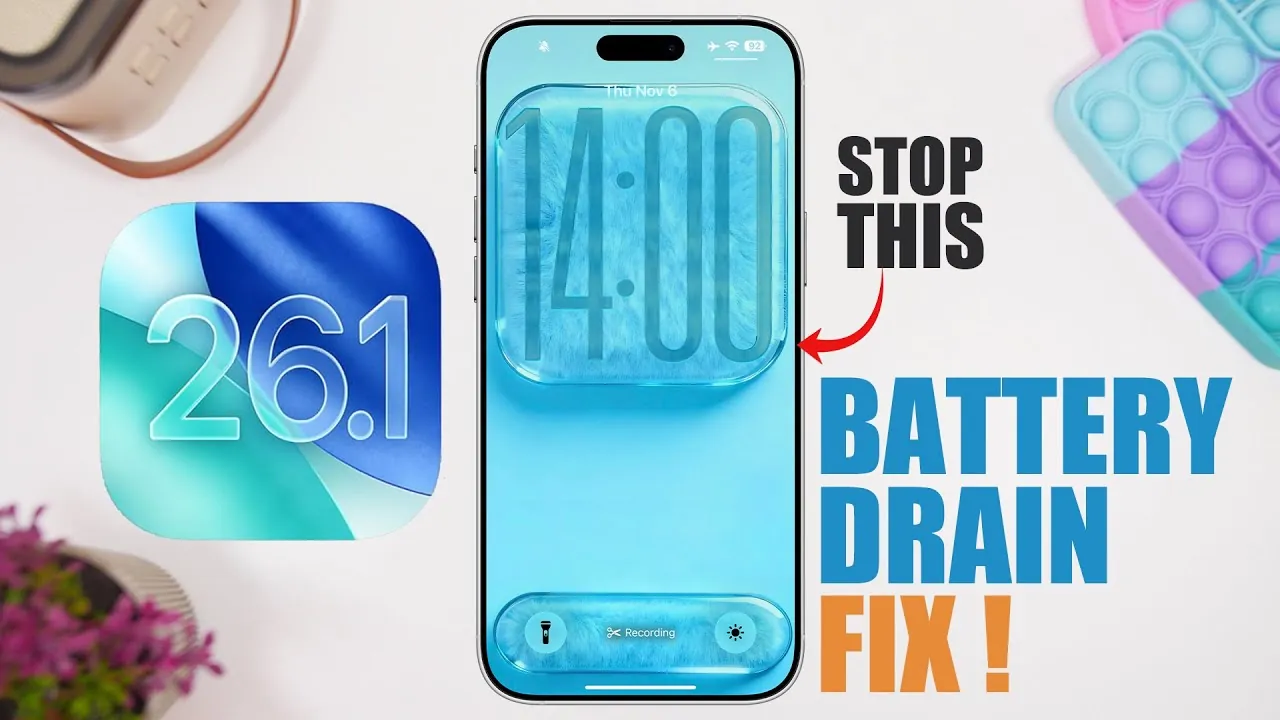
If you’ve noticed a significant battery drain after updating your iPhone to iOS 26.1, you’re not alone. This guide provides actionable steps to help you optimize your device’s battery life. By making small adjustments to your settings and understanding how certain features impact power consumption, you can extend your iPhone’s battery life and maintain optimal performance. The video below from iReviews gives us more details on how to fix battery drain in iOS 26.1.

Verify Your iOS Version
Ensure your iPhone is running the official release of iOS 26.1 rather than a beta version. Beta versions often contain bugs or incomplete features that can negatively affect battery life. Updating to the final release ensures you benefit from Apple’s latest bug fixes and performance improvements. To check your version:
- Open “Settings.”
- Navigate to “General.”
- Select “Software Update” to confirm you’re on the latest version.
Keeping your software up to date is a foundational step in addressing battery issues.
Optimize Lock Screen Features
The lock screen is one of the most frequently accessed parts of your iPhone, and certain features can unintentionally drain your battery. For example, the “Swipe to Open Camera” feature is convenient but can lead to accidental activations. To disable it:
- Go to “Settings.”
- Select “Lock Screen.”
- Turn off the camera swipe option.
Additionally, consider reducing the number of widgets displayed on your lock screen. Widgets that frequently update, such as weather or news, consume more power. Removing non-essential widgets can help conserve battery life.
Adjust Haptic Feedback and Sound Settings
Haptic feedback enhances the tactile experience of using your iPhone, but it also consumes battery power. To minimize its impact:
- Open “Settings” and navigate to “Sounds & Haptics.”
- Disable or reduce haptic feedback for system-wide interactions.
- Enable “Play in Silent Mode” to limit haptic feedback to essential notifications only.
These adjustments can help you strike a balance between functionality and power efficiency.
Manage Wallpaper and Display Settings
Dynamic wallpapers, such as spatial scene wallpapers with 3D effects, are visually appealing but can be resource-intensive. Switching to a static wallpaper can significantly reduce battery consumption. To make this change:
- Go to “Settings.”
- Select “Wallpaper.”
- Choose a static or less resource-heavy wallpaper.
Additionally, allowing “Dark Mode” can save battery on devices with OLED displays, as darker pixels require less power.
Enable Adaptive Power Mode
iOS 26.1 introduces “Adaptive Power Mode,” a feature designed to optimize power consumption based on your usage patterns. This mode automatically adjusts performance to extend battery life. To activate it:
- Open “Settings.”
- Navigate to “Battery.”
- Turn on “Adaptive Power Mode.”
You can also enable notifications to receive updates on its status and recommendations for further optimization.
Update and Monitor Apps
Outdated apps may not be fully optimized for iOS 26.1, leading to excessive battery drain. Regularly updating your apps ensures they are compatible with the latest iOS version. To check for updates:
- Open the App Store.
- Go to the “Updates” tab.
- Install any available updates.
Additionally, monitor battery usage by apps to identify those that consume the most power. To do this:
- Go to “Settings.”
- Select “Battery.”
- Review the “Battery Usage by App” section.
Consider limiting or uninstalling apps that consistently drain your battery unnecessarily.
Disable Background Features
Certain background features, such as Siri Suggestions and proactive app recommendations, can consume power even when you’re not actively using your device. To disable these features:
- Open “Settings.”
- Navigate to “Siri & Search.”
- Toggle off unnecessary options like Siri Suggestions.
Similarly, turning off “Background App Refresh” for non-essential apps can further reduce battery drain.
Use Low Power Mode and Other Battery-Saving Features
Low Power Mode is a reliable way to extend battery life when your device is running low. You can activate it manually or set it to turn on automatically at a specific battery percentage. To enable it:
- Go to “Settings.”
- Select “Battery.”
- Turn on “Low Power Mode.”
Additionally, consider disabling Siri’s “Always Listen” feature, which keeps the microphone active and can drain your battery. To turn it off:
- Open “Settings.”
- Navigate to “Siri & Search.”
- Turn off “Always Listen.”
These features can be used strategically to maximize battery life without compromising essential functionality.
Proactively Monitor and Adjust Settings
Maintaining optimal battery performance requires regular monitoring of your device’s settings and usage patterns. By disabling unnecessary features, updating apps, and using power-saving modes, you can significantly improve your iPhone’s battery life on iOS 26.1. Each adjustment, no matter how small, contributes to a more efficient and reliable device. Stay proactive and make these changes part of your routine to ensure your iPhone operates at its best.
Stay informed about the latest in iOS 26.1 battery optimization by exploring our other resources and articles.
- How to Fix iOS 26.1 Battery Life: Top Tips for Longer iPhone Usage
- iOS 26.1 Update: Key Features, Battery Fixes, and Performance
- How to Get Ready for iOS 26.1: Tips and Tricks
- 12 Essential iOS 26.1 Settings to Improve Your iPhone
- iOS 26.1 and 26.0.2 Updates: Features, Fixes, and Release Dates
Source & Image Credit: iReviews
Disclosure: Some of our articles include affiliate links. If you buy something through one of these links, Geeky Gadgets may earn an affiliate commission. Learn about our Disclosure Policy.
