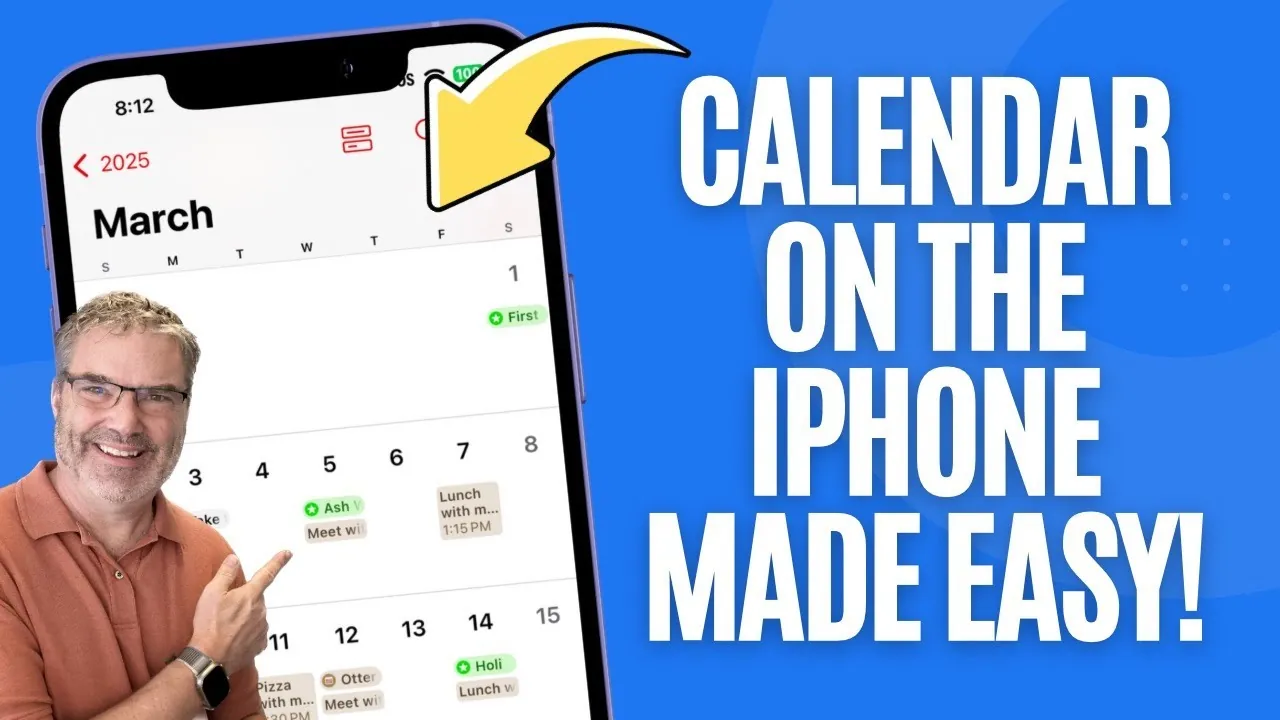
Life can feel like an endless juggling act, can’t it? Between work meetings, family obligations, personal goals, and the occasional social event, it’s easy to feel overwhelmed by the sheer number of things competing for your attention. But what if there was a way to bring a little more order to the chaos? If you’re an iPhone user, you might already have the perfect tool at your fingertips: the iPhone Calendar app. Whether you’re someone who thrives on color-coded schedules or just needs a simple way to remember appointments, this app has features designed to make your life easier—especially with the latest iOS 18 updates.
iOS 18 Calendar App
TL;DR Key Takeaways :
- The iPhone Calendar app offers versatile scheduling features, including event creation, syncing across devices, and customizable calendars for personal, family, and professional use.
- Navigation is intuitive with multiple viewing options (yearly, monthly, daily, list) and tools like pinch-to-zoom and a “Today” button for quick access to your schedule.
- Event management is simplified with drag-and-drop functionality, customizable alerts, and location-based reminders to keep you on track.
- Integration with iOS 18 enhances functionality, including seamless syncing with the Reminders app for a unified view of tasks and events.
- Advanced customization options, such as color-coded calendars, default alert settings, and account synchronization, provide a tailored and efficient scheduling experience.
Think about it: how often do you forget a birthday, double-book yourself, or scramble to find the details of an upcoming event? The iPhone Calendar app isn’t just about marking dates; it’s about giving you control over your time in a way that feels intuitive and stress-free. From customizable views to seamless integration with reminders and multiple accounts, this app adapts to your needs, whether you’re managing a hectic work schedule or planning a family vacation. In this guide, Dan’s Tutorials shows how you can make the most of its features to stay organized and reclaim your peace of mind—because you deserve a schedule that works for you, not against you.
Streamlined Navigation and Flexible Views
The Calendar app is designed with user-friendly navigation and flexible viewing options to suit your preferences. You can switch between yearly, monthly, daily, or list views, allowing you to customize how you visualize your schedule. The pinch-to-zoom feature provides added flexibility, allowing you to zoom in for detailed daily plans or zoom out for a broader overview of your month or year. A dedicated “Today” button ensures you can quickly return to the current date, no matter where you are in the app. These features make it easy to manage even the most complex schedules with confidence and ease.
Simplified Event Creation and Management
Creating and managing events in the iPhone Calendar app is straightforward and efficient. You can add events by entering essential details such as the title, location, time, and recurrence. If you need to make adjustments, editing or deleting events is just as simple. The drag-and-drop functionality allows you to reschedule events effortlessly, while customizable alerts ensure you never miss an important appointment. Additionally, location-based reminders can notify you when you arrive at or leave a specific place, helping you stay on track no matter where your day takes you. These tools make event management seamless and adaptable to your needs.
Stay Organized with the Apple Calendar App
Explore further guides and articles from our vast library that you may find relevant to your interests in Apple Calendar app.
- Top Apple Calendar Tips and Tricks for iOS 18 Users
- Using Apple Notes, Reminders & Calendar for Maximum
- How to set alerts on the Apple Mac Calendar app
- Master Productivity with Apple Notes, Reminders, and Calendar
- Apple Productivity Suite: A Complete Guide to Staying Organized
- Boost Your Workflow with Apple’s Reminders, Notes and Calendar
- How to Use Apple Notes, Reminders, and Calendars Together
- Outlook Calendar iOS Update Enables Skype Intergration
- How Apple’s Invites App Simplifies Event Planning and RSVPs
- Apple Productivity Workflow: Tips for a More Organized Life
Organize with Customizable Calendars
The app allows you to create multiple calendars to organize different aspects of your life, such as personal, work, or family schedules. Assigning unique colors to each calendar makes it easy to identify them at a glance, helping you maintain clarity and focus. Sharing calendars is another valuable feature, allowing collaboration with family members, colleagues, or friends. You can also subscribe to public calendars, such as holidays or sports events, to stay informed about external schedules. These customization options ensure that your calendar is tailored to your specific needs, providing a clear and organized view of your commitments.
Sync Across Accounts and Devices
The iPhone Calendar app integrates seamlessly with multiple accounts, including iCloud, Gmail, and Yahoo, making sure that your events are synchronized across all your devices. This feature allows you to manage both personal and professional schedules in one place, reducing the risk of conflicts. You can toggle the visibility of specific calendars as needed, helping you focus on what matters most at any given time. By consolidating your schedules, the app simplifies time management and ensures that you stay organized across all platforms.
Enhanced Reminders Integration in iOS 18
With the iOS 18 update, the Calendar app now offers deeper integration with the Reminders app. Any reminders with assigned dates automatically appear in your calendar, providing a unified view of your tasks and events. You can also create and edit reminders directly within the Calendar app, streamlining your workflow and reducing the need to switch between apps. If you prefer a cleaner calendar view, you can hide reminders while keeping them active in the background. This integration enhances your ability to manage both short-term tasks and long-term plans in one convenient location.
Advanced Customization Options
The Calendar app offers a variety of advanced settings to enhance your scheduling experience. You can enable week numbers for better planning, set default alert times to ensure timely reminders, and adjust the default duration for new events to match your typical scheduling needs. Sync settings allow you to control how far back events are displayed, helping to declutter your calendar and focus on current and future plans. Additionally, you can select a default calendar for new events, making sure they are automatically categorized correctly. These customization options give you full control over how your calendar operates, making it a highly adaptable tool for managing your time.
Getting Started: Tips for Beginners
If you’re new to the iPhone Calendar app, starting with the basics can help you build a solid foundation. Begin by creating a single iCloud calendar to manage your schedule, and expand to multiple calendars as your needs grow. Experiment with different viewing modes to find the one that works best for you. Using color-coded calendars and setting up alerts can significantly improve your organization and ensure you stay on track. As you become more familiar with the app, you can explore advanced features like location-based reminders and shared calendars to further enhance your scheduling capabilities.
A Comprehensive Scheduling Solution
The iPhone Calendar app is a robust and reliable tool designed to simplify your scheduling needs. Its extensive features, including event management, reminders integration, account synchronization, and advanced customization options, make it suitable for a wide range of users. Whether you’re planning a busy workweek, coordinating family activities, or managing personal goals, the app provides the tools you need to stay organized and in control. With the enhancements introduced in iOS 18, the Calendar app continues to evolve, offering a comprehensive solution for managing your time effectively and efficiently.
Media Credit: Dan’s Tutorials
Disclosure: Some of our articles include affiliate links. If you buy something through one of these links, Geeky Gadgets may earn an affiliate commission. Learn about our Disclosure Policy.
