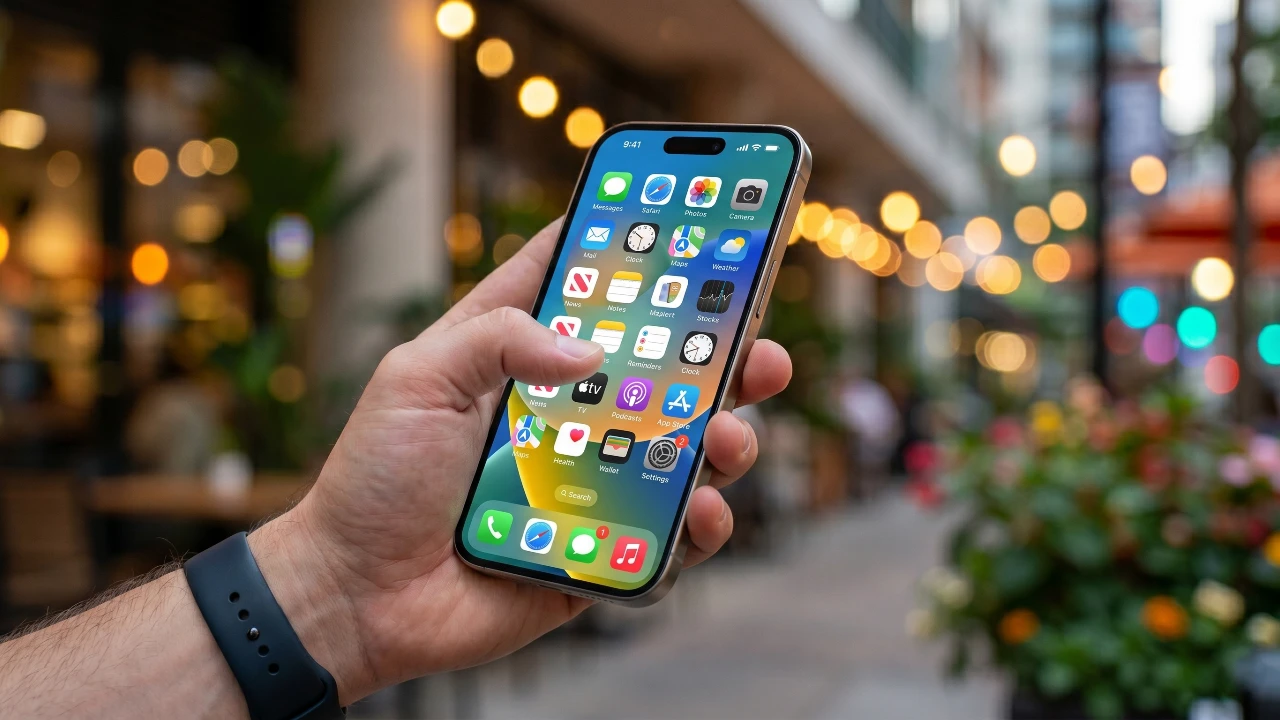
If you’re using iOS 26 or later, your iPhone is equipped with a variety of hidden features designed to enhance your experience. These tools go beyond basic functionality, offering ways to improve customization, boost productivity, and strengthen privacy. Below are 10 lesser-known iPhone tricks that can help you unlock the full potential of your device. The video below from MacRumors gives us more details on these tips and tricks.
Message Management: Drag and Drop Text Messages
Managing conversations has never been easier with the drag-and-drop feature. This tool allows you to select multiple text messages from a conversation and move them into other apps seamlessly. For instance, you can copy important details from a chat and paste them into Notes, an email, or even a document. This feature is particularly useful for organizing key information or managing lengthy conversations efficiently. By integrating this into your daily routine, you can save time and streamline communication.
Home Screen Customization with Widgets and App Hiding
Your iPhone’s home screen is more than just a collection of app icons. With iOS 26, you can transform apps into widgets directly from the home screen. Widgets provide live updates, such as weather forecasts, calendar events, or reminders, all at a glance. Additionally, you can hide individual apps or even entire app pages to create a cleaner, more organized interface. This is especially beneficial for users who prefer a minimalist design or want to keep certain apps private. By customizing your home screen, you can make your iPhone more intuitive and tailored to your needs.
Location History Management in Apple Maps
Apple Maps now includes a location history feature that tracks the places you’ve visited. This tool allows you to review, edit, or delete your location data directly within the app. It’s particularly useful for retracing your steps, planning future trips, or managing your privacy. If you’re concerned about data security, you can disable location history entirely to prevent future tracking. This feature enables you to maintain control over your personal information while still benefiting from Apple Maps’ navigation capabilities.
Custom Vibration Patterns for Contacts
Stay connected discreetly by assigning custom vibration patterns to specific contacts. This feature is especially helpful when your phone is in silent mode, as it allows you to identify who’s calling or texting without looking at your screen. You can create unique vibration patterns for family, friends, or work contacts, allowing you to prioritize notifications. This small but impactful customization ensures you never miss important messages while maintaining a level of subtlety.
Lock Screen Personalization
The lock screen is no longer just a static display. With iOS 26, you can replace the default flashlight and camera shortcuts with controls that better suit your needs. Whether it’s a quick link to a third-party app or a shortcut to a specific function, this feature lets you tailor your lock screen to match your daily habits. By personalizing this space, you can access your most-used tools faster and more conveniently.
Back Tap Gestures for Quick Actions
The back of your iPhone isn’t just for holding, it’s a functional surface with back tap gestures. This feature allows you to assign double or triple taps to perform specific actions, such as taking a screenshot, opening an app, or activating Siri. It’s particularly useful for quick, one-handed tasks, making your iPhone more accessible and versatile. By incorporating back tap gestures into your routine, you can simplify common actions and save time.
Full-Page Screenshots
Capturing entire web pages, PDFs, or documents is now effortless with the full-page screenshot feature. Instead of stitching together multiple screenshots, you can save a seamless image of the entire content. This is especially handy for saving articles, recipes, or any information that extends beyond the visible screen. Once captured, you can save or share the full-page screenshot with ease, making it a valuable tool for both personal and professional use.
Quick Timer Access
Setting a timer has never been faster. By adding the timer control to your Control Center, you can access it instantly with just a few taps. Whether you’re cooking, exercising, or taking a quick break, this feature ensures you can set a timer without navigating through multiple menus. The quick timer access feature is a practical addition that simplifies time management in your daily life.
Photo Privacy with Metadata Removal
When sharing photos, you might unknowingly share sensitive information, such as your location. With iOS 26, you can remove location metadata from images before sending them. This feature is particularly valuable when posting on social media or sharing photos with people outside your trusted circle. By removing metadata, you can maintain better control over your privacy while still enjoying the convenience of photo sharing.
Sleep Timer for Media
If you enjoy falling asleep to music, podcasts, or audiobooks, the sleep timer feature is a must-have. Accessible through the Clock app, this tool allows you to set a timer that automatically stops playback after a specified duration. It’s a simple yet effective way to ensure your media doesn’t run all night, saving battery life and preventing interruptions to your sleep. This feature is perfect for those who use their iPhone as part of their bedtime routine.
Bonus Tip: Drag and Select Multiple Text Messages
For even greater efficiency, use the drag-and-select feature to highlight multiple text messages at once. This is ideal for copying and pasting important details from group chats or lengthy conversations into other apps. By mastering this trick, you can streamline your workflow and manage information more effectively.
These 10 iPhone tricks, along with the bonus tip, showcase the depth of functionality available in iOS 26. By exploring these features, you can customize your device, improve your productivity, and enhance your privacy. Whether you’re managing messages, personalizing your home screen, or taking full-page screenshots, these tools are designed to make your iPhone work smarter for you.
Discover other guides from our vast content that could be of interest on iPhone tricks.
- 10 iPhone Features You Didn’t Know Existed (2026)
- Level Up Your iPhone: New Tips & Tricks in iOS 18.1
- How to Enable Actual Dark Mode On Iphone In iOS 26
- 20 Secret iPhone Tricks You’ll Wish You Knew Sooner
- Forget the Pro Max: Why the iPhone Fold ‘Ultra’ is Apple’s Real 2026 Flagship
Source: MacRumors
Disclosure: Some of our articles include affiliate links. If you buy something through one of these links, Geeky Gadgets may earn an affiliate commission. Learn about our Disclosure Policy.
