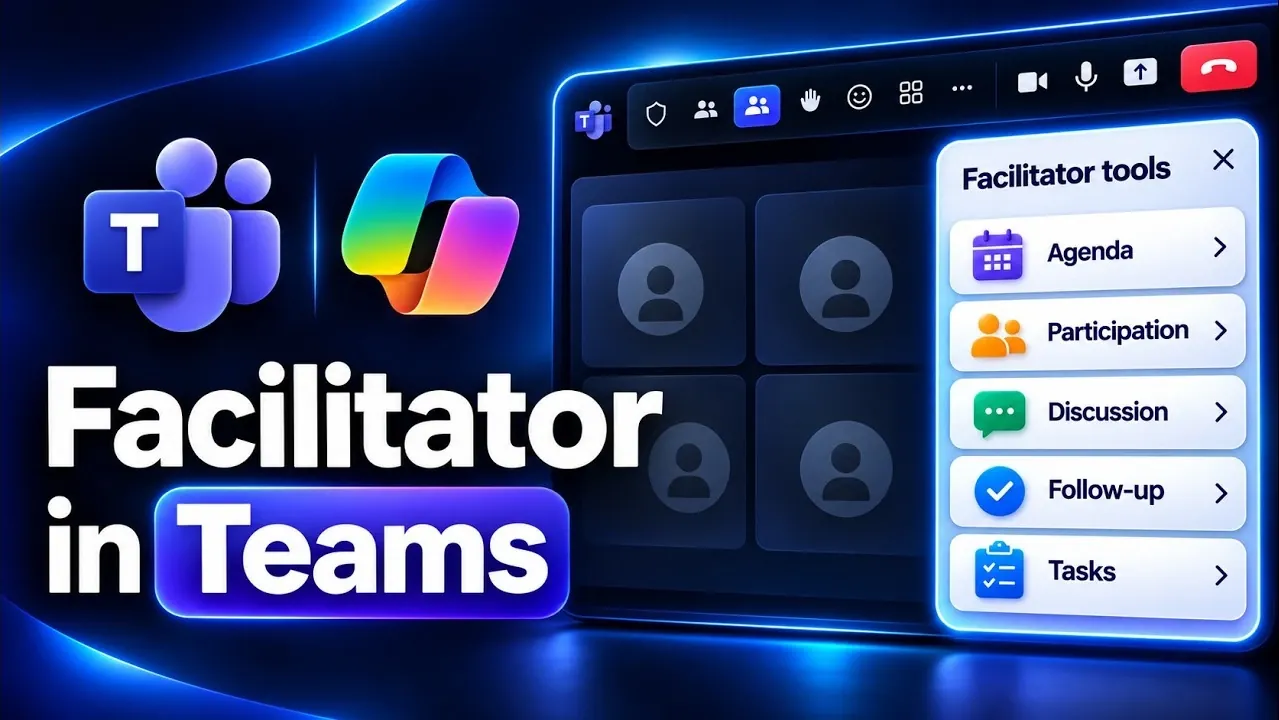
Copilot Facilitator in Microsoft Teams helps keep a meeting organized by reviewing its agenda, taking notes and capturing tasks as participants talk. The AI assistant works during the discussion and requires meeting transcription to be running. Facilitator can also share agenda topics and respond to requests as the conversation moves on, as Mike Tholfsen shows.
Explore how to turn on Facilitator before a meeting or after joining, and set up an agenda for it to review. You can also see how to share topics, add new ones and mark completed items as discussed. Then compare a private Copilot recap during the meeting with the recording, notes and follow-up details available afterward.
Copilot Facilitator in Teams
TL;DR Key Takeaways :
- Copilot Facilitator is an AI assistant for Teams meetings that reviews agendas, takes notes, captures tasks and offers suggestions during discussions.
- Facilitator requires transcription and can be enabled when creating a meeting or from More after joining. Recording video and audio is a separate action.
- Meeting agendas use Microsoft Loop and can be written manually or created with Copilot. Once shared, the agenda is visible to everyone in the meeting.
- Participants can add topics, track time allocations and mark items as discussed. Facilitator is also expected to check off completed agenda items.
- During a meeting, Copilot can provide a private catch-up recap. Afterward, the recap brings together meeting notes, tasks and other materials; a recording can also be accessed if the meeting was recorded.
Copilot Facilitator is an AI assistant for Microsoft Teams meetings. It reviews the agenda, takes notes and captures tasks as people talk. You can turn it on before or during a meeting, then use it to share and update the agenda as the discussion continues.
Teams also offers a separate Copilot recap to help you catch up during a meeting. Afterward, a recap brings together the recording, notes and follow-up tasks.
Set Up Facilitator and the Agenda
To prepare a meeting, create it in the Teams calendar, invite attendees and add an agenda. You can write the agenda yourself or ask Copilot to create one. The agenda uses Microsoft Loop and appears on a Loop page, which Facilitator can review once the meeting starts.
You can switch on Facilitator when you create the meeting. If you leave it off, you can turn it on from More after joining. Facilitator is powered by Copilot and requires transcription to be running. English is one available transcription language.
Once Facilitator is active, the meeting chat shows that it is taking notes. The meeting notes contain the agenda, and a Facilitator card indicates that it is reviewing the topics. Teams also displays an AI indicator. Select it to see that Copilot and Facilitator are available in the meeting.

Here are more detailed guides and articles that you may find helpful on Microsoft Teams and Copilot.
- Say Goodbye to Meeting Chaos with Microsoft Copilot Facilitator Agent and Loop
- Microsoft Teams Tips That Actually Save Time in 2026
- 10+ New Microsoft Teams features to improve your productivity and efficiency
- Master Microsoft Teams : Transform Your Project Management Game
Share and Manage Meeting Topics
Facilitator can take topics from the original agenda and present them in chat. Before you share the agenda, only you can see the message. Once shared, the agenda is visible to everyone in the meeting.
During the discussion, you can @mention Facilitator and ask it to add a topic to the agenda. You can also add a topic from the agenda itself. Facilitator assigns time allocations to agenda topics, so you can track how long to spend on each item.
An agenda dropdown offers a mark as discussed option. You can use it to identify topics the meeting has covered while leaving unfinished topics open. Facilitator is also expected to check off agenda items as they are completed.
Facilitator listens as participants discuss work and records tasks in the meeting notes. In an event-planning meeting, for example, that can include an instruction for one person to settle a date and another to seek feedback on the agenda. The notes give attendees a record of assignments alongside the topics under discussion.
Get Suggestions During the Discussion
Facilitator can listen to the conversation and contribute questions and suggestions based on it. When a discussion turns to food and vegetarian options, it can ask what food should be prepared and suggest choices such as roasted vegetables, falafel or tofu. It can do this even without being asked to build a menu.
The meeting notes can capture tasks while the conversation continues. You can return to the notes to see the agenda and the items Facilitator has recorded, rather than relying only on the live chat.
Catch Up With Copilot During a Meeting
If you join late, you can open Copilot and ask it to recap the meeting so far. The recap is private to you, so you can catch up without posting the request to everyone in the meeting.
Copilot analyzes the transcript, meeting notes and work completed by Facilitator. Its response can include the agenda, highlighted discussion, action items and the people assigned to those items. You can also open the meeting notes to review what has been recorded.
Review the Meeting Afterwards
After a recorded meeting ends, its recording can appear in the meeting chat. The recording identifies speakers and is divided into topics and chapters, so you can find parts of the discussion.
The AI summary brings together meeting notes and discussions, with links to relevant parts of the meeting. It can include details raised during planning, such as food options and allergies, as well as follow-up tasks and their assignees.
The recap also has a mentions view showing who mentioned each person. You can open the full transcript, agenda, notes and shared files from the recap. Microsoft Teams and Copilot are also receiving updates, including agents such as interpreter.
Facilitator requires a Teams meeting with transcription running. You can turn it on before the meeting or under More after joining, and other Copilot settings are available in meeting options. Recording video and audio is a separate action; you can then open a recording from the meeting chat when it is ready.
If you run meetings in Microsoft Teams and want help keeping track of discussions and follow-up tasks, take a closer look at Copilot Facilitator. It gives you a way to keep meeting information together as the conversation unfolds.
Media Credit: Mike Tholfsen
Disclosure: Some of our articles include affiliate links. If you buy something through one of these links, Geeky Gadgets may earn an affiliate commission. Learn about our Disclosure Policy.
