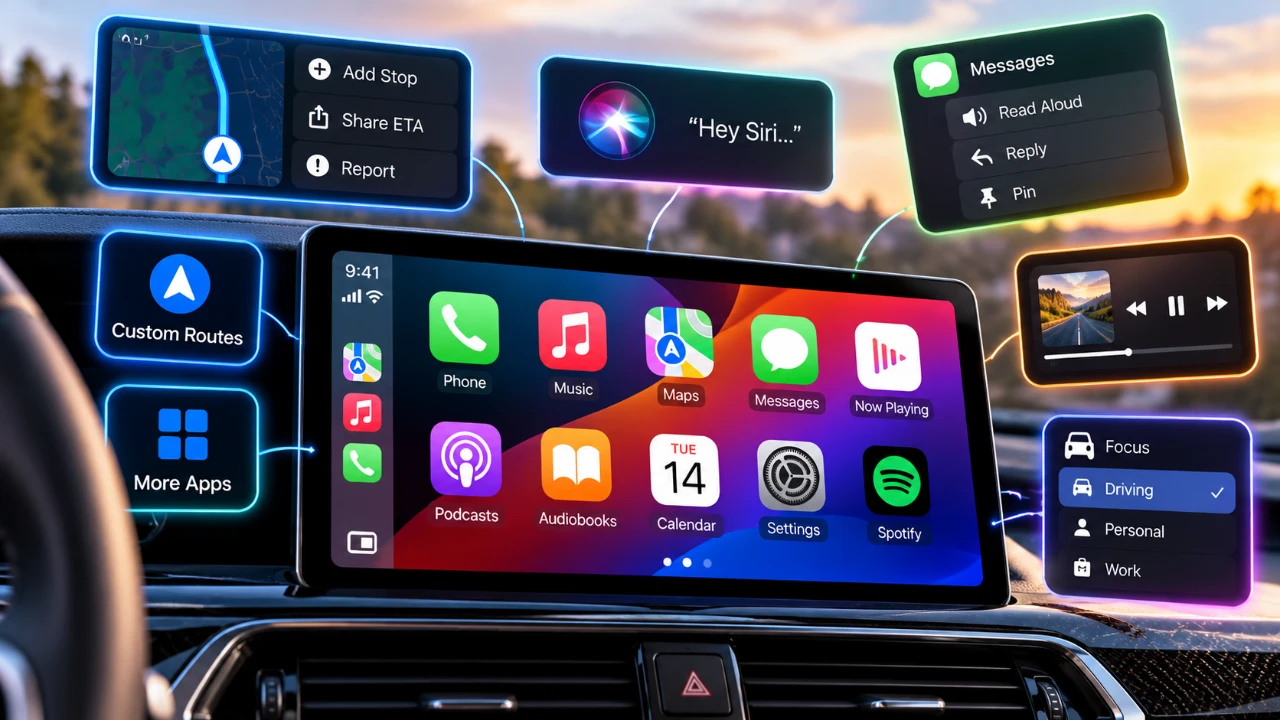
Apple CarPlay transforms the way you interact with your car’s infotainment system by integrating your iPhone’s core functionalities directly into your vehicle. Designed with a focus on safety and convenience, CarPlay provides seamless access to navigation, communication, and entertainment through a user-friendly interface. Whether you’re a first-time user or looking to optimize your experience, the video below from Proper Honest Tech will help you unlock the full potential of Apple CarPlay.

What is Apple CarPlay?
Apple CarPlay acts as an extension of your iPhone, mirroring its essential features on your car’s infotainment display. It connects to your vehicle either via a USB cable or wirelessly through Bluetooth and Wi-Fi, depending on your car’s compatibility. Once connected, CarPlay grants access to key apps such as navigation, music, and messaging, all optimized for hands-free use to ensure safe driving practices.
CarPlay’s interface is designed to minimize distractions, allowing you to focus on the road while still enjoying the convenience of your smartphone’s capabilities. By integrating voice commands through Siri, it further enhances usability, making it an indispensable tool for modern drivers.
How to Set Up and Customize CarPlay
Setting up Apple CarPlay is straightforward and can be done in just a few steps. Once your iPhone is connected to your car:
- Open your iPhone’s settings to customize the CarPlay interface. Rearrange or remove apps to prioritize the ones you use most frequently, such as Maps, Music, or Podcasts.
- Add widgets for quick access to essential features like your calendar, weather updates, or playlists.
- Choose a wallpaper or adjust accessibility settings to personalize the display and improve visibility.
This customization ensures that CarPlay adapts to your specific needs, making your driving experience more efficient and enjoyable. By tailoring the interface, you can reduce distractions and focus on what matters most while on the road.
Navigation: Your Road Companion
CarPlay excels in navigation, offering multiple tools to guide you to your destination. While Apple Maps serves as the default navigation app, CarPlay also supports third-party options like Google Maps and Waze. To maximize the benefits of CarPlay’s navigation features:
- Download offline maps for areas with limited or no cellular coverage to ensure uninterrupted guidance.
- Plan routes on your iPhone or Mac and sync them with CarPlay for a seamless transition when you start driving.
- Take advantage of features like adding stops, viewing route overviews and sharing your estimated time of arrival (ETA) with friends or family.
- Adjust navigation audio settings to suit your preferences, such as muting voice directions while keeping alert sounds active.
These tools make CarPlay an invaluable companion for both daily commutes and long road trips, making sure you stay on track and informed at every turn.
Entertainment at Your Fingertips
Apple CarPlay enhances your in-car entertainment by providing access to a wide range of media apps. Whether you’re a fan of music, podcasts, or audiobooks, CarPlay ensures that your favorite content is just a tap or voice command away. To optimize your entertainment experience:
- Pin your favorite albums, playlists, or artists for quick access through apps like Apple Music or Spotify.
- Use Siri for hands-free control to play specific songs, create custom stations, or mark tracks as favorites.
- Explore third-party apps for additional audio content, such as audiobooks, news updates, or meditation guides.
With these features, CarPlay allows you to enjoy your preferred entertainment options without compromising your focus on the road, making every drive more enjoyable.
Stay Connected with Communication Tools
CarPlay ensures you remain connected while driving, offering a suite of communication tools designed to prioritize safety and convenience. Key features include:
- Making calls, sending messages, or listening to notifications using Siri or the CarPlay interface.
- Activating the “Announce Messages” feature to have incoming texts read aloud, allowing you to respond hands-free.
- Allowing Driving Focus Mode to filter notifications and limit distractions, making sure only important calls or messages come through.
These tools allow you to stay in touch with friends, family, or colleagues without taking your eyes off the road or your hands off the wheel, maintaining a balance between connectivity and safety.
Advanced Siri Integration
Siri serves as the backbone of Apple CarPlay, offering advanced voice control and contextual responses to streamline your driving experience. With Siri, you can:
- Request directions, control media playback, or view road incidents with simple voice commands.
- Access recent Siri interactions through a dedicated app, allowing you to revisit commands or follow up on tasks.
- Adjust Siri’s volume independently from other audio sources for clear and effective communication.
This deep integration with Siri ensures that you can manage tasks efficiently while keeping your focus on driving, making CarPlay a powerful tool for hands-free operation.
Pro Tips for Enhancing Your CarPlay Experience
To fully use the capabilities of Apple CarPlay, consider these additional tips:
- Use automation tools like Shortcuts to trigger specific actions, such as allowing Driving Focus Mode or starting a playlist when CarPlay connects.
- Overview road hazards or accidents through Siri or the CarPlay interface to contribute to safer driving conditions for everyone.
- Explore third-party apps compatible with CarPlay, such as parking finders, fuel locators, or EV charging station apps, to expand its functionality.
These tips can help you tailor CarPlay to your unique driving habits, making sure a more personalized and efficient experience.
Understanding CarPlay’s Limitations
While Apple CarPlay offers a robust set of features, it does have some limitations that users should be aware of:
- Video playback, such as YouTube or Netflix, is restricted to stationary use to prioritize safety while driving.
- Some features may require third-party apps or specific workarounds, depending on your vehicle’s compatibility.
- Wireless CarPlay may drain your phone’s battery faster, so keeping a charger handy is recommended for longer trips.
Understanding these limitations can help you manage expectations and find alternative solutions when necessary, making sure a smoother experience with CarPlay.
Enhance Your Driving Experience with Apple CarPlay
Apple CarPlay seamlessly integrates your iPhone’s functionality into your car, offering a smarter and safer way to navigate, communicate, and entertain yourself on the road. By customizing the interface, exploring its features, and understanding its limitations, you can make the most of this powerful tool. Whether you’re navigating unfamiliar roads, streaming your favorite music, or staying connected hands-free, CarPlay enhances every aspect of your driving experience, making sure a journey is both convenient and enjoyable.
Find more information on Apple CarPlay by browsing our extensive range of articles, guides, and tutorials.
- iOS 27 Lets You Watch YouTube on Apple CarPlay: How It Works
- How to Stream YouTube on Apple CarPlay Before Apple Blocks It
- iOS 27 RC is Out: CarPlay Adds Video Streaming and New Siri
- iOS 27 Apple CarPlay Tested: the Best Upgrades for Your Car’s Dashboard
Source & Image Credit: Proper Honest Tech
Disclosure: Some of our articles include affiliate links. If you buy something through one of these links, Geeky Gadgets may earn an affiliate commission. Learn about our Disclosure Policy.
