Introduction
Samsung phones are equipped with a bundle of security features to protect users’ data and privacy. If you own a Samsung device, then you can better understand this. However, if you ever forget your Samsung device’s password, be prepared for the struggle to it. This is because it’s not at all easy to bypass Samsung’s security.
If you are dealing with a similar situation and looking for a solution, we are here to assist. We are presenting some of the effective ways to unlock your Samsung tablet or phone forgotten password.
Way 1. Unlock a Locked Samsung Phone with UnlockGo (Android)
One of the best ways to unlock Samsung phone if forgot PIN is by using a reliable third-party tool. Although you can find many unlocking tools in the marketplace, not all of them deliver results. To unlock a Samsung phone easily and effectively in one go without facing any problems, UnlockGo (Android) – pattern password remover, is an amazing solution. When it comes to unlock Samsung phone forgot password, it is a piece of cake for you then. Designed by the experts at iToolab, it is Android 12 and Android 13 ready so all the latest brands and models can use it too.
Features:
- Bypass Google FRP lock on Samsung easily from Android 5 to 13.
- Removes all kinds of screen locks including PIN, Password, Facelock, and fingerprint.
- For S7 device owners, this software can unlock it without any loss of data.
- Compatible with almost all major Android brands, Motorola, Xiaomi, Huawei, etc.
- Available for both Windows and Mac.
Steps for Removing Screen Lock in Android 12-Based Models

Step 1: Go to Unlock Screen Lock Function
First of all, run the UnlockGo for Android on your PC or Mac, and from the home interface, click on the “Unlock Screen Lock” function.
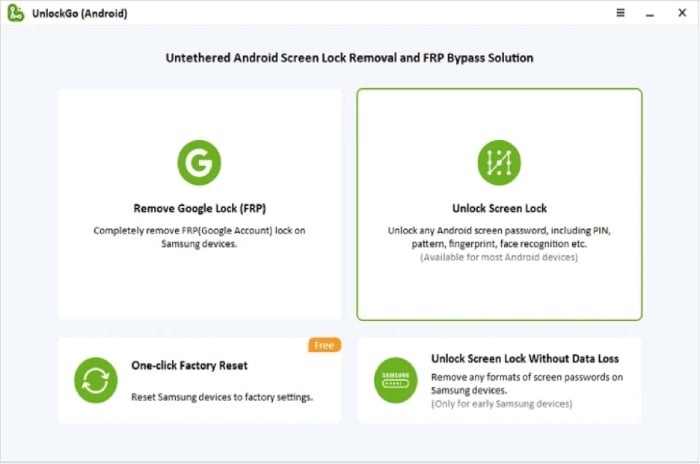
Then, connect your locked Samsung device to the computer and hit the “One-click remove screen locks from Samsung”.

Step 2: Get Started to Unlock Samsung
On the software screen, confirm the tips shown and click “Unlock” to continue further.

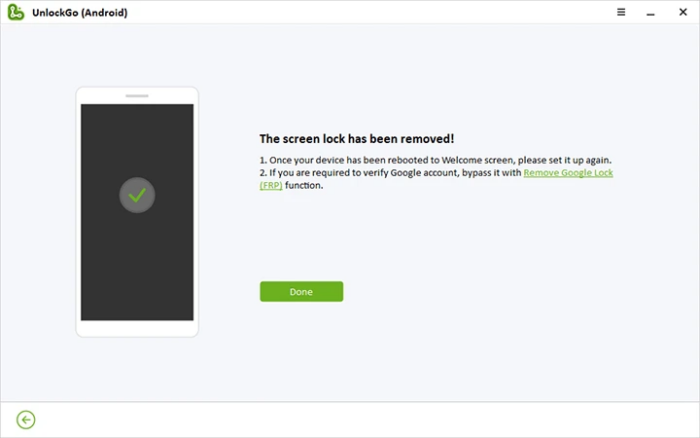
After some time, your Samsung device will restart automatically which confirms that the screen lock has gone away.
Way 2. Unlock Old Samsung Phone with Forgotten Password
Warm tips, you will lose the data by performing the above steps. But thanks to iToolab UnlockGo (Android), because it even supports the feature to unlock Samsung phones without losing data. However, this gonna work for the Samsung S7 models and earlier devices such as Galaxy Note II/3/4/8, Galaxy S3/S4/S5/S6, and Galaxy tab.
Steps to Unlock Samsung Phone Without Losing Data
Step 1: Connect Your Device
Run UnlockGo for Android and click on the “Unlock Screen Lock Without Data Loss” feature to start the unlock process.

Step 2: Verify Device Information
Check your device information by clicking the “Start” button. If it’s not matching, choose your model and click “Next”. Confirm it by clicking on “Ok” button as a message will pop up on the screen.

Step 3: Download Data Package
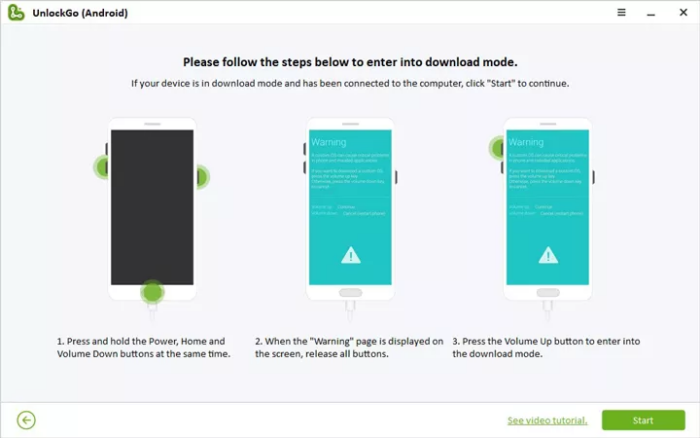
UnlockGo for Android will start downloading the data package for you. Click on “Next” to continue. You will then be asked to get into the download mode by following the on-screen instructions. After this, click “Start”.
Step 4: Remove Android Screen Lock
After entering download mode, the tool will automatically remove the screen lock in a few minutes.
Way 3. Unlock Samsung Phone without Factory Reset (Samsung Account Needed)
There’s an official way to unlock a locked Samsung galaxy phone using the “Find My Mobile” website. But to use this feature, your device must be activated with the “Remote Unlock” feature. If it’s already done, you can follow these steps to unlock it:
Step 1: Log in to the Samsung Find My Mobile
Open the “Find My Mobile Website” on any PC and sign in with the Samsung account that you use on your locked Samsung device.
From the menu on the left side, choose your device and wait patiently for the site to locate it. If your device is on, it will be located or else there is no chance.
Step 2: Unlock Your Samsung Device
If you successfully locate your device, click on the “Unlock” button twice. Now, type your Samsung account password and hit “Next” to finish the steps. After doing all these, your device will reset the lock screen security.

Way 4. Unlock Samsung Phone Forgot Password Using Google Account
Fortunately, you can remove the Samsung screen lock using Find My Device by Google as well. If you have activated this feature on your Samsung device, then these steps will help you unlock a locked Samsung galaxy phone.
Prerequisites for Using Find My Device
- The phone must be on
- Signed in to your Google Account
- Connected to the internet or Wi-Fi connection
- Visibility is on over Google Play Store
- “Location” and “Find My Device” should be enabled
Steps to Remove Samsung Screen Lock Using Find My Device
Step 1: Sign In to Find My Device
Sign in to your registered Google account at www.android.com/find. Now, click on the locked phone.
Step 2: Take the Action
You need to tap on Erase the device and it will then start to remove entire data on your device. This is most suitable for people who lost all hope of unlocking Samsung device without losing data.
Note: Now, doing this will end up your device being stuck on another security measure that is FRP lock. If you do remember the Google account and password that was configured with this device before erasing the phone, you can easily gain back access to it. But what if you forgot the Google account or password? Well, worry no more! Here comes, UnlockGo for Android to your rescue. With this tool, you can easily bypass the Google FRP lock on all Samsung models running on Android 5 to Android 13 and that too, without any hassles.
Summing Up
Samsung phones owners who forgot their device passwords can follow any of the above methods for unlocking their devices. But to do it in a convenient and fastest way, nothing would be better than using UnlockGo for Android.
As you are now aware of how to unlock Samsung phone forgot password, you can help others too in regaining access to their Samsung phone. If you have any other queries regarding this topic, leave a comment below.
Disclosure: Some of our articles include affiliate links. If you buy something through one of these links, Geeky Gadgets may earn an affiliate commission. Learn about our Disclosure Policy.
