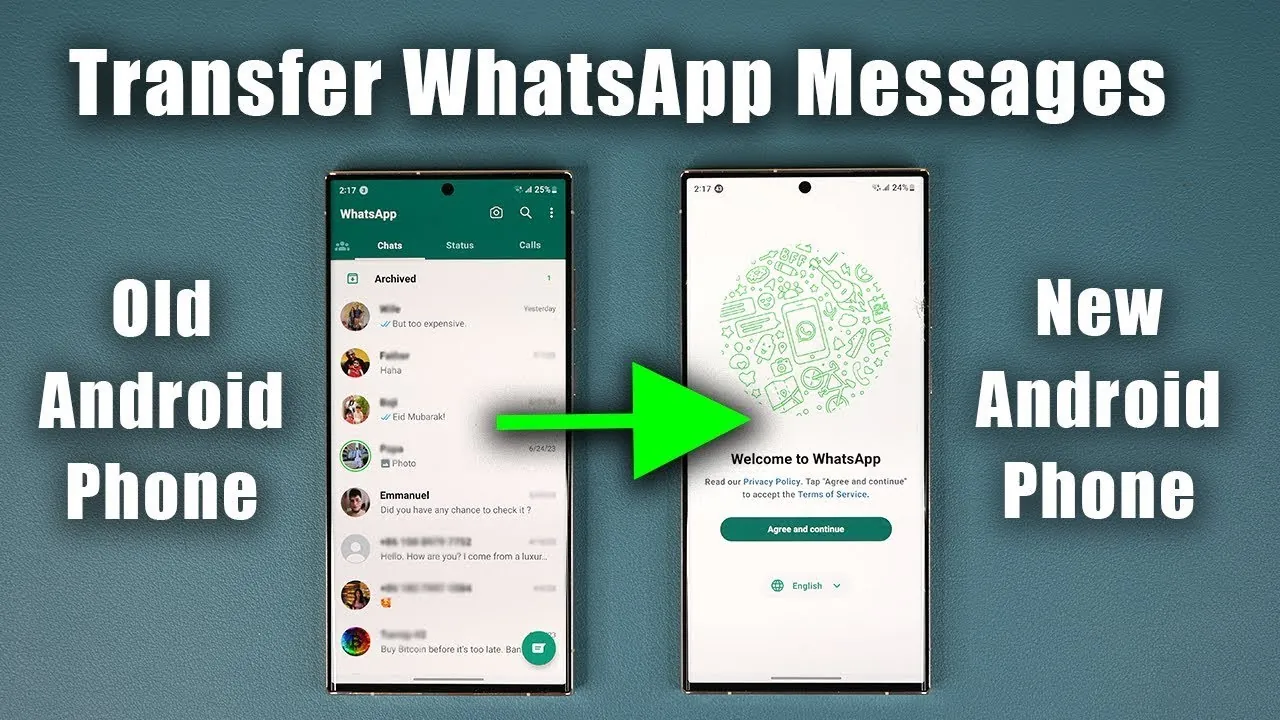
Switching to a new Android phone is an exciting experience, but making sure that your WhatsApp messages and media transfer smoothly can feel like a daunting task. Fortunately, with the right steps, you can securely move your data without losing any important conversations or files. The video below from Sakitech provides a detailed walkthrough to help you back up, transfer, and restore your WhatsApp data, ensuring a hassle-free transition to your new device.

Step 1: Backing Up Your WhatsApp Data
Creating a backup of your WhatsApp data on your old Android phone is the most crucial step in the transfer process. This ensures that all your chats, media, and other important information are preserved and ready for restoration on your new device. Follow these steps to back up your data effectively:
- Launch WhatsApp on your old phone and navigate to the Settings menu.
- Tap on Chats, then select Chat Backup.
- Link your Google account to enable cloud storage for your backup. This step is essential for transferring data between devices.
- Tap the Back Up button to begin the backup process. Ensure your phone remains connected to a stable Wi-Fi network to avoid interruptions.
- If you wish to include videos in the backup, enable the option. Keep in mind that this will increase the backup size and may take additional time.
Your backup will be securely stored in your Google Drive account. It’s recommended to verify that the backup has been completed successfully before proceeding to the next step.
Step 2: Transferring Your SIM Card or eSIM
Before setting up WhatsApp on your new phone, transferring your phone number is essential. This can be done by moving your physical SIM card or activating an eSIM on the new device. Here’s how to complete this step:
- If you’re using a physical SIM card, carefully remove it from your old phone and insert it into the new one. Ensure the SIM card is properly seated in the slot.
- For eSIM users, follow the instructions provided by your mobile carrier to activate the eSIM on your new device. This process may involve scanning a QR code or entering activation details.
This step is critical because WhatsApp requires phone number verification during the setup process. Ensure that your phone number is active on the new device before proceeding.
Step 3: Restoring WhatsApp Data on Your New Phone
Once your SIM card or eSIM is active on the new phone, you can begin restoring your WhatsApp data. Start by downloading and installing WhatsApp from the Google Play Store. Then, follow these steps to restore your backup:
- Open WhatsApp on your new phone and verify your phone number. Make sure it matches the number linked to your old device.
- When prompted, select the option to restore your backup from Google Drive. This will retrieve your chats and media from the cloud.
- Wait for the restoration process to complete. The duration will depend on the size of your backup and the speed of your internet connection.
If you accidentally skip the restoration step during the initial setup, you can still restore your data later by navigating to Chat Backup in the WhatsApp settings. However, it’s best to complete the restoration during the initial setup to avoid complications.
Step 4: Post-Transfer Checks
After completing the transfer, WhatsApp will automatically log out of your old device to protect your account and data. To ensure everything has been successfully transferred, perform the following checks:
- Review your chats and media on the new phone to confirm that all data has been restored correctly.
- Verify that the Google account used for the backup is accessible and properly linked to your new device.
- Only delete data from your old phone after confirming that the transfer was successful and all information is intact on the new device.
These checks will help you avoid any potential data loss and ensure a smooth transition to your new phone.
Tips for a Smooth Transition
To make the process even more seamless, consider the following tips:
- Perform both the backup and restoration processes over a reliable Wi-Fi connection to minimize delays and interruptions.
- Double-check that the Google account linked to your WhatsApp backup is properly set up on both devices.
- Keep your old phone accessible until you’ve confirmed that all data has been successfully transferred to the new device.
- Ensure your new phone has sufficient storage space to accommodate the restored WhatsApp data, especially if your backup includes a large number of media files.
By following these tips, you can further reduce the chances of encountering any issues during the transfer process.
Preserve Your Digital Connections
Switching to a new Android phone doesn’t have to mean leaving your WhatsApp conversations and media behind. By carefully backing up your data, transferring your SIM or eSIM, and restoring your chats, you can ensure a smooth and stress-free transition. With these steps, you’ll be able to pick up right where you left off, preserving your digital connections and memories without any hassle.
Here are additional guides from our expansive article library that you may find useful on WhatsApp message transfer.
- Best 3 Ways to Transfer WhatsApp to New Phone
- How to Transfer WhatsApp from iPhone to Android
- WhatsApp for iPad: Everything You Need to Know
- How to Build a WhatsApp Chatbot in Just 2 Minutes with No-Code
- How to Transfer WhatsApp Data Between iPhone and Android
Source & Image Credit: sakitech
Disclosure: Some of our articles include affiliate links. If you buy something through one of these links, Geeky Gadgets may earn an affiliate commission. Learn about our Disclosure Policy.
