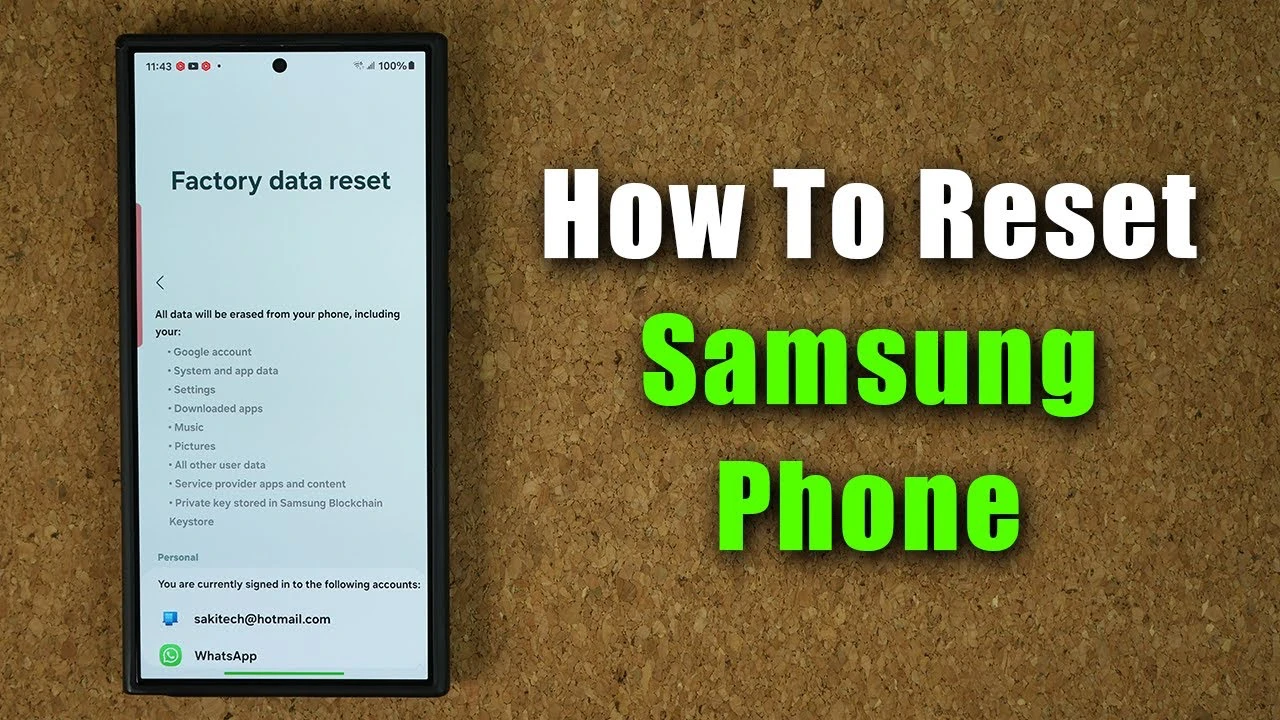
Resetting your Samsung Galaxy smartphone to its factory settings can be an effective way to resolve persistent issues and restore the device to its original state. The video below from Sakitech walks us through the process step by step, ensuring that you back up your data and have sufficient battery life before starting. let’s find out some more details on what we need to do to reset a Samsung Galaxy Smartphone to factory settings.

Preparing Your Device for Reset
Before you begin the reset process on your Samsung Galaxy smartphone, there are two important steps you should take to ensure a smooth and successful reset:
- Ensure Sufficient Battery Life: Make sure your Samsung Galaxy smartphone has at least 25% battery life. If the battery is low, connect your phone to a charger. This step is essential to prevent interruptions during the reset process, which could potentially cause damage to your device.
- Backup Your Data: Backing up your data is crucial to avoid losing important information such as contacts, photos, videos, and documents. You have several options for backing up your data, including Samsung Cloud Backup, Google Drive Backup, and external backup to a hard drive.
To use Samsung Cloud Backup, navigate to Settings > Accounts and Backup > Samsung Cloud. Follow the prompts to back up your contacts, photos, and other data. For Google Drive Backup, go to Settings > Accounts and Backup > Backup and Restore > Google Account. Ensure your data, including photos and videos, is backed up, especially if you subscribe to Google One. For added security, consider backing up your data to an external hard drive by connecting your phone via USB and transferring your files manually.
Choosing Your Reset Option
When it comes to resetting your Samsung Galaxy smartphone, you have two main options:
- Individual Settings Reset: This option allows you to reset specific settings like Wi-Fi, Bluetooth, or mobile network without erasing all data. To do this, navigate to Settings > General Management > Reset > Reset Settings.
- Factory Data Reset: This option erases all data and restores the phone to its original state. To perform a factory data reset, navigate to Settings > General Management > Reset > Factory Data Reset. Confirm your choice and enter your PIN and Samsung account password if prompted.
If you’re experiencing persistent issues with your device or want to completely wipe all data before selling or giving away your phone, a factory data reset is the recommended option. However, if you only need to reset specific settings, an individual settings reset may suffice.
Performing a Factory Data Reset
To perform a factory data reset on your Samsung Galaxy smartphone, follow these steps:
1. Navigate to the Settings menu and select General Management.
2. Select Reset and choose Factory Data Reset from the options.
3. If prompted, enter your PIN and Samsung account password to confirm your identity.
4. Follow the on-screen instructions to complete the reset process.
The reset process may take several minutes, during which your phone will restart and display a progress bar. Do not interrupt the process by removing the battery or turning off the device, as this could cause permanent damage.
Restoring Your Data and Setting Up Your Device
After the reset is complete, your Samsung Galaxy smartphone will restart and display the initial setup screen. Follow the on-screen instructions to set up your device, including connecting to Wi-Fi, signing in to your Samsung and Google accounts, and restoring your data from the backups you created.
Depending on your backup method, you can restore your data from Samsung Cloud, Google Drive, or your external hard drive. The restoration process may take some time, depending on the amount of data you have backed up.
Temporary Cloud Backup Option
Some Samsung Galaxy models offer a temporary cloud backup option that provides unlimited space for 30 days, allowing you to back up your data temporarily before performing the reset. This can be a convenient option if you don’t have sufficient space in your Samsung Cloud or Google Drive accounts, or if you don’t have an external hard drive available.
To use this feature, navigate to Settings > Accounts and Backup > Backup and Restore > Temporary Backup. Follow the prompts to back up your data to the temporary cloud storage. After the reset, you can restore your data from this temporary backup during the setup process.
Resetting your Samsung Galaxy smartphone to factory settings can be a powerful tool for resolving persistent issues and restoring your device to its original state. By following the steps outlined in this guide and ensuring that you have backed up your data and have sufficient battery life, you can perform a successful reset and get your device running smoothly again
Source & Image Credit: Sakitech
Disclosure: Some of our articles include affiliate links. If you buy something through one of these links, Geeky Gadgets may earn an affiliate commission. Learn about our Disclosure Policy.
