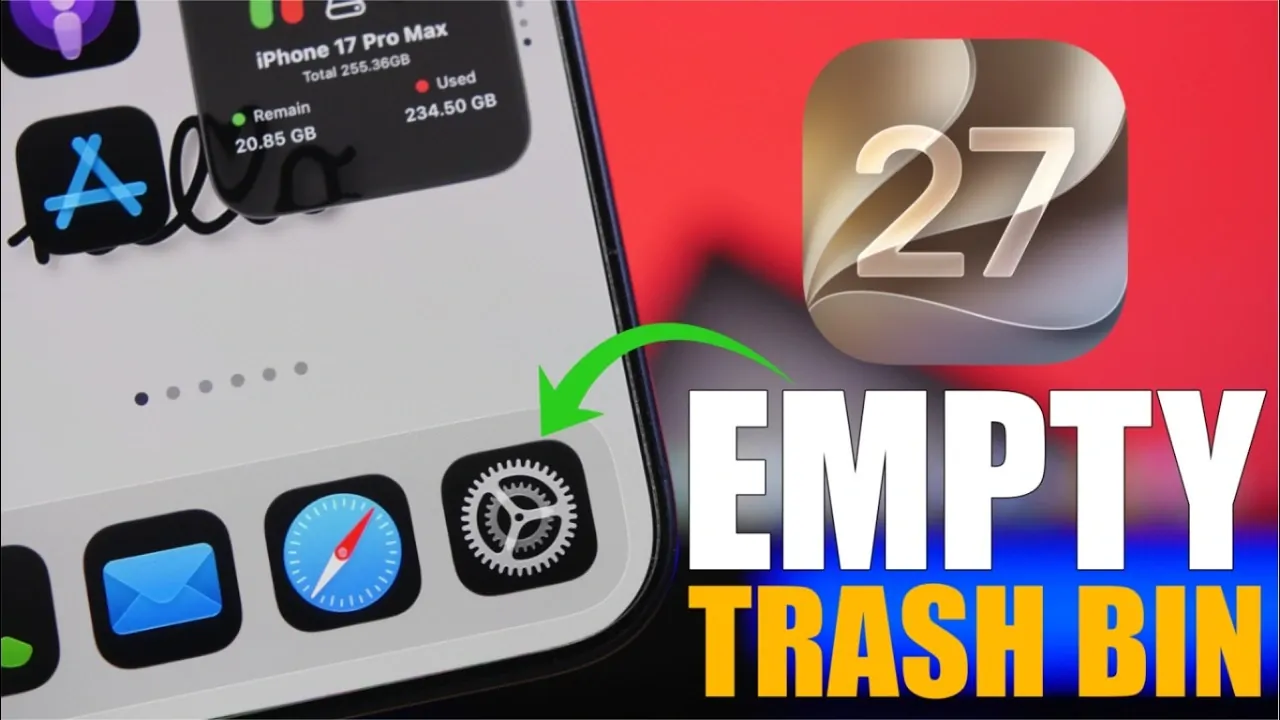
Efficient storage management is essential for maintaining your iPhone’s performance and making sure you have enough space for apps, photos, and other important files. With iOS 27, Apple provides a variety of tools to help you identify and remove unnecessary data. The video below from iReviews outlines practical steps to free up storage space and optimize your device’s functionality.

1. Use the Files App for Document Management
The Files app is a central hub for managing documents and other stored files. To ensure deleted files no longer occupy valuable storage space:
- Open the Files app and navigate to the “Recently Deleted” section under the “Browse” tab.
- Select the files you no longer need and confirm their permanent deletion.
This process is straightforward and ensures that unwanted files are completely removed from your device.
2. Clear the Mail App Trash
Emails and attachments stored in the Mail app’s “Trash” folder can accumulate over time, consuming significant storage. To clear this folder:
- Launch the Mail app and access the “Trash” folder.
- Select all items and delete them permanently.
This step is particularly useful if you frequently receive emails with large attachments, as it helps reclaim storage space quickly.
3. Restart Your iPhone to Clear System Data
Temporary files and system caches can build up over time, taking up storage without your knowledge. A simple reboot can help address this issue:
- Restart your iPhone to clear unnecessary system data and refresh its memory.
This quick and easy action often frees up storage without requiring additional effort or tools.
4. Manage Browser Data
Web browsers like Safari and Chrome store browsing history, cookies and cached files, which can consume a significant amount of storage. To clear this data:
- For Safari: Go to “Settings” > “Safari” > “Clear History and Website Data.”
- For Chrome: Open the app, access its settings and clear browsing data, including cookies and cached files.
For more precise control in Safari, navigate to the “Advanced” settings to manage individual website data. Regularly clearing browser data ensures smoother performance and frees up space.
5. Remove App Caches
Many apps, such as Spotify, Snapchat and TikTok, store cached files to enhance performance. Over time, these files can grow significantly and occupy valuable storage. To manage app caches:
- Check each app’s settings for an option to clear cached data.
- Alternatively, go to “Settings” > “General” > “iPhone Storage” to review storage usage by app.
- Identify apps with large caches and take action to remove unnecessary data.
This step is particularly effective for freeing up space in apps that handle large amounts of media or data.
6. Empty Recently Deleted Sections in Apps
Many apps, including Photos, Notes, Reminders, Voice Memos, and Messages, have “Recently Deleted” sections where files are temporarily stored before permanent removal. To reclaim storage space:
- For the Photos app: Open “Albums”, scroll to “Recently Deleted”, and delete files permanently.
- Repeat this process for other apps with similar features, such as Notes and Voice Memos.
Regularly clearing these sections ensures that deleted files no longer take up unnecessary space on your device.
7. Optimize iPhone Storage for Long-Term Efficiency
By following these steps, you can effectively manage your iPhone’s storage and maintain its performance. Regular maintenance, such as clearing caches, deleting unnecessary files and managing system data, ensures your device remains responsive and has ample space for the content you value most. Take control of your storage today to enjoy a smoother and more efficient iPhone experience.
Advance your skills in iPhone storage by reading more of our detailed content.
- iPhone 16 and 16 Pro Storage Guide: Choosing the Right Size for You
- Choosing the Right iPhone 17 Storage: What You Need to Know
- 12 Apple Watch Features You Are Probably Ignoring Right Now
- Apple Delaying iOS 27 Beta 5? Here’s When to Expect the Next Update
- Clear iPhone Cache FAST (The iOS 26 Tutorial)
- Apple Changes M-Series Silicon Roadmap: What It Means for the MacBook Ultra
Source & Image Credit: iReviews
Disclosure: Some of our articles include affiliate links. If you buy something through one of these links, Geeky Gadgets may earn an affiliate commission. Learn about our Disclosure Policy.
