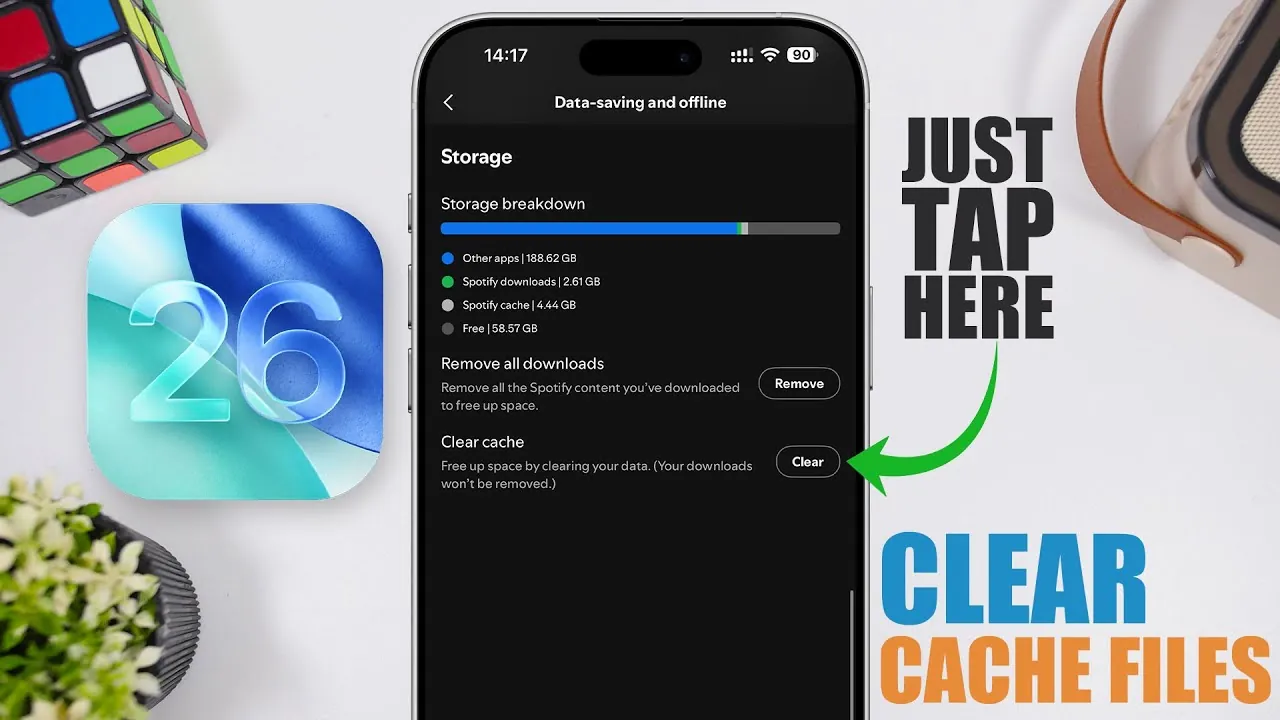
Effectively managing cached files on your iPhone running iOS 26 is essential for maintaining optimal performance and freeing up valuable storage space. Cached data, generated by apps, browsers, and system processes, can accumulate over time, potentially slowing down your device. By following these practical steps in the video below from iReviews, you can clear cache efficiently and ensure your iPhone remains responsive and efficient.

Restart Your iPhone to Clear System Cache
Restarting your iPhone is a simple yet effective way to clear temporary system cache and improve performance. When you restart your device, iOS automatically removes unnecessary cached files that may be consuming resources. To monitor the impact of this step, check your storage usage by navigating to Settings > General > iPhone Storage before and after restarting.
While this method doesn’t address app-specific or browser cache, it provides a quick way to refresh your system and free up memory. Regular restarts can also help resolve minor performance issues, making sure your device runs smoothly over time.
Clear Browser Cache for Faster Browsing
Web browsers like Safari and Chrome store cached files to speed up website loading. However, these files can accumulate and take up significant storage space. Clearing your browser cache not only frees up space but also enhances browsing security and speeds up performance. Here’s how to do it:
- Safari: Open Settings, navigate to Safari, and select Clear History and Website Data. For more control, go to Advanced > Website Data to delete specific site data or all cached files.
- Chrome: Open Chrome, tap the three-dot menu, and select History. Then, choose Clear Browsing Data and include cached files in your selection.
By regularly clearing your browser cache, you can improve your browsing experience and ensure your device remains efficient.
Manage App-Specific Cache
Many apps, such as Snapchat, Spotify, and TikTok, allow you to clear cached data directly from their settings. This is particularly useful for apps that store large amounts of temporary files. Managing app-specific cache can help you reclaim storage without affecting critical app data or functionality. Here’s how to clear cache for some popular apps:
- Snapchat: Open Settings within the app, navigate to Privacy and Control > Clear Data > Clear Cache.
- Spotify: Go to Profile > Data Saving and Offline > Storage > Clear Cache.
- TikTok: Access Settings > Free Up Space > Clear Cache within the app.
Regularly managing app-specific cache ensures that your apps run efficiently while freeing up storage space.
Offload Unused Apps
The “Offload Unused Apps” feature in iOS 26 is a convenient way to save storage space without losing important app data. This feature automatically removes apps you rarely use while preserving their data. To enable it, go to Settings > App Store and toggle on Offload Unused Apps.
When you reinstall an offloaded app, its data will be restored, allowing you to pick up where you left off. This feature is particularly useful for managing storage on devices with limited capacity.
Reinstall Apps to Reset Cache
For apps that don’t offer built-in cache management, deleting and reinstalling them can be an effective solution. Apps like Facebook often accumulate significant cached data over time. By uninstalling and reinstalling these apps, you can reset their storage usage while retaining access to your account and settings.
This method is especially useful for apps with no direct cache-clearing options, providing a straightforward way to manage storage and improve app performance.
Optimize iPhone Storage for Better Performance
Combining these strategies allows you to comprehensively manage cached files and optimize your iPhone’s storage. Whether it’s restarting your device, clearing browser cache, managing app-specific data, offloading unused apps, or reinstalling apps to reset cache, each step contributes to a smoother and more efficient user experience.
By regularly maintaining your device, you can ensure it continues to perform at its best, even as cached files accumulate over time. Taking these proactive steps enables you to take control of your iPhone’s storage, resulting in a faster, more responsive device that meets your daily needs.
Here is a selection of other guides from our extensive library of content you may find of interest on iPhone cache clearing.
- Speed Up Your iPhone: How to Clear Cache
- Is Your iPhone SLOW? This Cache is the Problem! (8 Fixes)
- How to Clear the Cache on iPad and iPhone
- How to Clear Safari History on iPhone and iPad
- Safari History: How to Clear It on All Your Devices
Source & Image Credit: iReviews
Disclosure: Some of our articles include affiliate links. If you buy something through one of these links, Geeky Gadgets may earn an affiliate commission. Learn about our Disclosure Policy.
