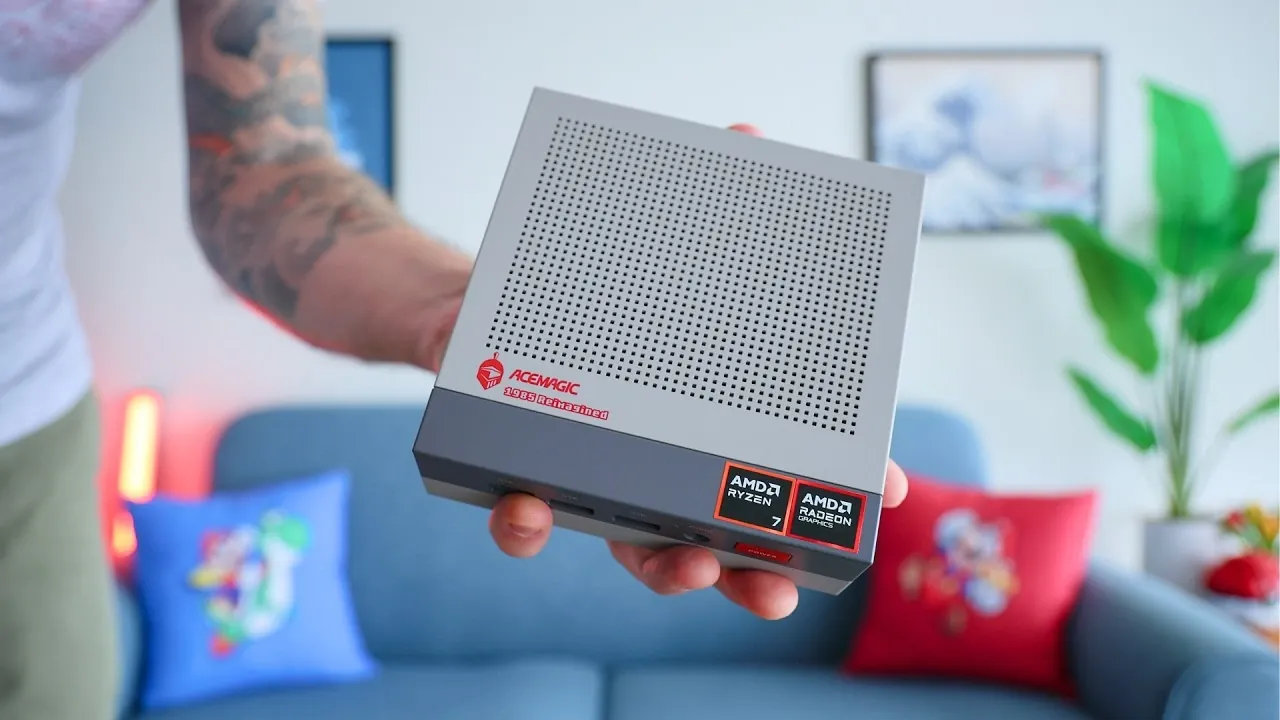
Building an indie and retro game console is a rewarding project that combines classic gaming with modern technology. Retro Game Corps explains how to repurpose a mini PC, such as the Ace Magic Retro X3 with its AMD Ryzen 7 7845HS APU, into a gaming system using Steam OS and RetroDeck. This approach supports retro platforms like the PlayStation 2 and GameCube while also accommodating modern indie games. The compact design of a mini PC makes it well-suited for living room setups, offering both performance and convenience.
Learn how to select compatible hardware, install Steam OS for a streamlined console experience and configure RetroDeck for effective emulation. Gain insight into optimizing performance, including upscaling GameCube games to 1080p and organizing your library with metadata and box art. This quick-start guide provides the steps needed to create a personalized gaming console that balances retro nostalgia with contemporary gaming.
DIY Mini PC Games Console Build
TL;DR Key Takeaways :
- Transforming a mini PC into an indie and retro gaming console is a cost-effective and customizable way to enjoy a wide range of games, using tools like Steam OS and RetroDeck.
- Choosing the right mini PC, such as one with an AMD APU like the Ryzen 7 7845HS, ensures smooth performance for gaming and emulation, with features like expandable storage and versatile I/O ports.
- Steam OS provides a polished, console-like interface optimized for indie games, while RetroDeck simplifies retro game emulation with pre-configured settings and support for systems up to the sixth generation.
- Proper configuration of BIOS files, ROMs and controllers is essential for seamless gameplay, with tools like RetroDeck offering intuitive management and customization options.
- Performance and visual quality can be optimized with features like upscaling GameCube games to 1080p and enhancing PSP titles, while tools like ScreenScraper and ESDE allow for further customization of the game library and interface.
Essential Hardware Requirements
The foundation of your gaming console begins with selecting the right mini PC. To ensure smooth performance for both gaming and emulation, prioritize a device with sufficient processing power and integrated graphics. A mini PC equipped with an AMD APU, such as the Ryzen 7 7845HS featuring a Radeon 780M GPU, is an excellent choice. This combination delivers the performance needed for lightweight gaming and emulation tasks.
For example, the Ace Magic Retro X3 mini PC, priced at approximately $550, offers a solid starting point with 16GB of RAM and 512GB of storage. When choosing your hardware, consider the following key features:
- Expandable storage to accommodate a growing library of games.
- Versatile I/O ports, including USB for peripherals, Ethernet for stable internet connectivity and HDMI for connecting to your display.
- A compact form factor that fits seamlessly into a living room setup.
This hardware setup ensures that your console can handle a wide range of retro and indie games while remaining budget-friendly.
Installing Steam OS: The Core of Your Console
Steam OS serves as the backbone of your gaming console, offering a streamlined interface optimized for indie and lightweight PC games. Setting it up is straightforward and provides a polished, console-like experience. Follow these steps to install Steam OS:
- Download the Steam OS image from the official website and use a tool like Rufus to flash it onto a USB drive.
- Access your mini PC’s BIOS by pressing the designated key during startup (often Delete or F2) and adjust the boot order to prioritize the USB drive.
- Begin the installation process and follow the prompts to configure language, Wi-Fi and system updates.
Once installed, Steam OS delivers a user-friendly interface that makes browsing and launching games effortless. It is particularly well-suited for indie titles, offering smooth performance and easy access to your library.

Gain further expertise in gaming PC by checking out these recommendations.
- SteamOS Hits 78 FPS in Cyberpunk 2077 on the GPD Win Max 3
- $1,300 ROG Xbox Ally X20 Adds an OLED but Keeps the Z2 Extreme
- Intel Panther Lake Handheld PCs Expected at $599 To $799
- Build a $540 1440P Gaming PC to Beat Steam Machine
- Lenovo Legion Go SteamOS Hands-on Testing Reveals Strong AAA Gaming
- World’s First Low Profile RX 9060 XT Packs 16GB VRAM for SFF PCs
- Cooler Master HAF X PC Case
- Build the Ultimate All AMD Steam OS Gaming PC with Bazzite OS
- AYANEO Pocket EVO Review: Features, Specs and Gaming Performance
- Build a Budget 1440p Gaming PC for under $350
Enhancing Your Console with RetroDeck
To expand your console’s capabilities, RetroDeck provides an all-in-one solution for emulating retro gaming systems. Supporting consoles up to the sixth generation, such as the PlayStation 2 and GameCube, RetroDeck simplifies the emulation process while making sure compatibility and smooth gameplay. Here’s how to set it up:
- Download RetroDeck from its official source and follow the installation instructions provided.
- Organize your ROMs and BIOS files into the appropriate folders as outlined in RetroDeck’s documentation.
RetroDeck’s intuitive interface makes it easy to manage your game library, while its pre-configured settings optimize performance for retro titles. This tool transforms your mini PC into a versatile gaming hub capable of running a wide range of classic games.
Configuring BIOS, ROMs and Controllers
Certain retro systems, such as the PlayStation 1, PlayStation 2 and Sega CD, require BIOS files for proper emulation. These files must be placed in specific directories within RetroDeck to function correctly. Similarly, your game ROMs should be organized into their respective folders to ensure smooth operation. RetroDeck’s built-in file management tools simplify this process, allowing you to focus on gameplay.
A well-configured controller setup is equally important for an enjoyable gaming experience. RetroDeck supports a wide range of controllers, including popular options like the Xbox and PlayStation controllers. Additionally, you can configure hotkey functionality for quick access to emulator features, such as saving and loading states. Integrating your favorite games into the Steam OS interface further enhances the console-like experience, providing seamless navigation between indie and retro titles.
Optimizing Performance and Visual Quality
RetroDeck includes pre-configured settings designed to enhance both performance and visual quality, making sure that your retro games look and play better on modern displays. Some of the key enhancements include:
- Upscaling GameCube games to 1080p for sharper visuals and improved clarity.
- Rendering PSP titles at four times their original resolution, giving them a modernized appearance.
- Adjusting frame rates and graphical settings to ensure smooth gameplay across a variety of systems.
These optimizations allow you to enjoy your favorite retro games with enhanced visuals and performance, breathing new life into classic titles.
Customizing and Expanding Your Game Library
To give your game library a polished and professional appearance, tools like ScreenScraper can be used to download metadata, box art and other visual assets. This not only enhances the aesthetic appeal of your library but also makes navigation more intuitive. For further customization, consider using Emulation Station Desktop Edition (ESDE) to tweak themes, layouts and other interface elements. These tools allow you to tailor the console’s appearance to your personal preferences, creating a unique and immersive gaming experience.
Why This Setup is Ideal
Building your own indie and retro gaming console offers a cost-effective and flexible alternative to pre-built systems. By combining the power of a mini PC with the versatility of Steam OS and RetroDeck, you can create a gaming system that caters to both modern indie titles and classic retro games. This setup is particularly well-suited for a living room environment, providing a seamless and enjoyable gaming experience for casual and dedicated players alike.
Whether you’re revisiting childhood favorites or exploring the latest indie releases, this DIY console delivers a versatile and customizable platform for all your gaming needs. By following these steps, you can transform a mini PC into a powerful gaming hub that celebrates the best of both retro and modern gaming.
Media Credit: Retro Game Corps
Disclosure: Some of our articles include affiliate links. If you buy something through one of these links, Geeky Gadgets may earn an affiliate commission. Learn about our Disclosure Policy.
