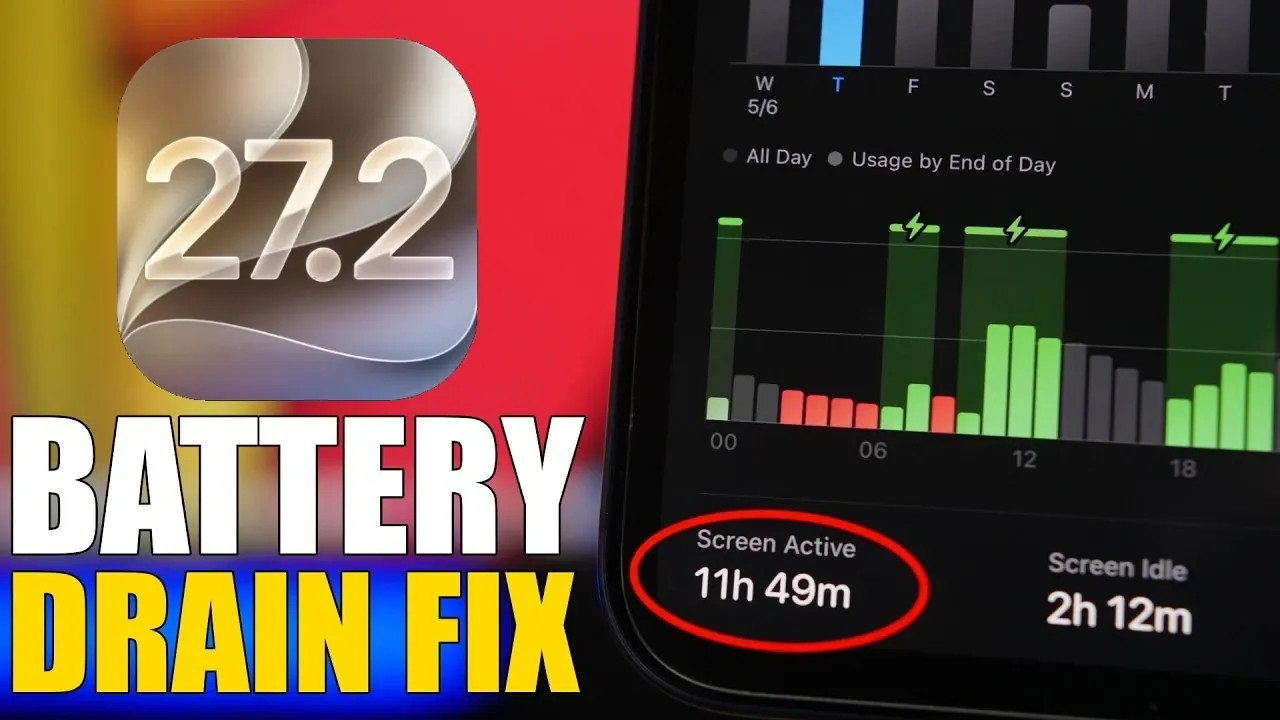
If your iPhone’s battery life has noticeably declined after updating to iOS 27.2, you’re not alone. Some users have reported increased battery drain following major software updates. While this issue is often temporary, there are effective steps you can take to optimize your device and extend its battery life. This guide provides practical, actionable solutions to help you address battery drain and maintain optimal performance. The video below from iReviews gives us more details on how to fix iPhone battery drain in ioS 27.2.

Understanding Battery Drain After Updates
When you update to iOS 27.2, your iPhone undergoes a recalibration process that can temporarily increase battery consumption. During the first 5-6 days after installation, the system reindexes files, optimizes app performance and stabilizes background processes. This adjustment period is normal and typically resolves on its own. To ensure your device benefits from the latest fixes, confirm that you’ve installed the most recent iOS version, including any incremental updates or Release Candidate (RC) patches.
Effective Strategies to Optimize Battery Life
To address battery drain and improve your iPhone’s performance, consider implementing the following strategies:
- Update Your Apps: Outdated apps can be a significant source of battery drain. Open the App Store and update all installed apps to ensure compatibility with iOS 27.2. For convenience, enable automatic updates in the App Store settings.
- Monitor Battery Usage: Navigate to Settings > Battery to identify apps consuming excessive power. If an app consistently drains your battery, consider uninstalling it or finding an alternative.
- Disable Unused Features: Features like AirDrop, Siri suggestions and background processes can consume power unnecessarily. Turn off features you don’t use frequently to conserve battery life.
Adjust Key Settings to Conserve Power
Fine-tuning your iPhone’s settings can significantly reduce battery drain. Here are some areas to focus on:
- Background App Refresh: Go to Settings > General > Background App Refresh and disable it for apps that don’t need constant updates, such as social media or shopping apps. This prevents unnecessary background activity.
- Location Services: Open Settings > Privacy & Security > Location Services and adjust permissions for each app. Set location access to “While Using the App” or “Never” for apps that don’t require constant tracking. Additionally, disable “Significant Locations” under System Services if it’s not essential for your needs.
- Display Settings: Your display settings can have a significant impact on battery life. Enable auto-brightness by going to Settings > Display & Brightness and consider disabling the “Always On Display” feature if your iPhone has an OLED screen.
- Cellular Network Settings: Poor network coverage can cause your iPhone to search for a stronger signal, draining the battery. Navigate to Settings > Cellular > Cellular Data Options and select “4G” or “5G Auto” to prevent constant signal searching in areas with weak coverage.
Additional Tips for Extending Battery Life
Beyond adjusting settings, there are additional steps you can take to maximize your iPhone’s battery life:
- Enable Dark Mode: Switch to Dark Mode by going to Settings > Display & Brightness. This is particularly effective on OLED screens, as darker pixels consume less power.
- Manage Notifications: Open Settings > Notifications and disable alerts for non-essential apps. This reduces background activity and conserves battery life.
- Limit Widgets: Keep only the most useful widgets on your home screen. Widgets update in real-time and can contribute to battery drain if overused.
- Turn Off AirDrop: When not in use, disable AirDrop by opening the Control Center and setting it to “Receiving Off.”
- Use Low Power Mode: Activate Low Power Mode in Settings > Battery to temporarily reduce power consumption by limiting background activity and visual effects.
Maintaining Long-Term Battery Health
While addressing immediate battery drain is important, maintaining your iPhone’s long-term battery health is equally crucial. Avoid exposing your device to extreme temperatures, as both excessive heat and cold can degrade battery performance. Additionally, try to keep your battery level between 20% and 80% to reduce wear on the battery over time. Regularly checking for software updates and keeping your apps optimized will also help ensure your device operates efficiently.
By implementing these strategies and adjustments, you can effectively manage battery drain and enjoy a smoother, more reliable experience with iOS 27.2. These small but impactful changes will help you get the most out of your iPhone while preserving its battery life for the future.
Discover other guides from our vast content that could be of interest on iOS 27.2.
- What’s Coming Next? Inside the New Tweaks Hitting iOS 27.2 Beta 3
- Apple Just Released iOS 27.2 Beta 3: All the New Changes
- The Best Features Coming to Your iPhone in iOS 27.2
- iOS 27.2 Beta 3 Is Here: What’s New, Changed, and Fixed
- Inside iOS 27.2 Beta 4: Surprising UI Tweaks and Last-Minute Changes
- New Features You Didn’t Know Were Coming in iOS 27.2
Source & Image Credit: iReviews
Disclosure: Some of our articles include affiliate links. If you buy something through one of these links, Geeky Gadgets may earn an affiliate commission. Learn about our Disclosure Policy.
