Hobbyists and product designers used to spend hours in CAD just to get a simple printable part. In 2026, browser-based AI tools can turn a short prompt—or a phone photo—into a mesh you can slice the same afternoon. That shift matters if you care about speed, iteration, and access to free STL files without learning a full modeling suite. Meshy is one of the leading AI 3D model generators in that space, and it sits at the intersection of idea, mesh, and print plate.
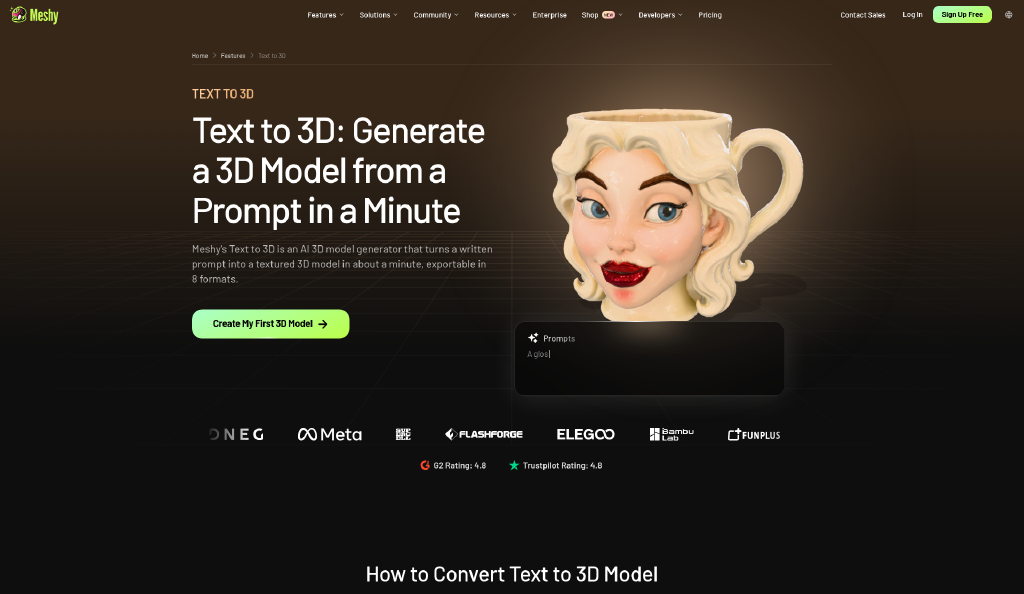
This article walks through what Meshy actually does, how text-to-3D and image-to-3D differ, which formats matter for FDM and resin, and a practical workflow from prompt to slicer. You will also see where a free tier helps—and where paid plans still matter for downloads and licensing.
What Makes Meshy Different From Classic CAD?
Traditional CAD rewards precision: dimensions, constraints, and manufacturing intent. AI generation rewards description and visual reference. You type what you want, or drop in a concept image, and the system proposes a textured mesh in roughly a minute. That does not replace engineering CAD for load-bearing parts, but it is a strong fit for miniatures, props, product concepts, game assets, and decorative prints.
Meshy runs in the browser, so there is no local install for the core workflow. Creators can generate, preview topology, run a printability check, remesh, apply AI texturing, and export without bouncing between five desktop apps. For teams that prototype weekly, that compression of tools is the real product.
Text to 3D Versus Image to 3D
Text to 3D is best when you start from an idea. You describe shape, style, material, and context—up to several hundred characters—and choose settings such as model fidelity, topology style, and pose (including A-pose or T-pose for characters). Image to 3D is better when you already have a sketch, product photo, or multi-view reference and want the mesh to match that look.
In practice, many makers combine both: generate from text, then refine with a reference image or a second prompt. Multi-image input helps when one angle is not enough. After generation, AI texturing can add PBR-style surface detail, and auto-rigging tools can prepare characters for simple animation presets. None of that requires you to be a rigger first—though artists will still polish critical assets by hand.
From Mesh to Print: Formats That Matter
Export choice depends on destination. STL and 3MF dominate FDM and resin slicers. OBJ and GLB are common for web and general interchange. FBX remains a workhorse for Unity and Unreal. USDZ is useful when you need iOS AR Quick Look. Meshy’s printing-oriented flow emphasizes printability checks—watertightness, wall thickness, non-manifold edges—plus repair helpers and options such as auto-split for oversized models.
If your goal is physical parts, start with STL or 3MF, open the file in Bambu Studio, OrcaSlicer, Cura, or Creality Print, and treat the first print as a calibration sample. Scale, orientation, and supports still decide success more than the generator brand on the label.
Where to Find Free STL Files Without Starting From Scratch
Not every project needs a brand-new prompt. Sometimes you want a ready library of seasonal décor, figurines, terrain, or print tools that someone else already stress-tested. Meshy’s print-file library is built around that use case: downloadable models with printability checks and real-print photos, so you can judge risk before you spend filament.
Makers looking for free STL files can browse categories, download CC0-licensed models where offered, and move straight into a slicer. That path is useful for classrooms, maker clubs, and anyone validating a printer before investing hours in original design. When you do want something custom, the same account can switch from library download to text or image generation without changing tools.
A Practical Five-Step Workflow
1. Define the job. Decorative figurine, functional bracket concept, game prop, or teaching demo? Clarity here keeps prompts short and useful.
2. Generate. Use text for ideas, images for likeness. Generate more than one variation when credits allow.
3. Inspect. Use the viewer’s wireframe and statistics. Run printability checks before you trust the mesh.
4. Repair and prepare. Fix non-manifold issues, remesh if needed, split large models, and add a base when the design needs one.
5. Export and slice. Choose STL or 3MF for printing, then set layer height, infill, and supports for your filament or resin.
Keep a simple log: prompt text, settings, export format, and print outcome. After a few cycles you will learn which prompt styles your printer forgives and which ones need manual cleanup in Blender.
Free Tier, Credits, and Licensing Reality
Meshy’s free plan is meant for exploration: monthly credits, no credit card required to start, and room to try core generation. Free-plan licensing is typically attribution-based (for example CC BY-style terms on free generations), while paid plans unlock private licensing, higher credit pools, and broader download rights. API access and heavier production pipelines usually sit on paid tiers.
Read the current plan page before you ship commercial work. Tool marketing moves quickly; your contract with the platform is the license attached to the model you download, not a blog post summary.
FAQ
Do I still need Blender?
Yes, for cleanup, boolean fixes, and art-direction polish. AI gets you to a first mesh faster; Blender remains the workshop.
Can AI replace engineering CAD?
Not for precision mechanical parts that need tolerances and simulation. Use AI for concepts and prints where “good enough geometry” is acceptable.
Which format should beginners pick?
STL for almost any consumer FDM workflow; try 3MF when you want color or richer metadata in modern slicers.
How many screenshots should a tutorial include?
Show the prompt screen, the 3D viewer with printability feedback, the export dialog, and at least one slicer preview. Those four frames teach more than a logo banner ever will.
Conclusion
AI will not erase craft, but it changes the starting line. With a browser toolkit that covers text-to-3D, image-to-3D, texturing, rigging helpers, and print-oriented exports, Meshy makes it realistic to go from idea to plate in a single sitting. Whether you download free STL files from a checked library or generate a custom mesh, the winning habit is the same: inspect, repair, slice, and learn from the first print. In 2026, that loop is short enough that curiosity—not software fear—can drive what you make next.
Disclosure: Some of our articles include affiliate links. If you buy something through one of these links, Geeky Gadgets may earn an affiliate commission. Learn about our Disclosure Policy.
