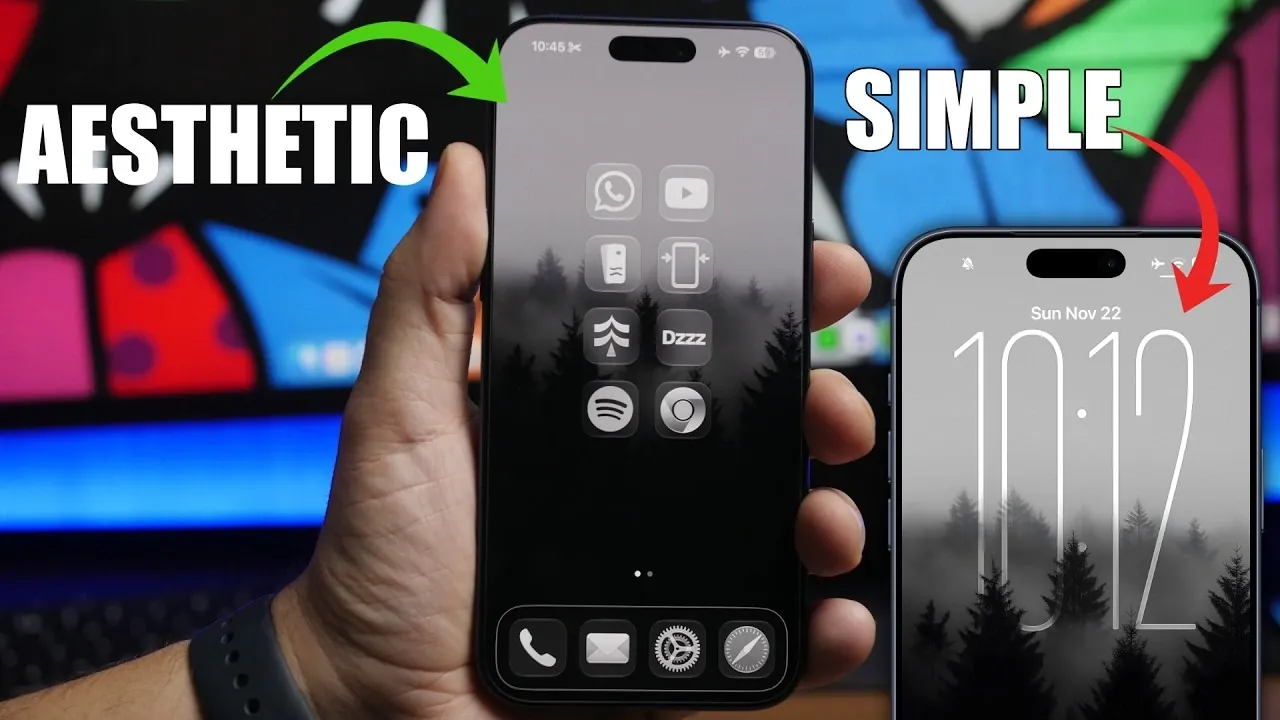
iOS 27 can give your iPhone a cleaner look without an extra app, but keeping the main screen uncluttered means moving some items elsewhere. The setup puts eight frequently used apps on the Home Screen, while shortcuts and widgets have their own pages. iReviews takes a closer look at how this arrangement keeps everyday apps within reach and leaves the rest in the App Library. Follow along as you see how to organize your pages and use Control Center to open apps from anywhere on your iPhone. The video below from iReviews gives us more details.
TL;DR Key Takeaways :
- Lock Screen: Use a Liquid Glass clock and remove both buttons and widgets to reduce clutter.
- Home Screen appearance: Match the Lock Screen wallpaper, enable Show Border, and choose clear icons without labels.
- App layout: Place eight frequently used apps in the middle, with others in the dock and App Library.
- Extra pages: Keep six shortcuts on a second Home Screen page and four widgets on the page to the left.
- Control Center: Arrange small controls in the outside columns and medium controls in the middle.
You can create a minimal iPhone setup in seconds by using the same wallpaper on the Lock Screen and Home Screen. On iOS 27, built-in controls let you adjust the clock, icons and Control Center without adding extra elements to the screen.
Choose a Clock and Clear the Lock Screen
For a large clock, open the Lock Screen customization options and select Liquid Glass. Turn its setting all the way up, then turn the font setting all the way down for the thinnest style. The transparent clock can work with the wallpaper’s depth effect.
For a smaller clock, tap the clock to switch its size. On iOS 27, you can also change the font of the small clock.
Remove both Lock Screen buttons and leave out widgets to reduce clutter, using Control Center in place of the buttons. An active Focus mode will still show its indicator on the Lock Screen.

Adjust the Home Screen Appearance
Use the same wallpaper as your Lock Screen, then turn on Show Border, one of two settings to change for the Home Screen. It adds an outline around the dock, icons and Control Center. You’ll find it at:
Settings > Accessibility > Display & Text Size
Set the Liquid Glass appearance to its most tinted option to get the blurred look used in this setup. In Home Screen customization, remove icon labels, select the clear icon look and use the wallpaper button to darken the background. The setup uses light mode for icons, though dark and auto options are also available.
Place eight frequently used apps in the middle of the Home Screen, with other apps in the dock and App Library, so the main page stays focused on the apps you open most often.
Move Shortcuts and Widgets Off the Main Page
Use a second Home Screen page for shortcuts instead of more app icons. The setup places six shortcuts from the Shortcuts app on that page.
For widgets, use the page to the left of the Home Screen, where Apple originally placed its widgets. The setup keeps four widgets there, accessible with a swipe, although no dot indicates that the page is present.
Arrange Control Center in Three Columns
In Control Center, arrange small controls in the outside columns and medium controls in the middle. The layout can include Wi-Fi, Bluetooth, cellular data, airplane mode, AirDrop, Low Power Mode, Focus and VPN.
You can also put frequently used apps in Control Center and open them by pulling it down from anywhere on the device. To add an app:
- Tap Add Control.
- Search for Shortcuts.
- Select Open App.
- Choose the app you want to open.
You can also use the Lock Screen and Home Screen approach on older iOS versions. It relies on features already on the iPhone, so you do not need an additional app. Start with a simple-looking wallpaper before choosing the clock and icon settings.
We think this suits people who open the same few apps every day and don’t mind searching for the rest. It is a poorer fit if you rely on lock screen buttons or glance at widgets often.
The arrangement can be tailored around the apps and information you use most, without crowding your main screen. If you want a cleaner-looking iPhone that still keeps everyday essentials close at hand, this minimal iOS 27 setup is well worth trying.
Deep dive into the latest in iOS 27 customization and features by exploring our other resources and articles.
- Hidden iOS 27 iPhone Customizations That Will Change How You Use Your Phone
- iOS 27 Out Now: the Settings Every iPhone User Should Change
- iOS 27: The First Things You Should Do Right After Updating
- Unlock Ultra Dark Mode on iOS 27: Here’s How to Do It
- How to Transform Your iPhone With the Ultimate Customization Setup
Source & Image Credit: iReviews
Disclosure: Some of our articles include affiliate links. If you buy something through one of these links, Geeky Gadgets may earn an affiliate commission. Learn about our Disclosure Policy.
