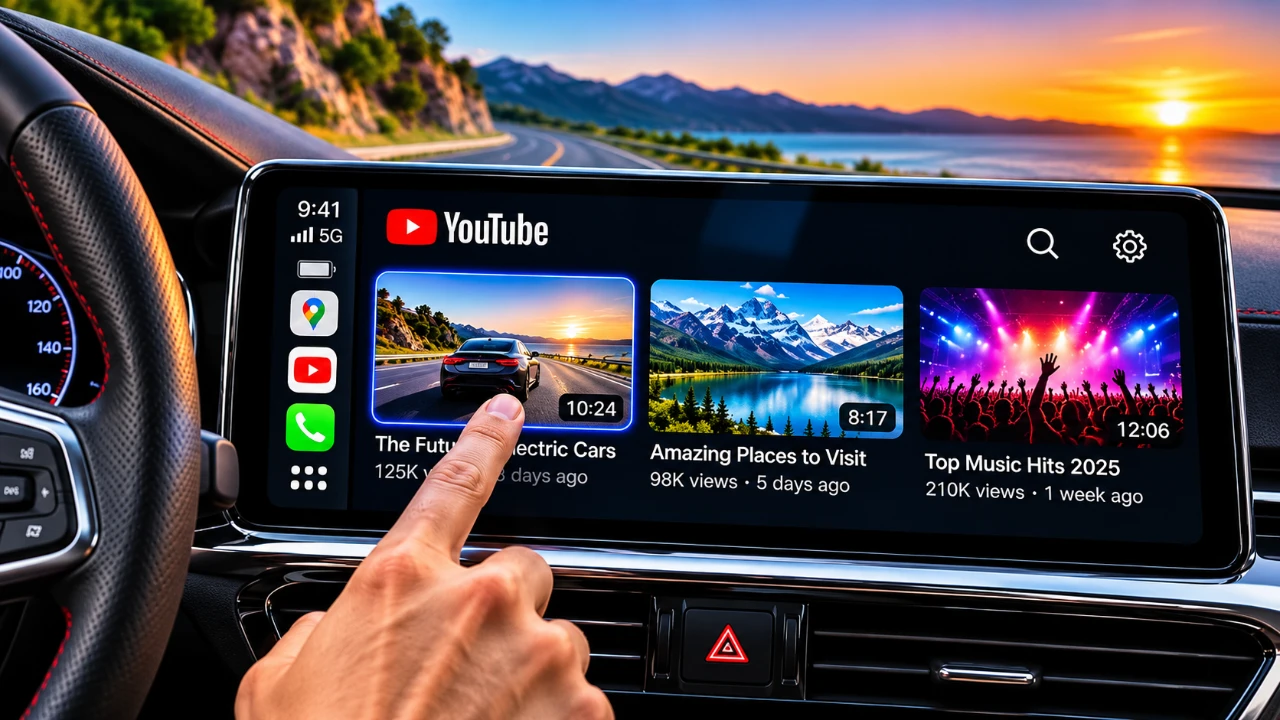
After months of development and testing with thousands of TestFlight beta users, CarScreen: Video & Navigation (commonly referred to as CarScreen) has officially arrived on the iOS App Store. Built with SwiftUI by an independent developer, the app gives iPhone drivers a direct software option for streaming YouTube and loading custom media feeds on compatible Apple CarPlay displays—without jailbreaking or buying external hardware dongles. The video below from HotshotTek breaks down how the app works in practice. The video below from HotshotTek gives us more details.
TL;DR Key Takeaways :
- Official App Store Rollout: Following TestFlight beta testing, Car.Screen: Video & Navigation is now live on the App Store to bring YouTube playback and video controls to Apple CarPlay screens.
- Touch-First Interface & Custom Links: Offers direct touchscreen navigation, full-screen playback, quality adjustments, and custom URL support for feeds such as TikTok or personal IPTV streams.
- Screen Mirroring & Pro Split-Screen: Includes iPhone screen mirroring alongside an optional Pro tier unlocking split-screen multitasking (such as pairing maps with video), enhanced mirroring, and broader media support.
- Known Bugs & Parked Safety Rules: Mirroring disconnects and experimental scrolling quirks are still being refined, and dashboard video playback should only be used when parked in compliance with local road laws.
Key Playback and Touch Interface Features
For years, watching YouTube on an in-dash CarPlay screen meant choosing between listening to audio-only tracks through YouTube Music, buying an external Android AI box, or relying on unstable browser workarounds. Even as Apple introduced parked-only CarPlay video frameworks in recent iOS updates, native playback still depends on individual automakers enabling support on their head units. Car.Screen bypasses that wait by bringing video playback directly through an iPhone app tailored for CarPlay displays:
- Direct Touch-Screen Navigation: Engineered around infotainment touchscreen taps and gestures—including a phone trackpad option for vehicles whose head units restrict standard touch input—making browsing far smoother than clunky cursor-only workarounds.
- Full-Screen Video Playback: Expands supported streams across the available CarPlay display area for cleaner visibility while waiting in a parking lot, school pickup lane, or EV charging bay.
- Integrated Playback & Resolution Controls: Lets users pause, scrub, skip, and adjust video resolution on the fly to match cellular or hotspot signal strength.
Customization, Mirroring, and Split-Screen Multitasking
Beyond core YouTube playback, CarScreen adds tuning controls and extra viewing modes aimed at drivers who want to tailor how media behaves on their dashboard:
- Cursor & Scroll Sensitivity Adjustments: Users can fine-tune pointer speed and scrolling responsiveness to match their vehicle screen’s touch latency and display size.
- Custom URLs & Web Streams: Support for custom URLs lets you load external web feeds—including TikTok links or personal IPTV playlists—rather than being limited to a single video platform.
- iPhone Screen Mirroring: Mirrors content from your connected iPhone onto the CarPlay screen, opening a way to view streaming apps such as Netflix or Peacock that do not provide native CarPlay interfaces.
- Split-Screen Multitasking (Pro): Available on the Pro tier to display two panels side by side, such as keeping turn-by-turn navigation visible alongside media playback.
| Feature / Tier Detail | Free / Base Experience | Car.Screen Pro (Paid Tier) |
|---|---|---|
| YouTube & Touch Playback | Included with full-screen & quality controls | Included with full Pro capabilities |
| Split-Screen View | Standard single-window layout | Unlocked for dual-app side-by-side layouts |
| iPhone Screen Mirroring | Basic mirroring (occasional bugs reported) | Enhanced mirroring support |
| Custom URLs (TikTok / IPTV) | Basic custom URL loading | Expanded platform and stream compatibility |
| Pricing & Trial Options | Free App Store download (launch promo codes shared for 1-week Pro trial) | Flexible weekly (from ~$2), monthly (~$15), or one-time lifetime access |
How to Set Up Car.Screen on Apple CarPlay
Getting Car. Screen running on your vehicle’s display takes only a couple of minutes once your iPhone is paired:
- Download the App: Install CarScreen: Video & Navigation from the iOS App Store on your iPhone.
- Connect to CarPlay: Link your iPhone to your vehicle via a data-capable USB cable or wireless CarPlay connection.
- Arrange Your CarPlay Home Screen: If the icon does not appear immediately on your dashboard, open Settings > General > CarPlay on your iPhone, select your vehicle, and move CarScreen onto your primary home page.
- Configure Controls & Permissions: Launch the app on your car display, sign in or load your preferred video feed, and adjust touch or trackpad sensitivity settings while parked.

How CarScreen Compares to Other CarPlay Video Methods
Because drivers have several ways to get video onto a dashboard screen, it helps to see where an App Store app fits alongside hardware alternatives:
- Vs. External Android AI Boxes: Dedicated plug-in boxes run full Android independently on your head unit without draining iPhone battery, but they typically cost $80 to $200+ and add extra boot time. CarScreen runs natively off your existing iPhone with zero extra hardware.
- Vs. Native iOS 27 CarPlay Video: Apple’s built-in parked video framework requires explicit automaker firmware support—which most existing vehicles still lack. CarScreen works on current CarPlay head units right away.
- Vs. YouTube Music: Google’s official YouTube Music CarPlay app is free and rock-solid for audio, podcasts, and music playlists, but it does not display video on the dashboard.
Known Limitations, App Store Caveats, and Safe Driving Rules
While the App Store release removes much of the setup friction from earlier workarounds, early users should keep a few practical caveats in mind:
- Early Bugs in Mirroring & Experimental Feeds: Screen mirroring can still experience occasional disconnects or stuttering, and experimental features like TikTok scrolling remain rough around the edges while the developer pushes updates.
- App Store & Head-Unit Variability: Third-party CarPlay media apps remain subject to App Store review guidelines, iOS updates, and automaker head-unit quirks, so behavior can vary across vehicles.
- Parked-Vehicle Safety Responsibility: Watching video on a dashboard screen is intended strictly for stationary or parked situations—such as EV charging sessions or waiting in a parking spot—never while driving, and always subject to local distracted-driving laws.
Bottom Line for CarPlay Users
For iPhone owners who have wanted an accessible way to watch YouTube and custom video feeds on Apple CarPlay without jailbreaking or buying extra hardware, Car.Screen’s arrival on the App Store is a notable milestone. Between its free base download, flexible Pro tiers, and active indie developer support, it offers one of the simplest software routes yet for parked in-car entertainment—provided you can live with a few early-release quirks as updates roll out.
Source: HotshotTek
Disclosure: Some of our articles include affiliate links. If you buy something through one of these links, Geeky Gadgets may earn an affiliate commission. Learn about our Disclosure Policy.
