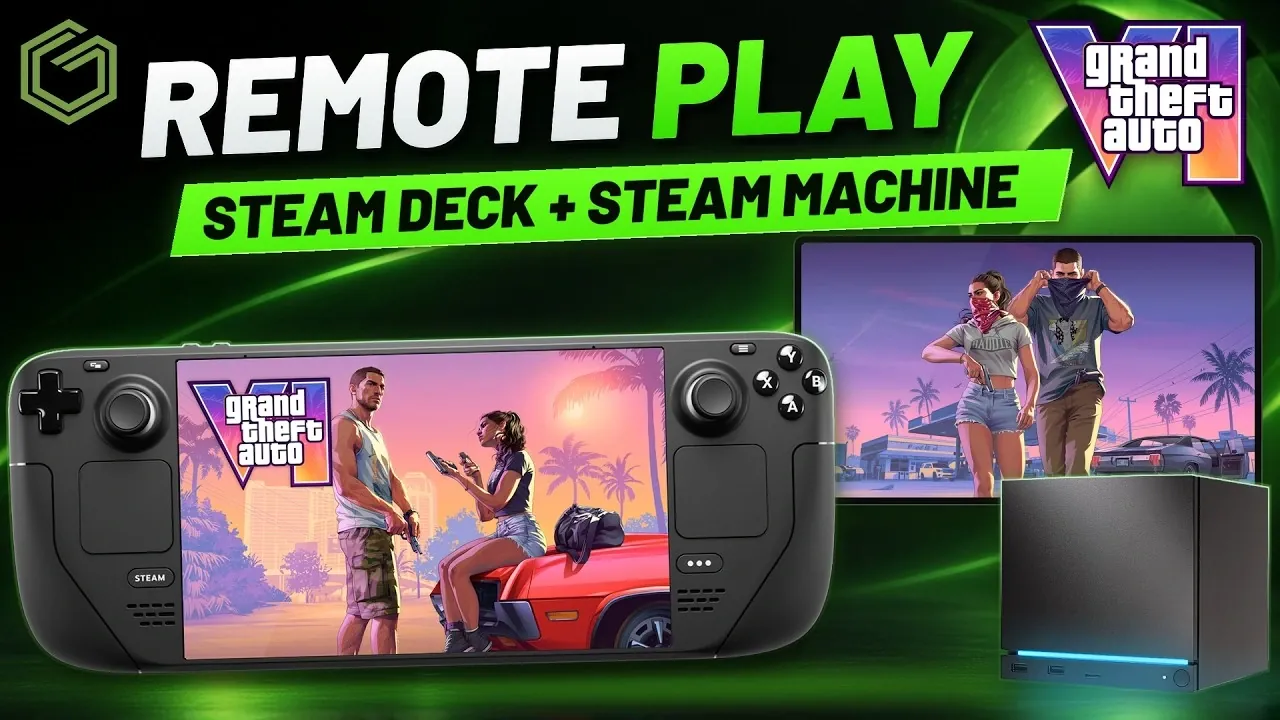
Playing Grand Theft Auto VI on a Steam Deck takes a workaround because the game is not yet available on PC. You can stream Grand Theft Auto VI from an Xbox Series X or Series S to the handheld using Xbox Remote Play. The game runs on the console, while the Deck displays the stream and handles your controls. Greenlight and Google Chrome offer two ways to connect, although streaming adds input latency. Find out what each setup involves and how they performed, as GameTechPlanet found.
Grand Theft Auto VI: Streaming on Steam Deck
TL;DR Key Takeaways :
- Grand Theft Auto VI launched on PlayStation 5 and Xbox Series X|S on 19 November 2026 and is not yet on PC.
- Steam Deck owners can stream the game from an Xbox Series X or Series S using Xbox Remote Play through Greenlight or Chrome.
- Enable Remote Features and play streaming on the Xbox, then use Test Remote Play to check the connection.
- Greenlight requires less setup than Chrome, but its controls require the trackpad until it connects to Xbox or Cloud Gaming.
- GameTechPlanet found similar image quality and input latency with both methods, although Chrome felt slightly better for latency.
You can play Grand Theft Auto VI on Valve’s Steam Deck by streaming it from an Xbox Series X using Xbox Remote Play. Rockstar Games released the game for PlayStation 5 and Xbox Series X|S on 19 November 2026, but it is not yet on PC. The same setup methods work on Steam Machine and with an Xbox Series S as the source.
Prepare the Xbox for Remote Play
On the Xbox, open Settings, then go to Devices and Connections and Remote Features. Turn on remote features and play streaming.
Use Test Remote Play on the same screen to check the connection. GameTechPlanet recommends checking the network before streaming and notes that a NAT type that is not open could delay or worsen the connection.
Set the console’s power option to Sleep if you want to wake it remotely rather than turn it on by hand. Once the Xbox is ready, switch the Steam Deck to Desktop Mode to install either streaming app.

Browse through more resources below from our in-depth content covering more areas on Steam Deck gaming.
- Heroic Game Launcher Enables Xbox Game Pass Titles on SteamOS
- FidelityFX Super Resolution 4 Debuts on Steam Deck Soon
- Leaked Steam Deck 2 Focuses on Massive Performance Upgrades: AMD Zen 6 CPU
Install Greenlight and Link Your Account
Greenlight needs less setup than the Chrome method. In Desktop Mode, search for it in the Discover store, install it and launch it.
Greenlight displays a sign-in code. Visit microsoft.com/link, enter the code and sign in to your Xbox account to connect the app. Its settings include audio, video, input and bitrate controls; the bitrate was left unlimited for this setup.
To make Greenlight accessible from the Deck’s gaming mode, open Steam and select Add a Non-Steam Game. Select Greenlight, choose Add Selected Programs and return to gaming mode, where Greenlight will appear among your non-Steam games.
Use the trackpad to navigate Greenlight before connecting, as the app does not support controller input until it connects to Xbox or Cloud Gaming. Once connected to the console, you can start the stream and use the controller. The controller usually appears in Greenlight’s input area only after the first Xbox connection.
Set Up Chrome for Xbox Remote Play
For the browser method, install Google Chrome from Discover in Desktop Mode. Chrome and Microsoft Edge, Microsoft’s official browser, are among the easiest browser options. Open Konsole and enter the following command to give Chrome access for controller support:
flatpak --user override --filesystem=/run/udev:ro com.google.Chrome
Next, add Chrome to Steam through Add a Non-Steam Game and Add Selected Programs. Open Chrome’s Steam Properties and append the following to the existing Launch Options line, after @@u @@. Do not replace what is already there:
--window-size=1280,800 --force-device-scale-factor=1.25 --device-scale-factor=1.25 --kiosk "https://www.xbox.com/play"
These launch options set the window size and scaling, remove the surrounding browser elements and open the Xbox page. You can rename the Steam entry Xbox Remote Play to make it easier to find, then return to gaming mode.
Configure Controls and Connect to Play
For either Steam entry, open its controller settings and select the Gamepad with Mouse Trackpad template. In Edit Layout, change the trackpad click from right stick click to left mouse click, so you can navigate app controls that do not respond to the gamepad, particularly on a Steam Machine without a touchscreen.
For Greenlight, you can also map the Deck’s L4 button to N, the app’s Xbox guide shortcut. The Chrome setup needs no other shortcuts for the configuration shown here. The right trackpad can reach browser controls while the gamepad handles the rest, and the touchscreen is also supported.
In Chrome, go to xbox.com/play and sign in to your Xbox account, using the same account on the console to help connect the devices. Choose Remote Play, not Cloud Gaming, and select your console; if it is not connected yet, you can connect it there. The browser settings include audio and video controls, and the stream was set to 1080p for this setup.
During a browser stream, the right trackpad can reach the menu at the top left. Its guide button opens the Xbox guide, while the three-dot menu provides full-screen, settings and disconnect controls.
GameTechPlanet recommends both methods and prefers Chrome on the Deck. In testing, image quality and input latency were similar, although the browser felt slightly better for latency. Greenlight filled the Deck’s screen at 800p, with the stream running at 1080p. The stream’s visuals and quality caused no problems on the channel’s network.
Rockstar says the game targets 30 frames per second on Xbox Series X|S, and streaming adds input latency. GameTechPlanet recommends turning off motion blur in the game’s settings, which it finds helps when moving around. It also cautions that latency could cause problems in combat or when driving quickly through traffic, so lighter activities may be a better fit for remote play.
We think this suits people who already own the Xbox Series X and have a steady home network. It is not for anyone without the console, since the game runs on it and the Deck only shows the picture.
The same console connection can bring other Xbox games to your handheld when the TV is in use. If you want to play Grand Theft Auto VI on your Steam Deck using an Xbox, Xbox Remote Play is well worth trying.
Media Credit: GameTechPlanet
Disclosure: Some of our articles include affiliate links. If you buy something through one of these links, Geeky Gadgets may earn an affiliate commission. Learn about our Disclosure Policy.
