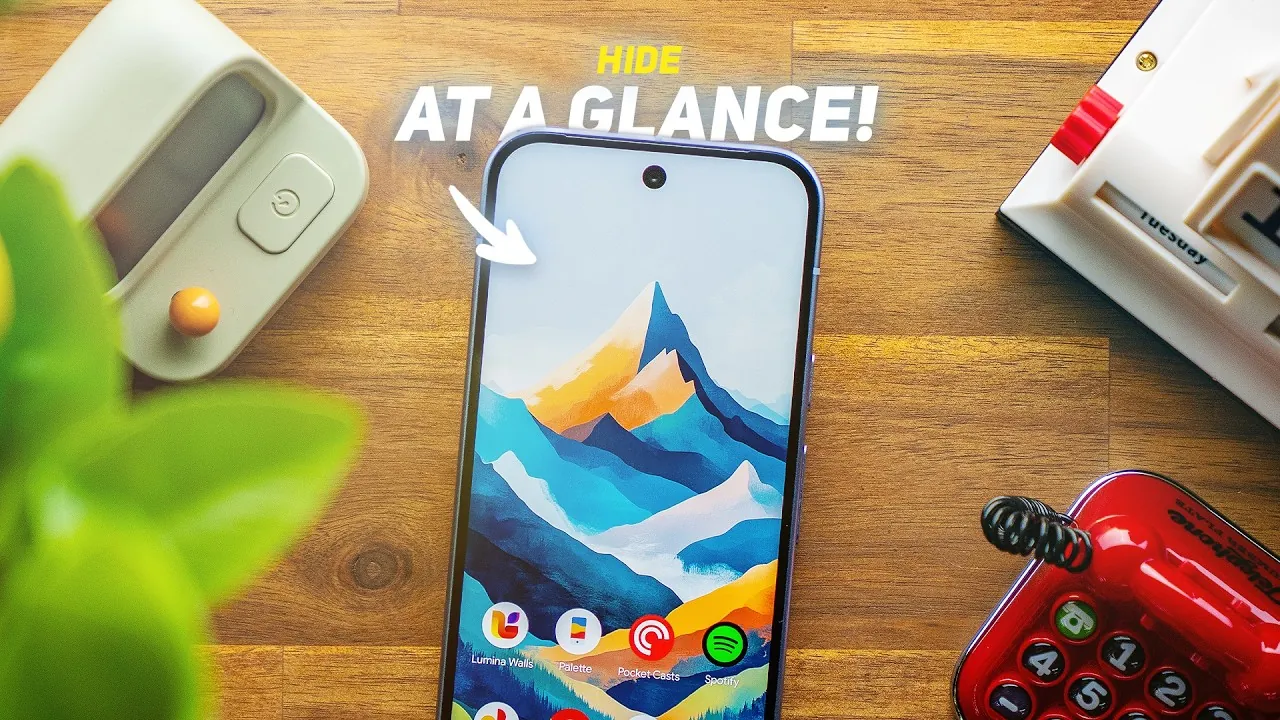
Google Pixel phones are widely recognized for their streamlined design and smooth Android experience. However, the default “At A Glance” widget on the home screen can feel limiting for users who prefer a more tailored layout. If you’re looking to hide this widget without rooting your device, the video below from Sam Beckman provides a practical solution using the Smartspacer and Shizuku apps. While not a perfect fix, this method offers a straightforward way to achieve a cleaner and more personalized home screen.

Understanding the Pixel Launcher’s Customization Limits
The Pixel Launcher is designed with simplicity and usability in mind, but it restricts customization options. Core elements like the “At A Glance” widget and the persistent search bar are locked in place, preventing users from fully personalizing their home screens. Unlike third-party launchers that allow users to remove or modify default widgets, the Pixel Launcher enforces these fixed features. This lack of flexibility has led many users to seek alternative methods to customize their devices without compromising the core Pixel experience.
How to Hide the “At A Glance” Widget
To hide the “At A Glance” widget, you’ll need two apps: Smartspacer and Shizuku. These apps work together to create a blank space on your home screen, effectively concealing the widget without requiring root access. Here’s how they function:
- Smartspacer: This app generates a blank area on your home screen, covering the “At A Glance” widget without removing it.
- Shizuku: This app provides the necessary system-level permissions for Smartspacer to operate, all without rooting your device.
This method is accessible to most users and does not interfere with the core functionality of your phone, making it a practical solution for those seeking a cleaner interface.
Step-by-Step Instructions to Set It Up
Follow these steps to implement the workaround and hide the “At A Glance” widget:
- Enable Developer Options: Navigate to your phone’s settings, select “About phone,” and tap the build number seven times. This action unlocks Developer Options on your device.
- Install and Configure Shizuku: Download the Shizuku app from the Google Play Store. Open the app and follow the instructions to grant system-level permissions through Developer Options.
- Set Up Smartspacer: Download and install the Smartspacer app. Use it to create a blank space on your home screen, effectively hiding the “At A Glance” widget.
This process is straightforward and does not require advanced technical expertise, making it accessible to a wide range of users.
Potential Limitations of This Workaround
While this method is effective, it does come with a few limitations that users should be aware of:
- The hidden widget may reappear after a system reboot or changes such as wallpaper updates.
- Each time the widget reappears, you’ll need to reactivate Shizuku and reconfigure Smartspacer to hide it again.
- The space occupied by the hidden widget remains unusable for other icons or widgets, limiting your home screen layout options.
Despite these drawbacks, this workaround remains a viable option for users who prioritize a cleaner home screen over complete functionality.
Alternative Customization Options
If the limitations of this workaround don’t meet your needs, there are other ways to customize your Pixel phone’s home screen. Consider the following alternatives:
- KLWP (Kustom Live Wallpaper): This app allows you to design custom live wallpapers that can visually integrate with the “At A Glance” widget, creating a more cohesive and personalized appearance.
- Third-Party Launchers: Apps like Nova Launcher or Lawnchair provide extensive customization options, including the ability to remove default widgets. However, these launchers may not work seamlessly with Pixel’s gesture navigation, which could affect the overall user experience.
While these options offer greater flexibility, they come with their own trade-offs, such as compatibility issues or a steeper learning curve for new users.
How to Troubleshoot If the Widget Reappears
If the “At A Glance” widget reappears after a system update, reboot, or other changes, follow these steps to restore your setup:
- Open the Shizuku app and ensure it is running with the necessary permissions enabled.
- Reconfigure the Smartspacer app to hide the widget again.
- Check for any recent system updates or changes that might have reset your configuration, and adjust accordingly.
These troubleshooting steps will help you quickly regain your preferred home screen layout without significant effort.
Enhancing Your Pixel Experience
Hiding the “At A Glance” widget on Pixel phones without rooting is achievable using the Smartspacer and Shizuku apps. While this workaround has some limitations, it provides a practical solution for users who want more control over their home screens. By following the steps outlined above, you can enjoy a cleaner and more personalized interface. For those seeking even greater customization, exploring options like KLWP or third-party launchers can unlock additional possibilities, though they may require more effort to implement effectively.
Find more information on Pixel Launcher customization by browsing our extensive range of articles, guides, and tutorials.
- How to Customize Your Google Pixel: A Step-by-Step Guide
- Advanced Android Phone Customization: 2025 Pro Tips
- Level Up Your Android: 10 Must-Have Customization Apps
- The Ultimate Guide to Free Android Customization
- 8 Awesome Android Customization Apps
Source & Image Credit: Sam Beckman
Disclosure: Some of our articles include affiliate links. If you buy something through one of these links, Geeky Gadgets may earn an affiliate commission. Learn about our Disclosure Policy.
