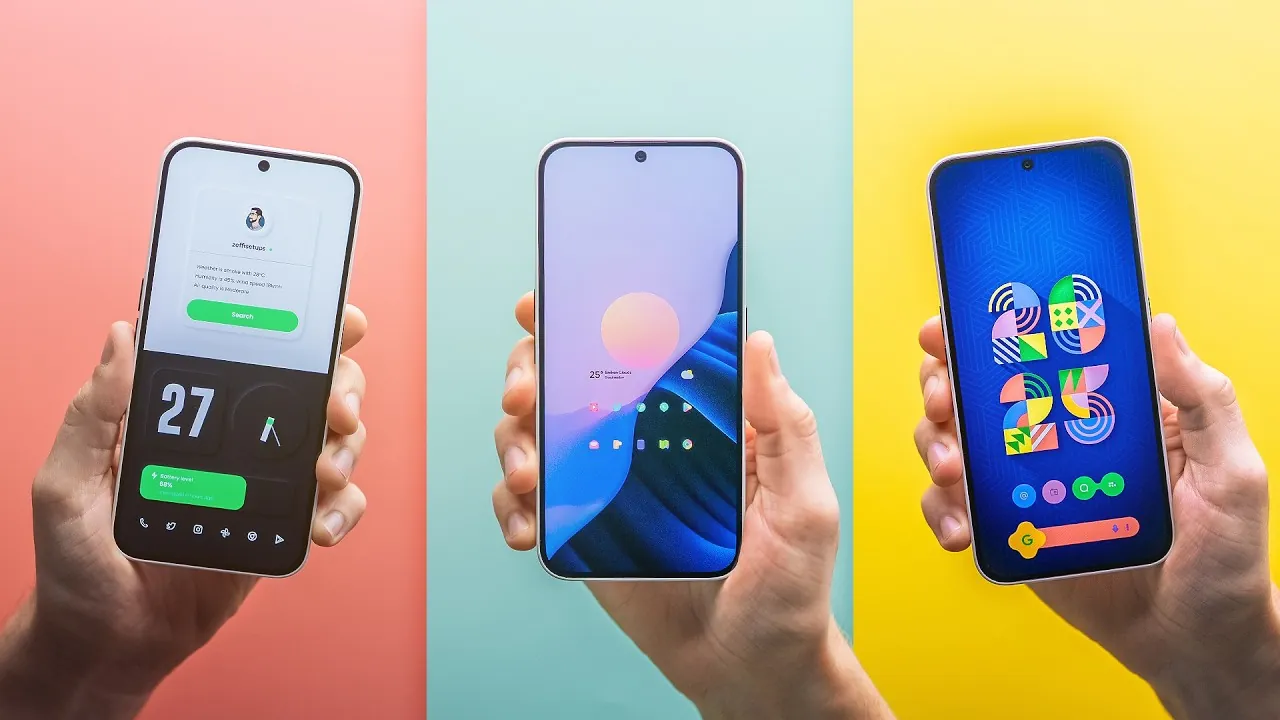
Are you looking to transform your Android phone home screen into a seamless, personalized interface while maintaining optimal performance? Advanced customization techniques can help you strike the perfect balance between style and functionality. The video below from Sam Beckman explores four levels of customization, focusing on the stock system launcher to ensure smooth performance. Whether you’re a casual user or a tech enthusiast, these tips will empower you to design a home screen that reflects your unique preferences and practical needs.
Android and iOS Customization: A Brief Evolution
Android has long been celebrated for its balance between reliability and customization. Over the years, however, its flexibility has slightly diminished compared to earlier versions. Meanwhile, iOS has made significant strides, introducing features like widgets and app icon customization. Despite these improvements, iOS still trails Android in terms of intuitive design and overall flexibility. This guide emphasizes Android’s stock system launcher, avoiding third-party launchers unless necessary, to ensure a universally applicable and fluid experience for all users.
Level 1: Basic Customization
The journey to a personalized home screen begins with simple yet impactful adjustments. These foundational steps allow you to create a clean and functional interface:
- Change Your Wallpaper: Most Android devices include dynamic wallpapers that adapt to light or dark modes. For more variety, explore third-party apps like Dual Wallpaper, which automatically switch wallpapers based on system themes.
- Adjust Your Home Screen Grid: Modify the grid size to control the spacing and arrangement of apps and widgets. This feature, available on most Android devices, helps you achieve a balanced and organized layout.
These basic changes set the stage for a visually appealing and user-friendly home screen.
Level 2: Icon Customization
Customizing app icons is an effective way to elevate your home screen’s aesthetic while maintaining functionality. While third-party icon packs are popular, they often face compatibility issues with stock launchers. Instead, consider these approaches:
- Create Custom Icons with KWGT: Use KWGT (Kustom Widget Maker) to design unique icons with fluid animations and tailored designs that match your style.
- Link Icons to Apps: Once your custom icons are ready, link them to their respective apps for a cohesive and functional appearance.
This method enhances both the visual appeal and usability of your home screen, offering a personalized touch without compromising performance.
Level 3: Advanced Icon Customization
For users seeking greater control, advanced icon customization provides additional flexibility. These techniques allow you to push the boundaries of your stock launcher:
- Custom Grid Layouts: Use KWGT to bypass stock grid size limitations, allowing precise placement of icons and widgets for a polished and professional look.
- Add Notification Dots: Configure KWGT components to display notification dots on custom icons, combining functionality with a sleek design.
These advanced techniques allow you to refine your home screen further, making sure it meets both your aesthetic and practical needs.
Level 4: Custom Widgets
Widgets are a powerful tool for adding both style and functionality to your home screen. With KWGT, you can create or import custom widgets tailored to your specific requirements. Here’s how to maximize their potential:
- Dynamic Themes: Integrate system-wide color changes into your widgets for a cohesive and adaptive design that aligns with your device’s theme.
- Explore Widget Packs: Browse KWGT widget packs for inspiration and pre-designed layouts that can be customized further.
- Streamline Workflow: Link widgets to specific apps, such as weather updates, calendars, or shortcuts, to enhance usability and efficiency.
Custom widgets not only improve functionality but also add a unique, personalized touch to your home screen, making it both practical and visually stunning.
Additional Considerations
While the stock system launcher offers robust customization options, it does have its limitations. Here are some factors to keep in mind:
- Restricted Features: Some stock launchers limit widget removal or hiding the dock, which can constrain your design flexibility.
- Pixel Phones: Pixel devices are known for their restricted customization options. However, they perform exceptionally well with third-party launchers like Hyperion Launcher, which offers enhanced flexibility without compromising system performance.
If you’re open to exploring alternatives, third-party launchers can provide additional features while maintaining a smooth and reliable user experience.
Unlock Your Device’s Potential
By combining custom icons, grid layouts, wallpapers, and widgets, you can create a home screen that is both functional and visually stunning. This guide focuses on universal techniques that work seamlessly with any Android phone, making sure a smooth experience without relying on third-party launchers. Whether you’re a beginner or an advanced user, these tips will help you unlock your device’s full potential, turning it into a reflection of your unique style and needs.
Uncover more insights about Android Customization in previous articles we have written.
- 10 Android Customization Apps You Need in 2024
- The Ultimate Guide to Free Android Customization
- HyperOS 2.0: Xiaomi Takes Android Customization to the Next Level
- Level Up Your Android: 10 Must-Have Customization Apps
- 8 Awesome Android Customization Apps
Source & Image Credit: Sam Beckman
Disclosure: Some of our articles include affiliate links. If you buy something through one of these links, Geeky Gadgets may earn an affiliate commission. Learn about our Disclosure Policy.
