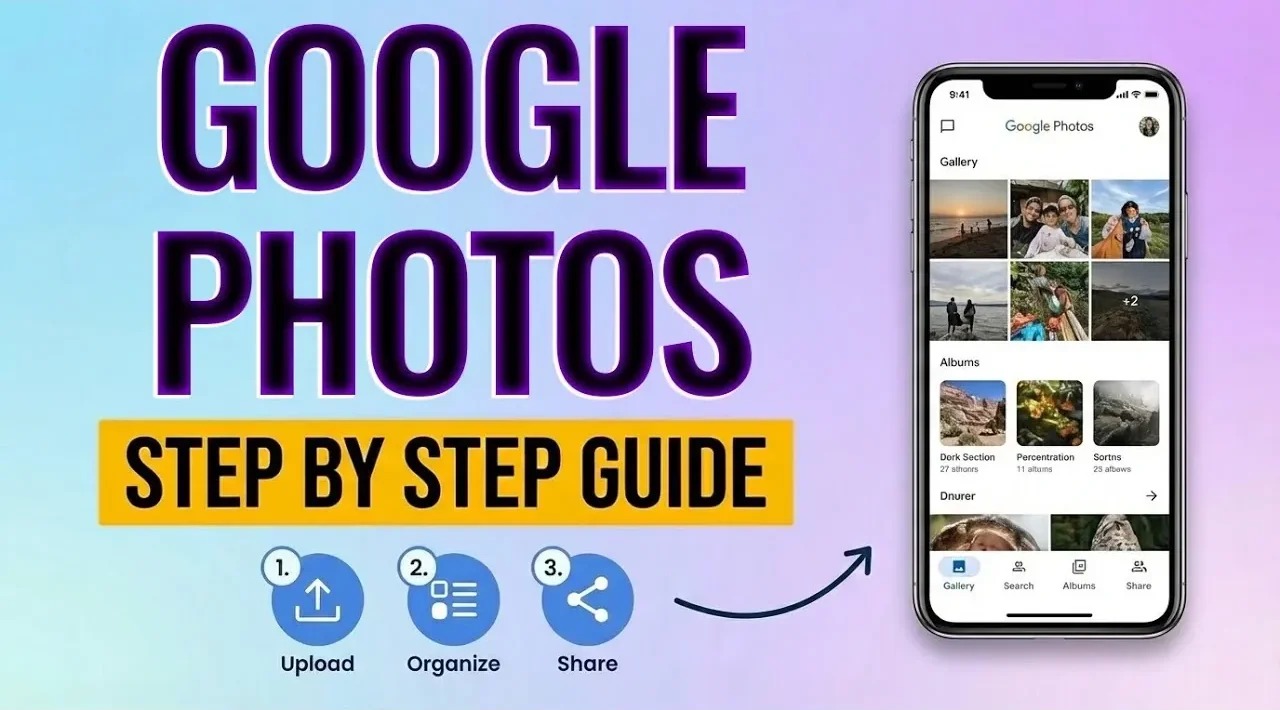
Have you ever scrolled through your cluttered photo gallery, overwhelmed by thousands of images, unsure where to start organizing? Or maybe you’ve lost precious memories to a phone mishap, wishing there were a better way to safeguard your photos? Enter Google Photos, a powerful, user-friendly platform designed to not only store your images but also transform how you manage, edit, and share them. With features like automatic backups and AI-powered organization, Google Photos ensures your memories are secure, accessible, and beautifully arranged, no matter how chaotic your photo collection may seem. Whether you’re a casual snapper or a dedicated shutterbug, this tool could be the fantastic option you didn’t know you needed.
In this step-by-step how-to from Howfinity, you’ll discover how to unlock the full potential of Google Photos. From setting up cross-device synchronization to exploring advanced features like AI-generated collages and smart search, this guide will walk you through everything you need to know. Curious about how to keep your photos safe without sacrificing quality? Wondering how to find that one vacation photo in seconds? You’re in the right place. By the end, you’ll not only have a streamlined photo library but also the confidence to make the most of Google Photos’ intuitive tools. Let’s explore how this platform can turn your photo chaos into effortless organization.
Google Photos Overview
TL;DR Key Takeaways :
- Google Photos offers automatic photo backups with two storage options: “Storage Saver” for free, unlimited compressed storage and “Original Quality” for full-resolution storage that counts against your Google account limit.
- The app features an intuitive interface with AI-powered tools for organizing photos into albums, creating themed collections, and allowing easy search using keywords, filters, or facial recognition.
- Robust editing tools include filters, cropping, rotation, and adjustment sliders, with non-destructive editing to preserve original photos and a 30-day trash folder for recovery.
- Advanced features like collages, animations, highlight videos, and voice-activated search enhance the user experience, making photo management creative and efficient.
- Seamless cross-device synchronization allows users to access, organize, and edit their photos from any device, making sure flexibility and convenience for on-the-go photo management.
Getting Started: Downloading and Signing In
The first step to using Google Photos is downloading the app from your device’s app store. Once installed, sign in with your Google account. This process is essential as it links your photos to your account, allowing cross-device synchronization and unlocking the app’s full suite of features.
If you don’t already have a Google account, creating one is straightforward. Simply follow the prompts during setup. Having a Google account not only grants access to Google Photos but also integrates seamlessly with other Google services, enhancing your overall experience.
Setting Up Automatic Photo Backups
One of the most valuable features of Google Photos is its ability to automatically back up your photos. After signing in, you’ll be prompted to enable this feature. You can choose between two storage options:
- Storage Saver: Compresses photos to reduce file size while maintaining good quality. This option offers free, unlimited storage, making it ideal for users with extensive photo libraries.
- Original Quality: Preserves photos in their full resolution but counts against your Google account’s storage limit. If you require more space, you can purchase additional storage through Google One.
You can further customize your backup settings to suit your preferences. For instance, you can opt to upload photos only over Wi-Fi to save cellular data or enable backups over mobile networks for instant uploads. These options give you control over how and when your photos are stored, making sure flexibility and convenience.
How to Use Google Photos in 2025

Gain further expertise in organization by checking out these recommendations.
- How to Use Apple Notes for Organization, Collaboration and More
- Forever Notes : The Ultimate Apple Notes Organization System
- OneNote Links Guide : Tips & Ticks for Effortless Note Organization
- How to Use OneNote Templates to Boost Productivity & Organization
- 11 Essential Google Keep Tips for Better Digital Organization
- How to Organize Apple Notes for Maximum Productivity in 2025
- Best Note Taking Apps for 2025: Productivity & Organization
- 25 NotebookLM Pro Hacks for Research, Organization and Creative
- How to Use Apple Notes for Effortless Daily Organization
- How to use Google Bard for Productivity and Organization
Navigating the App’s Layout
The Google Photos interface is designed for simplicity and efficiency. The homepage serves as your central hub, where your photos are automatically organized by day, month, or year. This chronological arrangement makes it easy to browse through your library and relive past memories. Additionally, the app uses AI to create themed collections, such as albums for specific events or nostalgic throwbacks.
The navigation bar at the bottom of the screen provides quick access to key sections:
- Photos: Displays your entire photo library in chronological order.
- Search: Allows you to locate specific images using keywords, filters, or AI-powered recognition.
- Sharing: Lets you view shared albums and photos sent to or received from others, streamlining collaboration and sharing.
This intuitive layout ensures that all essential features are just a tap away, making photo management effortless.
Organizing and Enhancing Your Photo Library
Google Photos offers robust tools to help you organize and enhance your photo collection. You can create albums manually or use the auto-add feature, which uses AI to group photos of specific people, pets, or events. This smart organization saves time and ensures your library remains tidy.
Sharing photos is equally straightforward. You can send images directly to contacts or generate shareable links for broader access. This functionality is particularly useful for collaborating on albums or sharing memories with friends and family.
For editing, Google Photos provides a comprehensive suite of tools, including:
- Filters: Enhance your photos’ appearance with a variety of preset styles.
- Cropping and Rotation: Adjust framing and orientation for better composition.
- Adjustment Sliders: Fine-tune brightness, contrast, and color to achieve the desired look.
All edits are non-destructive, meaning you can save changes as a copy while preserving the original photo. Additionally, if you accidentally delete an image, it’s stored in the trash folder for 30 days, providing a safety net for recovery.
Exploring Advanced Features
Google Photos goes beyond basic photo management by incorporating advanced features powered by artificial intelligence (AI). In the “Utilities” section, you’ll find tools that automatically create:
- Collages and Animations: Combine multiple photos into creative layouts or short animations.
- Highlight Videos: Compile your best moments into professionally edited video clips.
The app’s search functionality is another standout feature. You can use keywords like “beach” or “birthday” to locate specific images. AI-powered recognition also allows you to search for photos based on objects, locations, or even faces. For added convenience, you can use voice commands to find what you’re looking for, making the search process even faster.
Accessing and Synchronizing Photos Across Devices
One of the greatest strengths of Google Photos is its seamless cross-device synchronization. By signing into your Google account, you can access your photos from any smartphone, tablet, or computer. This ensures your memories are always available, whether you’re at home, at work, or traveling.
The platform’s integration across devices allows you to start organizing or editing on one device and continue on another without interruption. This flexibility is particularly beneficial for users who frequently switch between devices or need to access their photos on the go.
Maximizing the Benefits of Google Photos
Google Photos is more than just a photo storage app, it’s a comprehensive platform that simplifies the way you manage, edit, and share your memories. By allowing automatic backups, organizing your library with AI-powered tools, and exploring advanced features like collages, highlight videos, and voice search, you can streamline your photo management process.
With its intuitive interface, robust editing tools, and cross-device accessibility, Google Photos ensures your photos are secure, organized, and always within reach. Whether you’re a casual user capturing everyday moments or a photography enthusiast curating a professional portfolio, this platform offers everything you need to keep your memories safe and easily accessible.
Media Credit: Howfinity
Disclosure: Some of our articles include affiliate links. If you buy something through one of these links, Geeky Gadgets may earn an affiliate commission. Learn about our Disclosure Policy.
