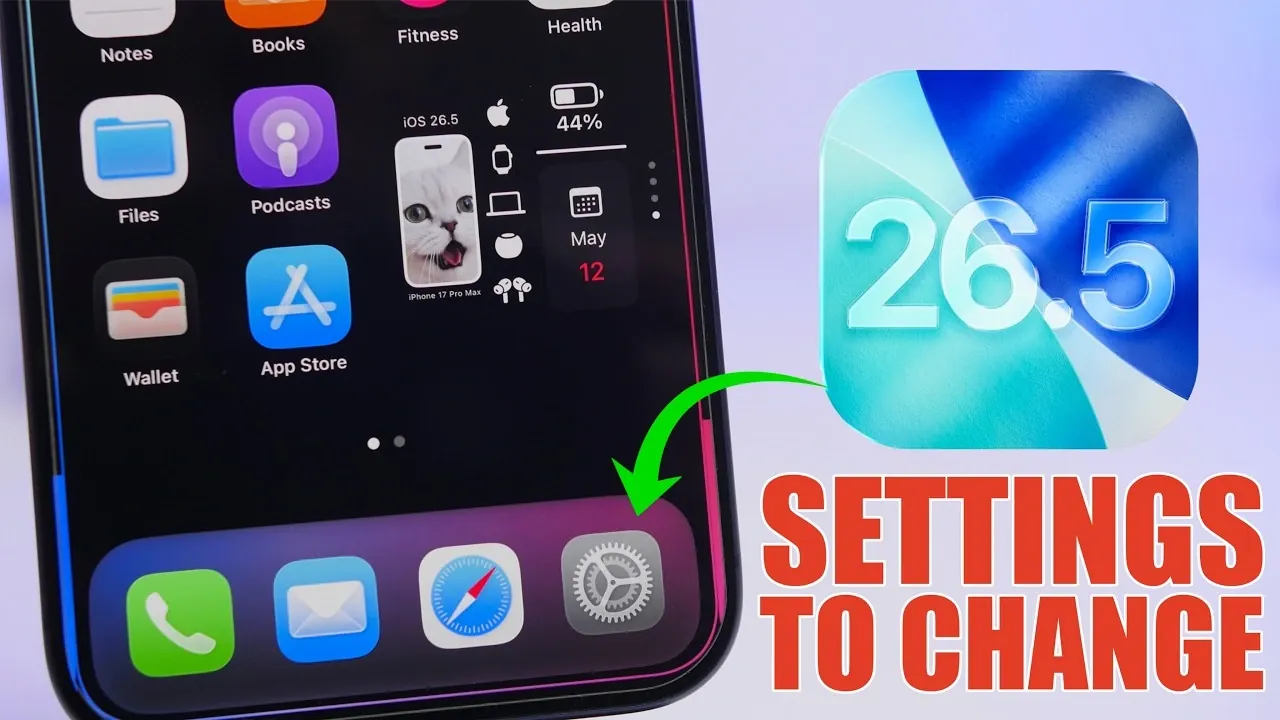
The iOS 26.5 update brings a collection of subtle yet impactful enhancements designed to improve your device’s functionality, security and overall performance. While it doesn’t introduce innovative features, several settings stand out as essential adjustments. By fine-tuning these options, you can optimize your iPhone for better efficiency, enhanced privacy and a more personalized experience. The video below from iReviews gives us more details.
1. Enable End-to-End Encryption for RCS Messaging
A key highlight of iOS 26.5 is the introduction of end-to-end encryption for RCS messaging. This feature ensures that your conversations remain private and secure, protecting them from unauthorized access. If your carrier supports RCS messaging, allowing this feature is a straightforward process. Navigate to Settings > Messages > RCS Messaging and toggle the encryption option. For privacy-conscious users, this adjustment is critical in safeguarding sensitive communications.
2. Manage Notification Forwarding
Notification forwarding allows your iPhone to send alerts to connected devices, such as smartwatches or other accessories. While this feature is convenient, it can also contribute to unnecessary battery drain if not carefully managed. To customize this setting, go to Settings > Notifications and select which apps are permitted to forward notifications. By limiting this feature to essential apps, you can conserve battery life while maintaining the convenience of staying connected across devices.
3. Activate Audio Zoom for Better Video Sound
The updated Audio Zoom feature in iOS 26.5 enhances audio clarity when recording videos by focusing on the sound source you’re zooming in on. This is particularly useful in noisy environments, making sure your videos not only look sharp but also sound clear and focused. To activate this feature, head to Settings > Camera > Record Sound. Whether you’re capturing a concert or a family gathering, Audio Zoom ensures your recordings are more immersive and professional.
4. Disable Automatic Video Downloads in Podcasts
Video-heavy podcasts can quickly consume your device’s storage if automatic downloads are enabled. To prevent this, disable the feature by navigating to Settings > Podcasts > Automatic Downloads. This adjustment is especially beneficial for users who follow multiple podcasts, as it frees up valuable storage space for other files, apps, or media. By managing downloads manually, you can prioritize content that matters most to you.
5. Turn On Background Security Updates
iOS 26.5 introduces Background Security Updates, a feature designed to automatically install critical security patches without requiring manual intervention. This ensures your device remains protected against emerging threats. To enable this feature, go to Settings > Privacy & Security and toggle on Background Security Improvements. By keeping this setting active, you can maintain robust security without interrupting your daily usage.
6. Adjust Screenshot Format for Storage Efficiency
Frequent screenshot takers can benefit from switching to the SDR format, which reduces file sizes while maintaining image quality. This is particularly useful for users managing limited storage space. To make this adjustment, visit Settings > Screen Capture Settings. Smaller file sizes mean you’ll have more room for apps, photos and other important content, making this a practical change for anyone who relies on screenshots for work or personal use.
7. Optimize Battery Settings
Battery health remains a priority in iOS 26.5, with several settings designed to extend your device’s lifespan. Enable Optimized Battery Charging under Settings > Battery to reduce the time your battery spends fully charged, which helps prevent long-term wear. Additionally, if you prioritize faster charging over eco-friendly energy use, consider disabling Clean Energy Charging. These adjustments allow you to balance performance with battery longevity based on your preferences and daily habits.
8. Disable Lock Screen Camera Access
The swipe-to-open camera feature on the lock screen can lead to accidental activations, which not only drain your battery but also clutter your photo library with unintended captures. To disable this feature, go to Settings > Face ID & Passcode and turn off lock screen camera access. This simple change helps conserve battery life and prevents unnecessary disruptions.
9. Review Privacy and Security Permissions
iOS 26.5 makes it easier than ever to review and manage app permissions, making sure that your sensitive data remains secure. Navigate to Settings > Privacy & Security to check which apps have access to your location, contacts, camera, microphone and local network. Revoke permissions for apps that don’t require access to this data. By doing so, you strengthen your privacy and reduce potential security risks, giving you greater control over how your information is used.
10. Streamline Notifications with Scheduled Summary
Managing notifications effectively is key to staying focused and conserving battery life. The Scheduled Summary feature allows you to group non-urgent alerts and receive them at specific times. To enable this, go to Settings > Notifications and configure your summary schedule. Additionally, consider disabling notifications for apps that don’t require your immediate attention. These changes help you stay organized, minimize distractions and extend your device’s battery performance.
Maximize Your iPhone Experience
The iOS 26.5 update may not introduce dramatic changes, but its thoughtful improvements can significantly enhance your iPhone’s functionality, security and efficiency. By adjusting these ten settings, you can tailor your device to better suit your needs, making sure a smoother and more secure experience. Take the time to explore these options and make the most of what iOS 26.5 has to offer.
Source & Image Credit: iReviews
Disclosure: Some of our articles include affiliate links. If you buy something through one of these links, Geeky Gadgets may earn an affiliate commission. Learn about our Disclosure Policy.
