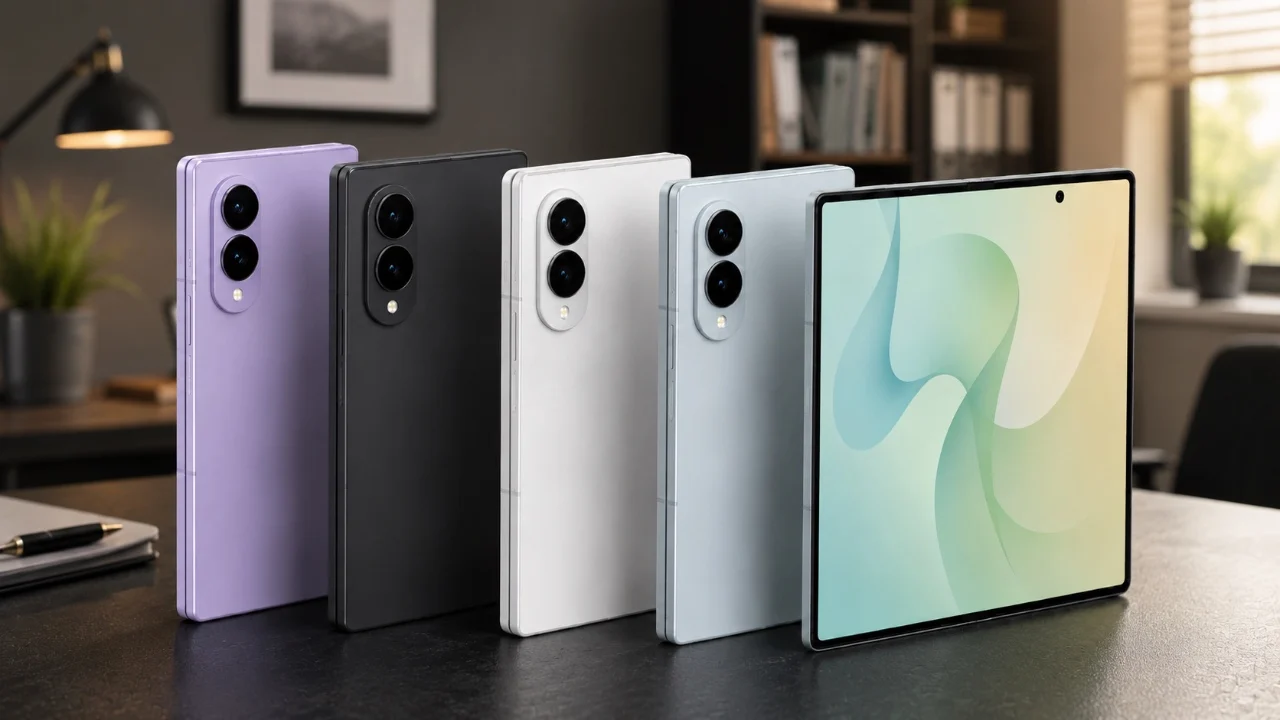
The Galaxy Z Fold 8 is more than just a smartphone; it’s a foldable powerhouse designed to redefine multitasking and productivity. If you’re using it like a traditional phone, you’re missing out on its unique capabilities. By customizing its features, optimizing app layouts, and using multitasking tools, you can transform your experience into something truly exceptional. This device offers a level of flexibility and functionality that sets it apart from standard smartphones. Here’s how to make the most of this innovative device. The video below from Mr Android FHD shows us how to get the most out of the handset.

Dual Home Screen Customization: Tailor Your Experience
One of the Galaxy Z Fold 8’s standout features is its dual home screen functionality. Unlike standard smartphones, this device allows you to create separate layouts for the cover screen and the inner display, giving you the freedom to design a personalized experience.
- Disable cover screen mirroring in the settings to create unique home screens for different use cases. This ensures that each screen serves a distinct purpose.
- Use the cover screen for quick access to essential apps, such as messaging or navigation, while reserving the inner display for a more expansive, productivity-focused setup.
- Customize layouts for both portrait and landscape orientations to ensure seamless usability, no matter how you hold the device.
This level of customization allows you to adapt the device to your specific needs, making it feel like two devices in one. Whether you’re on the go or working on a detailed project, the Galaxy Z Fold 8 can be tailored to suit your lifestyle.
App Continuity: Seamless Transitions Between Screens
The Galaxy Z Fold 8’s app continuity feature ensures a smooth transition between the cover screen and the inner display, allowing you to move between screens without interrupting your workflow.
- Enable seamless transitions in the settings so apps automatically adjust when you unfold the device. This is particularly useful for tasks like reading or editing documents.
- Use swipe gestures to control app behavior, making the experience more interactive and intuitive.
- Disable continuity for specific apps if you prefer them to remain static when switching screens, giving you greater control over how apps behave.
These options allow you to tailor the device’s functionality to your workflow, making sure that your apps behave exactly how you want them to. Whether you’re switching from a quick glance on the cover screen to a deep dive on the inner display, the Galaxy Z Fold 8 adapts effortlessly.
App Layout Optimization: Make the Most of the Inner Display
The expansive inner display of the Galaxy Z Fold 8 offers a unique opportunity to optimize app layouts for both productivity and entertainment. Many apps are designed for standard smartphone screens, but this device allows you to adjust their settings to take full advantage of the larger screen.
- Adjust aspect ratios to ensure apps fit perfectly on the foldable display, eliminating awkward formatting or wasted screen space.
- Enable landscape mode for apps typically locked in portrait orientation, creating a more immersive experience for activities like gaming or video editing.
- Experiment with app scaling to improve usability and aesthetics, making sure that every app looks and functions at its best.
These adjustments enhance the overall user experience, allowing you to fully use the Galaxy Z Fold 8’s capabilities. Whether you’re working on a presentation or enjoying a movie, the optimized app layouts make every interaction more enjoyable.
Multitasking Features: Work Smarter, Not Harder
The Galaxy Z Fold 8 is designed with multitasking in mind, offering a suite of tools to help you manage multiple apps simultaneously. These features make it easier than ever to juggle tasks and stay productive.
- Use split-screen mode to run two apps side by side, perfect for comparing documents, browsing the web while taking notes, or watching videos while chatting.
- Open apps in pop-up views, which you can move around the screen for added flexibility and convenience.
- Use the taskbar, a desktop-like feature, for quick access to your favorite apps and app pairs, streamlining your workflow.
- Save app pair configurations for one-tap access to frequently used combinations, such as email and calendar or messaging and video calls.
These multitasking tools transform the Galaxy Z Fold 8 into a productivity powerhouse, allowing you to handle complex tasks with ease. The ability to customize and save app pairings ensures that your most-used tools are always at your fingertips.
Keyboard Customization: Type Your Way
Typing on a foldable device is a unique experience and the Galaxy Z Fold 8 offers several options to make it more comfortable and efficient. Whether you’re drafting emails or chatting with friends, the keyboard can be tailored to your preferences.
- Choose between keyboard layouts, such as a standard keyboard, a split layout for easier thumb typing, or a floating keyboard that you can position anywhere on the screen.
- Adjust the keyboard’s size and transparency to suit your needs, making sure a comfortable typing experience.
- Switch between keyboard layouts depending on whether you’re using the cover screen or the inner display, maximizing usability in any mode.
These customization options ensure a smooth and efficient typing experience, no matter how you’re using the device. The flexibility of the keyboard settings allows you to adapt to different tasks and preferences effortlessly.
Advanced Display Features: Maximize Usability
The advanced display features of the Galaxy Z Fold 8 are designed to enhance usability and productivity, making it an ideal device for both work and play.
- Use multi-window support to open multiple apps simultaneously, even those that don’t natively support this functionality. This is particularly useful for multitasking-heavy workflows.
- Adjust screen zoom to fine-tune the size of on-screen content, improving readability and accessibility for users with different preferences.
- Experiment with display settings to find the perfect balance between functionality and comfort, making sure that the device meets your specific needs.
These features make the Galaxy Z Fold 8 particularly well-suited for productivity tasks, allowing you to view and interact with more information at once. Whether you’re managing spreadsheets or streaming content, the advanced display settings enhance every aspect of the experience.
Explore the Galaxy Z Fold 8’s Full Potential
The Galaxy Z Fold 8 is not just another smartphone, it’s a versatile tool designed to elevate your multitasking and customization capabilities. By exploring features like dual home screen customization, app continuity and advanced multitasking tools, you can unlock its full potential. Whether you’re optimizing app layouts, customizing your keyboard, or using advanced display settings, this device offers a level of flexibility that traditional smartphones simply can’t match. Take the time to explore its features and you’ll discover a device that adapts to your needs, not the other way around.
Here is a selection of other guides from our extensive library of content you may find of interest on Galaxy Z Fold 8.
- Samsung’s Foldable Masterpiece: Galaxy Z Fold 8 Ultra Leaks
- Samsung Galaxy Z Fold 8 Size Comparison: Wide vs Ultra Models
- Will the Samsung Galaxy Z Fold 8 Wide Fit In Your Pocket?
- Samsung’s Galaxy Z Fold 8 Ultra Is Finally the Leap We’ve Been Waiting For
- Why the Samsung Galaxy Z Fold 8 Ultra is Breaking the Internet
Source: Mr Android FHD
Disclosure: Some of our articles include affiliate links. If you buy something through one of these links, Geeky Gadgets may earn an affiliate commission. Learn about our Disclosure Policy.
