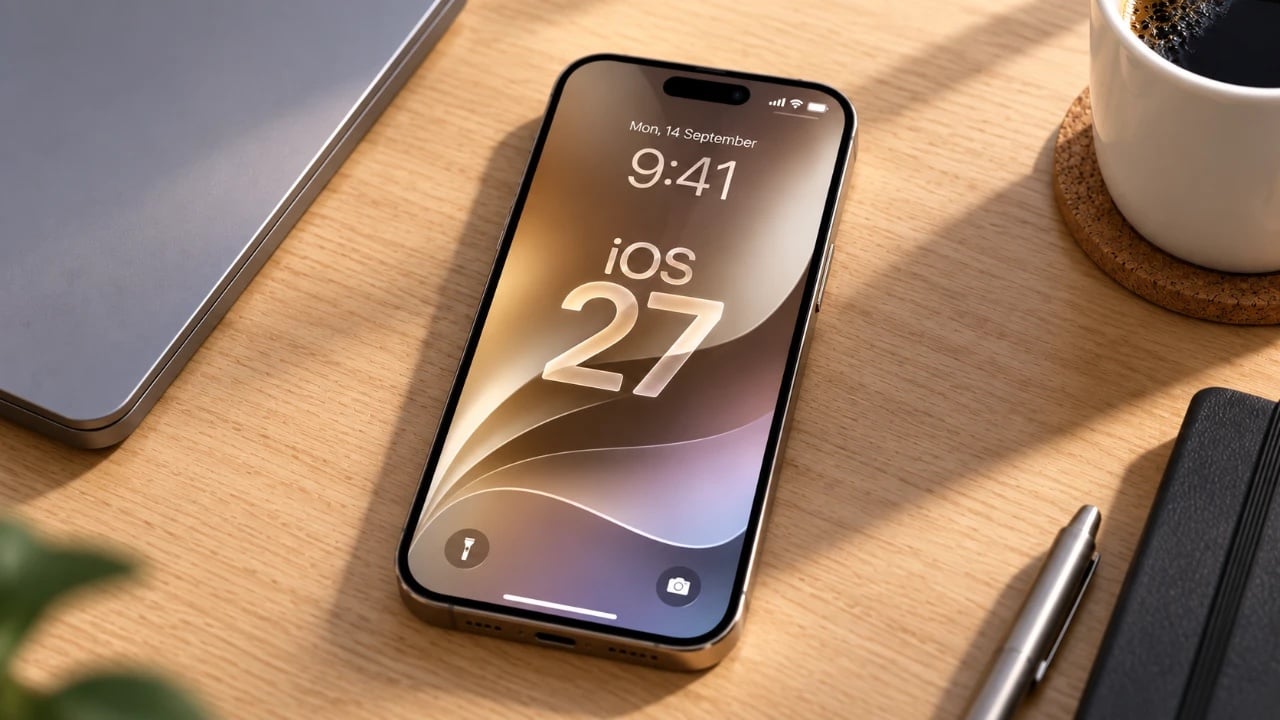
Maximizing the battery life of your iPhone running iOS 27 requires a strategic approach that balances functionality with power efficiency. With iOS 27 introducing advanced features, understanding how these affect battery performance is essential. The video below from Daniel About Tech outlines practical steps to help you conserve battery power without compromising on essential usability.

Manage AI Features and Siri
AI-powered tools like Siri and Apple Intelligence offer convenience but can significantly impact battery life. Features such as voice activation and background indexing consume power even when not actively in use. To mitigate their effect:
- Disable “Hey Siri” if voice activation isn’t essential. Navigate to Settings > Siri & Search to turn it off.
- Turn off proactive suggestions and other Apple Intelligence features in the same menu to reduce background activity.
By limiting these features, you can extend battery life while retaining core functionality.
Keep Apps and Software Updated
Outdated apps and software bugs can lead to inefficient power usage. Regular updates ensure your device operates at peak efficiency and remains compatible with iOS 27. To stay updated:
- Update apps through the App Store to benefit from the latest performance optimizations.
- Install iOS updates, as they often include improvements to battery performance and system stability.
Keeping your software current prevents unnecessary battery drain caused by outdated or buggy applications.
Reduce Widgets and Animations
Widgets and animations enhance the visual experience but can also increase power consumption. To minimize their impact:
- Remove unused widgets from your Home Screen to reduce background activity.
- Enable “Reduce Motion” under Settings > Accessibility > Motion to limit system animations and transitions.
These adjustments are particularly beneficial for older devices, where processing power is more limited.
Optimize Display Settings
The display is one of the most power-intensive components of your iPhone. Adjusting display settings can significantly improve battery life:
- Enable “Reduce White Point” under Accessibility to dim the screen beyond standard brightness levels.
- Switch to Dark Mode, especially on OLED screens, to save energy when using higher brightness settings.
- Turn off True Tone and set auto-lock to the shortest duration to minimize unnecessary screen activity.
- Disable or customize the “Always-On Display” feature to reduce constant power usage.
These tweaks ensure your screen consumes power only when necessary, helping to extend battery life.
Adjust Connectivity Settings
Connectivity features such as 5G, Wi-Fi and cellular data can have a significant impact on battery life. To optimize these settings:
- Set 5G to “Auto” instead of “On” to limit its usage when not needed.
- Use Wi-Fi over cellular data whenever possible, as Wi-Fi generally consumes less power.
- Enable “Low Data Mode” under Cellular settings to reduce background activity and data usage.
- Turn off iCloud Drive and iCloud Backup over cellular if they are not essential for your daily use.
By managing connectivity settings, you can reduce the strain on your battery caused by constant network activity.
Control Location Services
Location services are another major source of battery drain. Adjusting these settings can help conserve power:
- Set app location permissions to “While Using” or “Never” under Settings > Privacy & Security > Location Services.
- Disable system services like “Significant Locations” and “Apple Pay Merchant Identification” if they are not necessary for your usage.
By limiting GPS usage, you can prevent constant battery drain caused by location tracking.
Limit Background Processes
Background processes, such as app refresh and email fetching, can quietly consume battery life. To manage these effectively:
- Turn off “Background App Refresh” or restrict it to Wi-Fi only under Settings > General.
- Set email fetch to “Manual” or increase the fetch interval to reduce the frequency of server checks.
These changes ensure that background activities do not unnecessarily drain your battery.
Use Low Power Mode
Low Power Mode is a built-in feature designed to extend battery life when your charge is running low. It reduces performance, screen brightness and background activity. You can enable it under Settings > Battery or through the Control Center for an immediate boost in efficiency. This mode is particularly useful when you need to conserve power for extended periods.
Maximizing Battery Efficiency
By strategically managing AI features, display settings, connectivity options and background processes, you can significantly enhance your iPhone’s battery life while maintaining essential functionality. iOS 27 provides powerful tools and features, but using them wisely ensures your device remains powered throughout the day. These adjustments not only improve battery performance but also contribute to a smoother and more efficient user experience.
Become an expert in iOS 27 with the help of our in-depth articles and helpful guides.
- Apple Delaying iOS 27 Beta 5? Here’s When to Expect the Next Update
- New iOS 27 Beta 5 Release Arrives with a Big Shift Coming
- iOS 27 Beta 5 Is Late: What’s Holding Up Apple’s Next Release?
- The iOS 27 Beta 5 Release Imminent with More New Features
- Apple’s iOS 27 Beta 3 Is Just Days Away: Here’s When It Drops
- Apple iOS 27 Beta 5 Preview: a Look at the Next Release
Source: Daniel About Tech
Disclosure: Some of our articles include affiliate links. If you buy something through one of these links, Geeky Gadgets may earn an affiliate commission. Learn about our Disclosure Policy.
