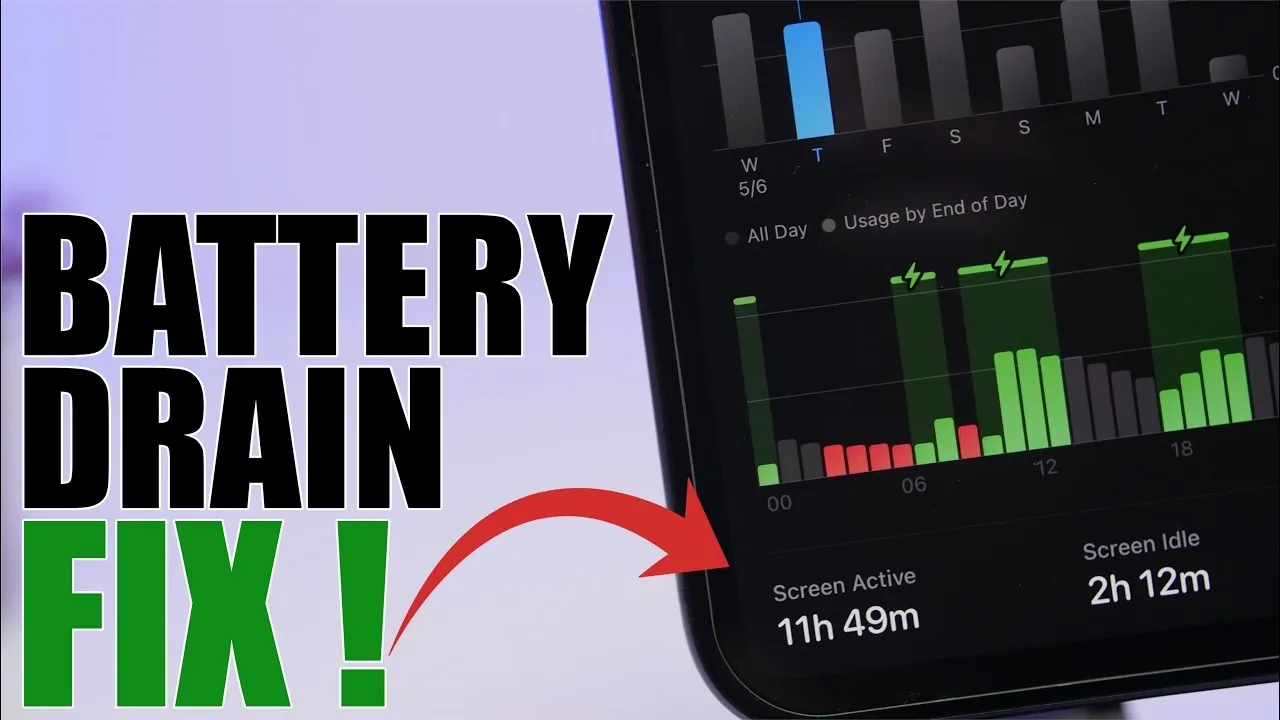
If your iPhone’s battery is depleting faster after updating to iOS 26.5, you’re not alone. Battery performance can be influenced by various settings and features, but the good news is that many of these can be optimized. This guide provides detailed, actionable steps to help you extend your device’s battery life while maintaining its performance. The video below from iReviews gives us more details on how to improve battery life on the iPhone with the iOS 26.5 software update.
Optimize Display Settings to Reduce Power Consumption
The display is one of the most power-hungry components of your iPhone. Adjusting its settings can significantly reduce battery drain:
- Switch to Static Wallpapers: Animated wallpapers may look appealing, but they require constant CPU and GPU activity, which drains your battery. Opt for static wallpapers to conserve energy.
- Disable Liquid Glass Effects: These effects, found in the display settings, add visual appeal but put extra strain on your device’s graphics processor. Turning them off can save power.
- Adjust Always-On Display: While convenient, the Always-On Display consumes power even when your phone is idle. Disable unnecessary wallpapers and limit lock screen widgets to reduce energy usage.
Keep Software and Apps Updated
Outdated software and apps can lead to inefficiencies that drain your battery. Regular updates ensure your device operates at peak efficiency:
- Update iOS: Always ensure your iPhone is running the latest version of iOS 26.5. Updates often include bug fixes and performance enhancements that address battery issues.
- Update Apps: Apps that are not optimized for the latest iOS version can consume more energy. Regularly update your apps to ensure compatibility and efficiency.
- Monitor Battery Usage: Use the Battery Usage tool in Settings to identify apps that consume excessive power. Consider removing or restricting apps that are poorly optimized or unnecessary.
Manage Background Activity and Notifications
Apps running in the background and frequent notifications can significantly impact battery life. Managing these effectively can help conserve power:
- Disable Background App Refresh: Many apps refresh data in the background even when not in use. Turn off this feature for apps that don’t need constant updates.
- Control Notifications: Frequent notifications can wake your screen unnecessarily. Disable or schedule notifications for non-essential apps to conserve power.
Adjust Apple Intelligence Features
Apple’s intelligent features are designed to enhance user experience but can also consume a considerable amount of power. Adjusting these settings can help:
- Limit Siri Usage: If you don’t frequently use Siri, disable it or restrict its functionality to reduce background activity.
- Turn Off Proactive Suggestions: Features like app recommendations and proactive suggestions can be disabled to save battery life.
Fine-Tune Haptic Feedback and Widgets
Haptic feedback and widgets, while subtle, can contribute to battery drain over time. Optimizing these features can make a noticeable difference:
- Adjust Haptic Feedback: Limit vibrations to silent mode only. This reduces the energy used by the device’s haptic engine.
- Minimize Widget Usage: Widgets that update frequently, such as weather or stock trackers, can drain your battery. Remove or limit these to essential widgets that don’t require constant updates.
Control Location Services
Location services are another major factor in battery consumption. Optimizing this feature can help extend your battery life:
- Restrict Location Access: Disable location services for most apps or set them to “While Using the App.”
- Turn Off Precise Location: Unless necessary for navigation or specific tasks, disable precise location to reduce power usage.
Additional Tips for Long-Term Battery Health
Beyond immediate fixes, maintaining your iPhone’s battery health over time is crucial. Consider these additional strategies:
- Enable Low Power Mode: This feature reduces background activity, disables visual effects and optimizes performance to extend battery life when needed.
- Avoid Extreme Temperatures: High or low temperatures can degrade your battery’s health. Keep your device within the recommended temperature range for optimal performance.
- Use Certified Accessories: Non-certified chargers and cables can affect charging efficiency and potentially harm your battery. Always use Apple-certified accessories.
- Calibrate Your Battery: Occasionally let your battery drain completely and then charge it to 100% to recalibrate the battery indicator for accurate readings.
By implementing these strategies, you can significantly improve your iPhone’s battery performance on iOS 26.5. From adjusting display settings and managing background activity to disabling unnecessary features, these optimizations ensure your device runs efficiently without sacrificing functionality. Regularly monitor your battery usage and keep your software up to date to maintain long-term performance and extend your device’s lifespan.
Source & Image Credit: iReviews
Disclosure: Some of our articles include affiliate links. If you buy something through one of these links, Geeky Gadgets may earn an affiliate commission. Learn about our Disclosure Policy.
