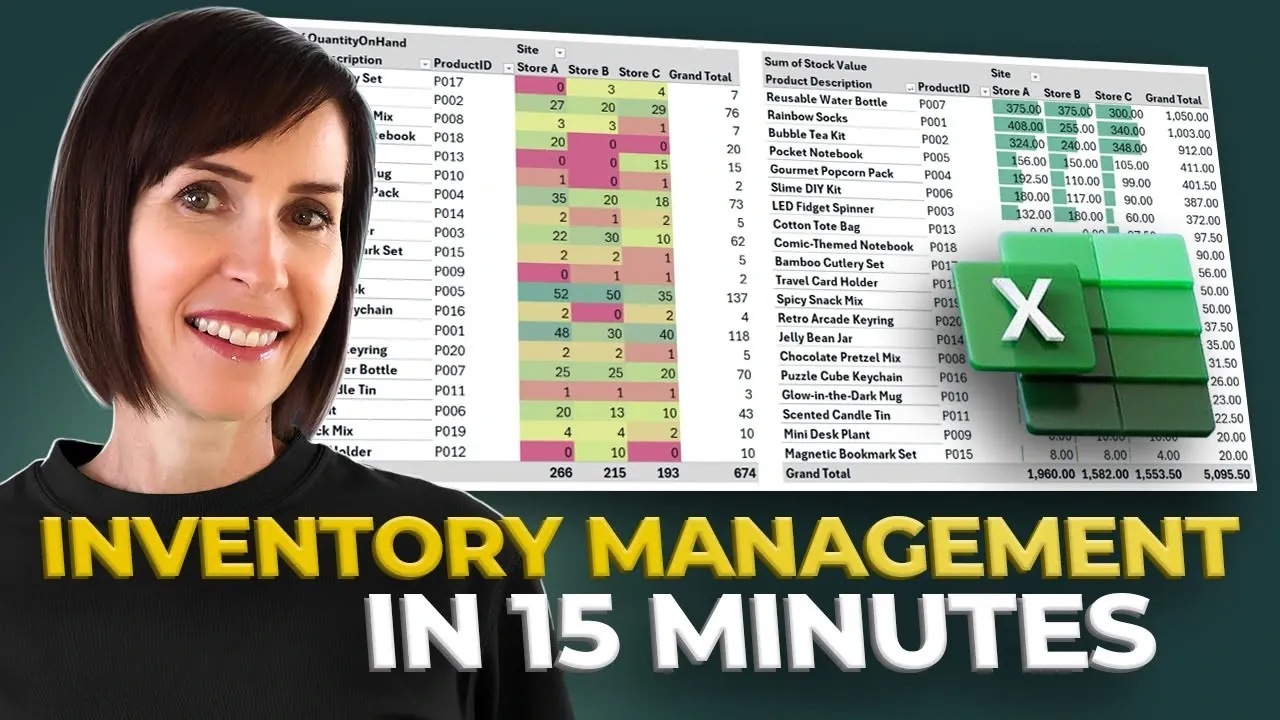
Have you ever found yourself scrambling to locate stock details or manually tracking inventory across endless spreadsheets? For many businesses, inventory management feels like a juggling act, one misstep, and you’re either overstocked or facing costly shortages. But what if you could replace that chaos with a streamlined, automated system that works for you? With Microsoft Excel, you can transform your inventory process into a well-oiled machine, using tools you likely already have. Whether you’re running a small business or managing a larger operation, building an automated inventory management system in Excel isn’t just possible, it’s surprisingly simple and incredibly effective.
In this feature, My Online Training Hub take you through how to create a centralized inventory system that tracks stock levels, logs transactions, and even generates reorder lists, all within Excel. By using features like pivot tables and conditional formatting, you’ll gain real-time insights into your inventory’s health and ensure you’re always one step ahead of stockouts or overstocking. Plus, with a free template to guide you, you’ll save time and eliminate guesswork. Ready to discover how Excel can become your ultimate inventory ally? Let’s explore how this practical approach can transform the way you manage your stock.
Excel Inventory Management Guide 2025
TL;DR Key Takeaways :
- Excel can be used to create a robust, automated inventory management system, allowing businesses to monitor stock levels, log transactions, and generate actionable reports efficiently.
- The product sheet acts as the foundation, organizing critical product details like product name, category, unit price, reorder level, and supplier information for streamlined inventory tracking.
- The transaction sheet records all stock movements with fields such as transaction ID, date, product ID, site location, quantity, and movement type, making sure accurate and auditable inventory logs.
- Key Excel features like tables, data validation, formulas (e.g., XLOOKUP, SUMIFS), pivot tables, and conditional formatting enhance the system’s functionality, accuracy, and usability.
- Additional sheets, including inventory, order, and report sheets, provide real-time stock monitoring, automate reorder processes, and offer insights into inventory performance for better decision-making.
Product Sheet: The Foundation of Your Inventory System
The product sheet serves as the backbone of your inventory management system, acting as a centralized catalog for all your products. It organizes critical product details in a structured format, making sure easy access and consistency across your system. Key attributes to include are:
- Product Name: A unique identifier for each item in your inventory.
- Category: Grouping items into categories for streamlined analysis and reporting.
- Unit Price: The cost per unit, essential for calculating stock value and sales revenue.
- Reorder Level: The minimum stock level that triggers a replenishment alert.
- Supplier Information: Contact details for vendors to assist quick restocking.
By organizing this data in a structured table, you ensure consistency and simplify referencing across other sheets. For example, the reorder level helps you anticipate stock shortages, while supplier details enable seamless communication during restocking.
Transaction Sheet: Tracking Stock Movements
The transaction sheet is the operational hub where all stock movements are recorded, providing a detailed log of inventory changes. Each entry should include the following fields:
- Unique Transaction ID: A distinct identifier for each transaction.
- Date: The date of the transaction for chronological tracking.
- Product ID: A reference to the specific item involved in the transaction.
- Site Location: The location where the transaction occurred, useful for multi-site operations.
- Quantity: The number of units involved in the transaction.
- Movement Type: The nature of the transaction, such as a sale, receipt, or transfer.
This sheet not only tracks inventory changes but also provides a reliable audit trail for accountability. Using Excel’s data validation feature ensures consistent and error-free data entry, enhancing the accuracy of your records.
Build an Excel Automated Inventory Management System

Master Excel Functions with the help of our in-depth articles and helpful guides.
- Top 15 Excel Functions to Improve Productivity and Efficiency
- Using Excel BYROW & BYCOL Functions for Faster Data Analysis
- 10 New Excel Functions to improve your formulas
- Top Excel Functions You Need to Know According to Harvard
- Using Excel REGEX to easily extract, clean and format data
- How to Use Modern Excel Functions Like XLOOKUP & TEXTJOIN
- Writing Excel formulas using the Advanced Formula Environment
- 5 XLOOKUP Alternatives & Smarter Excel Functions for Data Analysis
- How to Use Excel’s LET Function to Simplify Complex Formulas
- Top Excel Formulas for Speed & Performance in Large Worksheets
Inventory Sheet: Real-Time Stock Monitoring
The inventory sheet offers a live view of stock levels, allowing you to monitor inventory across all locations in real time. It calculates current stock levels using a straightforward formula:
Opening Stock + Receipts – Sales
To enhance functionality, you can incorporate conditional formatting to highlight items that fall below their reorder levels, making sure timely replenishment. For businesses with multiple locations, this centralized view simplifies the process of tracking stock across sites, reducing the risk of overstocking or stockouts.
Order Sheet: Automating the Reorder Process
The order sheet is designed to streamline the restocking process by automatically generating reorder lists based on current inventory levels. Using Excel’s pivot tables, you can group items by supplier, product, or site, making it easier to organize and place orders. This sheet updates dynamically as transactions are logged, making sure that your reorder lists remain accurate and up-to-date. Filters can also be applied to view orders by supplier, date, or location, improving usability and efficiency.
Report Sheet: Analyzing Inventory Performance
The report sheet provides a comprehensive overview of your inventory’s health, offering insights that support informed decision-making. Key metrics to include are:
- Stock on Hand: The total quantity of items currently in inventory.
- Total Stock Value: The monetary value of your inventory, calculated using unit prices.
- Items Nearing Reorder Levels: Products that require immediate attention to avoid stockouts.
Excel’s pivot tables and conditional formatting features allow you to visualize trends and identify potential issues at a glance. For instance, items nearing their reorder levels can be flagged in red, drawing attention to critical areas that require prompt action. These insights enable you to optimize inventory management and improve operational efficiency.
Key Excel Features for Building Your System
To create a fully functional inventory management system, you’ll use several powerful Excel features, including:
- Tables: For structured data organization and seamless referencing across sheets.
- Data Validation: To enforce consistent and error-free data entry.
- Formulas: Such as XLOOKUP, SUMIFS, and IF, for calculations and data retrieval.
- Pivot Tables: For dynamic summaries and detailed reports.
- Conditional Formatting: To visually highlight critical data points and trends.
These tools not only simplify the creation process but also enhance the functionality and reliability of your system, making sure it meets the unique needs of your business.
Optimize Inventory Management with Excel
By integrating these components and using Excel’s advanced features, you can build a dynamic, automated inventory management system tailored to your specific requirements. Whether you’re managing stock across multiple locations, generating reorder lists, or analyzing inventory trends, this system enables you to streamline operations, save time, and improve accuracy. With a well-designed Excel-based solution, you can focus on growing your business while maintaining control over your inventory.
Media Credit: MyOnlineTrainingHub
Disclosure: Some of our articles include affiliate links. If you buy something through one of these links, Geeky Gadgets may earn an affiliate commission. Learn about our Disclosure Policy.
