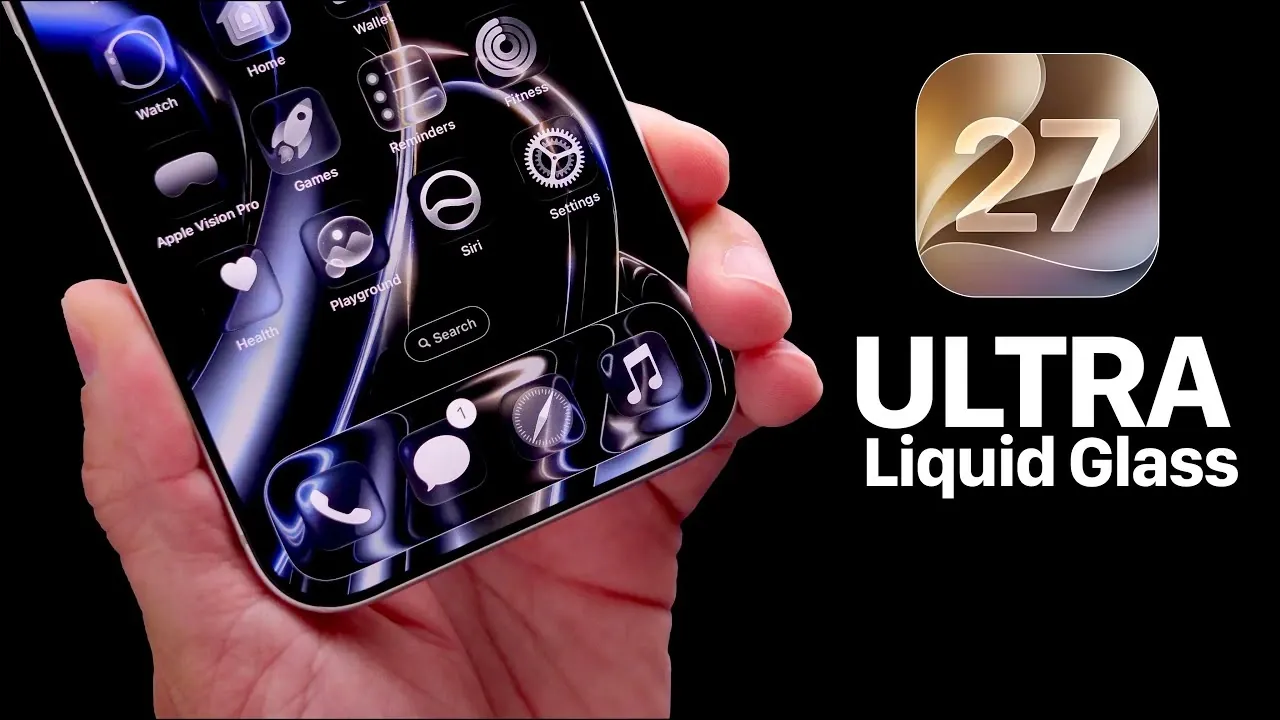
With the release of iOS 27, Apple has introduced the “Ultra Liquid Glass” aesthetic, a feature designed to elevate the visual appeal of your iPhone. This innovative customization option transforms your device’s interface into a sleek, transparent, and modern experience. By fine-tuning settings such as the liquid glass slider, wallpaper selection, and system-wide appearance, you can create a personalized design that seamlessly blends style and functionality. Below is a detailed guide to help you enable and optimize this feature for the best results.

1: Select the Perfect Wallpaper
The foundation of the Ultra Liquid Glass effect begins with your wallpaper choice. A carefully selected wallpaper enhances the reflective, glass-like aesthetic and sets the tone for your device’s overall appearance. To achieve the best results:
- Choose wallpapers with minimal patterns or subtle gradients. iOS 27 includes pre-designed wallpapers specifically optimized for this effect, but you can also upload your own images for a personal touch.
- Disable blur effects to maintain a sharp and clean look. Navigate to Settings > Wallpaper and toggle off the blur option. This ensures visual consistency between your lock screen and home screen.
A thoughtfully chosen wallpaper creates a polished base for the Ultra Liquid Glass effect, enhancing the overall aesthetic of your iPhone.
2: Refine Your Lock Screen
Your lock screen serves as the gateway to your device, making it a critical component of the Ultra Liquid Glass aesthetic. iOS 27 provides several tools to customize and refine its appearance:
- Use the liquid glass slider to adjust the transparency and tint of the clock display. This creates a reflective, polished look that complements the wallpaper.
- Experiment with font styles and colors to harmonize with your chosen background. Subtle adjustments can significantly enhance the overall design.
By aligning your lock screen design with your home screen, you can achieve a cohesive and visually appealing interface.
3: Customize Home Screen Icons
The home screen icons are a central element of the Ultra Liquid Glass effect and iOS 27 offers extensive customization options to enhance their appearance. In edit mode, you can:
- Select from default, dark, clear, or tinted icon styles to match your desired level of transparency and aesthetic preference.
- Remove icon labels for a minimalist look. This can be done through the settings menu, resulting in a cleaner and more modern interface.
- Adjust icon size and spacing to refine the overall layout and ensure a balanced design.
These customizations allow you to create a home screen that perfectly complements the liquid glass aesthetic, offering both style and functionality.
4: Optimize System-Wide Appearance Settings
The Ultra Liquid Glass effect extends beyond individual elements, offering system-wide customization options that unify the interface. The liquid glass slider, accessible via Settings > Display, provides control over transparency and tint across the entire system. Key adjustments include:
- Increasing transparency in the notification center, creating the illusion of floating alerts that seamlessly integrate with the background.
- Applying subtle tints to menus and controls, adding depth and dimension to the interface without compromising usability.
Fine-tuning these settings ensures a consistent and immersive glass-like effect throughout your device, enhancing both aesthetics and user experience.
5: Enhance Accessibility for Better Usability
While the Ultra Liquid Glass effect prioritizes visual appeal, it may pose challenges for users who require enhanced visibility. To address this, iOS 27 includes accessibility features that improve usability without sacrificing design. Key options include:
- Allowing the “Show Borders” feature in Settings > Accessibility. This adds outlines to buttons and icons, making sure they remain distinguishable against transparent backgrounds.
- Adjusting contrast settings to improve text and icon visibility, making the interface more user-friendly for all users.
These accessibility enhancements strike a balance between aesthetics and practicality, making sure the Ultra Liquid Glass effect is functional for everyday use.
Future Potential for the Ultra Liquid Glass Effect
As iOS 27 continues to evolve, Apple is expected to introduce additional features and refinements to the Ultra Liquid Glass aesthetic. These updates may include expanded customization options, improved performance, and enhanced integration with other system features. For now, the tools provided in iOS 27 offer a robust framework for creating a sleek and modern interface.
By following the steps outlined above, you can transform your iPhone into a device that reflects your unique style while maintaining optimal functionality. The Ultra Liquid Glass effect not only enhances the visual appeal of your device but also offers a customizable experience tailored to your preferences.
Take a look at other insightful guides from our broad collection that might capture your interest in iOS 27 customization.
- The Hidden iOS 27 Features Everyone is Talking About
- Is Your iPhone on the List? These iOS 27 Features Are Locked to Newer Models
- The First 10 Things You Need to Do After Installing iOS 27
- Apple’s iOS 27: Here Are the Features That Matter
- Apple Just Changed Everything: iOS 27 Rewrites the Rules for AirPods and AirPlay
Source & Image Credit: iDeviceHelp
Disclosure: Some of our articles include affiliate links. If you buy something through one of these links, Geeky Gadgets may earn an affiliate commission. Learn about our Disclosure Policy.
