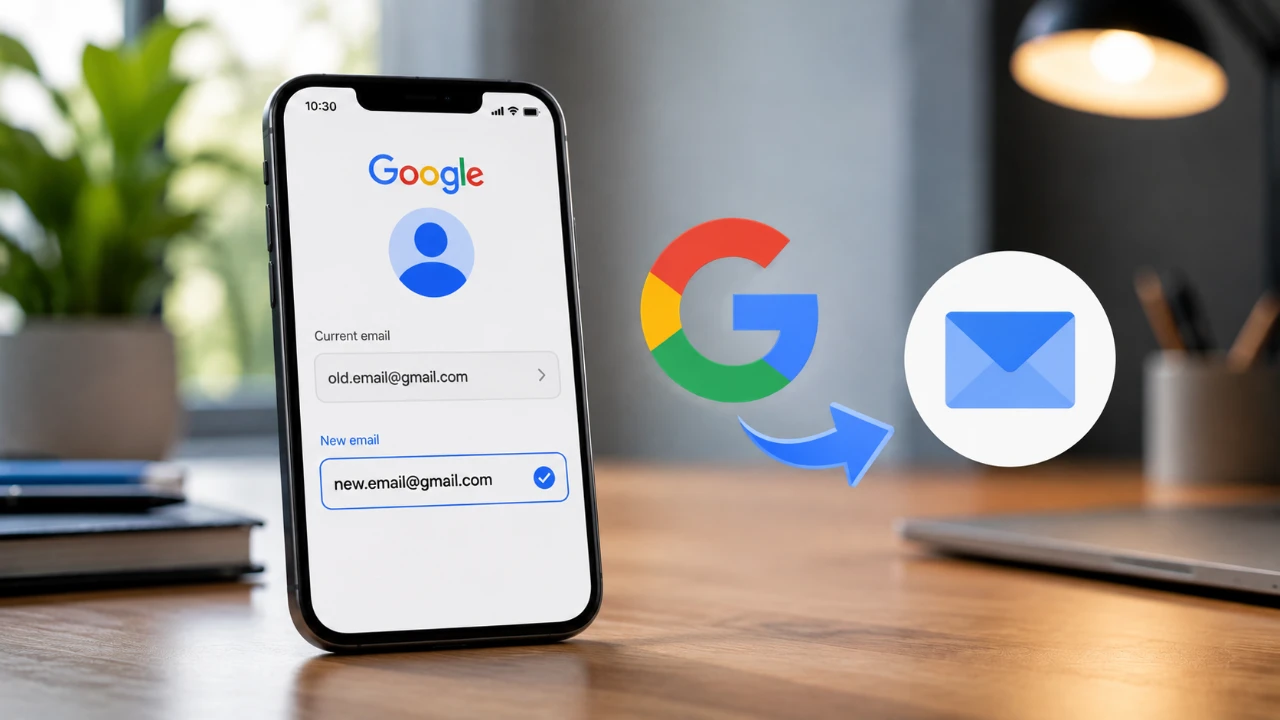
Updating the primary email address associated with your Google account is a crucial process that ensures continued access to your data, services, and notifications. Whether you’re transitioning to a new email provider, consolidating accounts, or enhancing security, this process is designed to be straightforward and user-friendly. Regardless of whether you’re using an Android device, iPhone, or computer, the steps remain consistent, prioritizing both convenience and security. The video below from Daniel About Tech will provide a detailed walkthrough, highlight important considerations and explain the security measures in place to protect your account.

Why Update Your Google Account Email?
Your Google account email serves as the cornerstone of your online identity within Google’s ecosystem. It functions as your primary login credential, a central hub for notifications, and the gateway to services like Gmail, Google Drive, and YouTube. There are several reasons why you might need to update this email address:
- You’ve transitioned to a new email provider and want to keep your account up to date.
- You’re consolidating multiple accounts for better organization and management.
- You’re taking steps to enhance your account’s security by using a more secure or accessible email address.
Regardless of the reason, Google’s process ensures that you can make this change without compromising your account’s functionality or the security of your data.
Step-by-Step Guide to Changing Your Google Account Email
Updating your Google account email is a simple process that can be completed in just a few steps. Follow these instructions to make the change:
- Log in to the Google account you wish to update using your current credentials.
- Navigate to the “Manage Your Google Account” section. You can access this through your profile icon or account settings.
- Under the “Personal Info” tab, locate the “Email” section and click on it to view your current email settings.
- Select the option to update your primary email address.
- Authenticate your identity by entering your password or using biometric verification, such as a fingerprint or facial recognition, if available.
- Enter the new email address you want to use and confirm it if prompted.
- Save the changes to finalize the update.
Once the process is complete, your new email address will become your primary login credential. All future communications, notifications and account-related updates from Google will be sent to this updated address.
Security Measures During the Process
Google prioritizes the security of its users, especially when it comes to updating sensitive account information like your primary email address. To ensure that only authorized users can make changes, Google requires identity verification during the process. This can be done by entering your account password or using biometric authentication methods, such as a fingerprint or facial scan, if your device supports them. These measures provide an additional layer of protection, making sure that your account remains secure throughout the update process.
Consistency Across Devices
One of the key advantages of Google’s platform is its consistency across devices. Whether you’re using an Android phone, an iPhone, or a desktop computer, the process for updating your email address remains the same. Here’s how you can access the “Manage Your Google Account” section depending on your device:
- On mobile devices: Use the Google app or access your account settings through your device’s system settings.
- On a computer: Open a web browser and navigate to your Google account settings.
This uniformity ensures that you can make changes seamlessly, regardless of your preferred platform, providing a hassle-free experience for all users.
What Happens to Your Data?
A common concern when changing your Google account email is whether your data will be affected. Google has designed the process to ensure that all your files, emails and account settings remain intact. Here’s what you can expect:
- Your Google Drive documents, Gmail messages and YouTube subscriptions will remain unaffected.
- All account preferences, configurations and saved data will stay the same.
This seamless transition allows you to continue using your account without any interruptions or loss of information, making sure that your workflow and access to services remain uninterrupted.
Key Considerations and Scenarios
While the process of updating your Google account email is straightforward, there are a few important considerations to keep in mind to avoid potential issues:
- If the new email address you want to use is already linked to another Google account, you’ll need to unlink it before proceeding.
- For accounts managed by organizations, schools, or workplaces, administrative approval may be required to make changes. Check with your administrator if this applies to you.
- Ensure that the new email address is active and accessible, as Google will send a verification email to confirm the update. Without access to this email, you won’t be able to complete the process.
Being aware of these scenarios can help you navigate the process more smoothly and avoid unnecessary complications.
Maintaining Account Alignment
Changing your Google account email is a secure and efficient way to keep your account aligned with your current needs and preferences. By following the outlined steps and using Google’s robust authentication methods, you can seamlessly transition to a new email address without losing access to your data or services. Whether you’re making this change for personal, professional, or security reasons, the process ensures that your account remains functional and up to date across all devices.
Source: Daniel About Tech
Disclosure: Some of our articles include affiliate links. If you buy something through one of these links, Geeky Gadgets may earn an affiliate commission. Learn about our Disclosure Policy.
