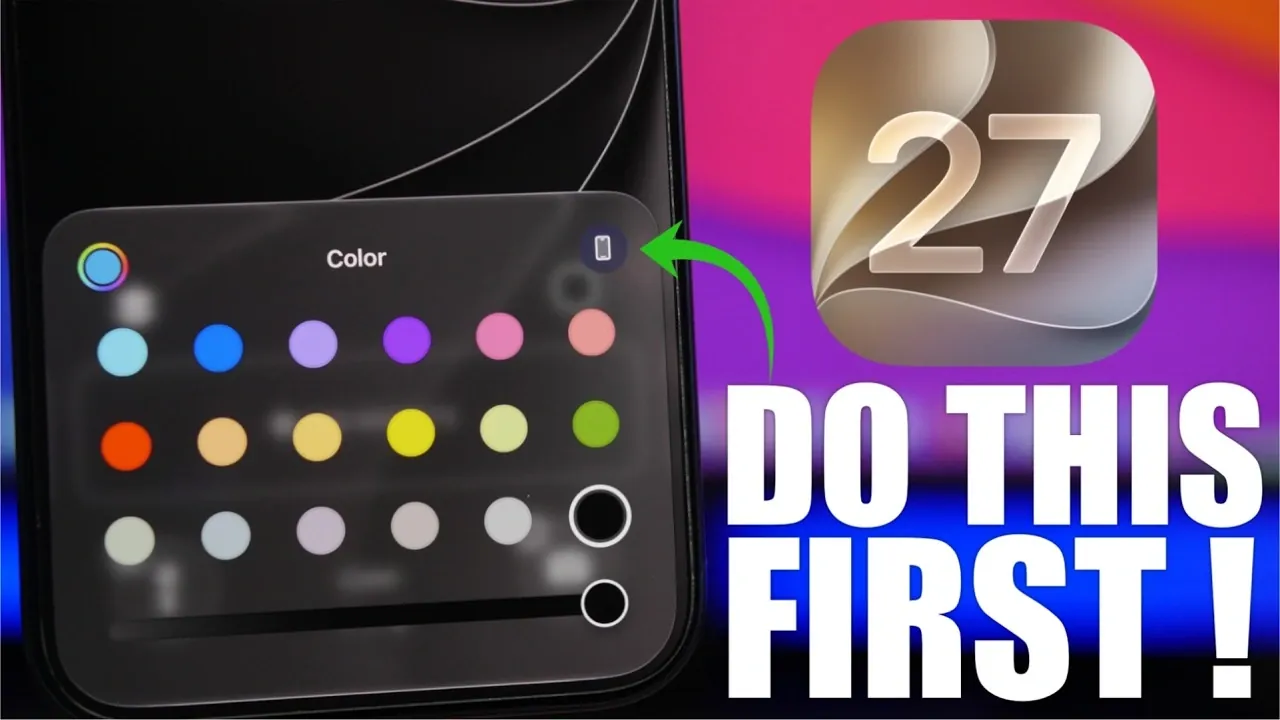
The release of iOS 27 introduces a host of new features aimed at improving your iPhone’s performance, security, and overall usability. However, updating your device is only the first step. To fully unlock the potential of iOS 27 and ensure a seamless experience, there are several important actions you should take. From updating apps to customizing new features, the video below from iReviews will help you optimize your device and make the most of the latest update.

Update Your Apps for Seamless Compatibility
After installing iOS 27, some apps may not function properly if they haven’t been updated to align with the new operating system. Outdated apps can lead to performance issues or crashes. To prevent this, open the App Store and update all your applications. For a more convenient approach, enable automatic updates by navigating to Settings > App Store and toggling on the automatic updates option. This ensures your apps remain compatible and up-to-date without requiring manual intervention, saving you time and effort.
Check for Carrier Updates
Carrier updates play a vital role in maintaining reliable network performance. These updates often enhance call quality, improve data speeds and resolve connectivity issues. To check for carrier updates, go to Settings > General > About. If an update is available, you’ll receive a prompt to install it. Keeping your carrier settings updated ensures that your iPhone operates smoothly on your network, especially when using new features introduced in iOS 27.
Enable Automatic Software Updates
iOS 27 will likely receive incremental updates, such as iOS 27.1, which include bug fixes, security patches and minor feature enhancements. To ensure your device stays current, enable automatic software updates. Navigate to Settings > General > Software Update and toggle on the automatic updates option. This feature eliminates the need to manually check for updates, making sure your iPhone always benefits from the latest improvements.
Review and Adjust Privacy Settings
Privacy remains a cornerstone of iOS 27, with new features designed to give you greater control over your personal data. Take a moment to review and adjust permissions for apps, location services, camera and microphone access. Go to Settings > Privacy & Security to manage these settings. Additionally, enable automatic security updates to protect your device from emerging threats. By fine-tuning your privacy settings, you can ensure that your data is only accessible to trusted apps and services.
Monitor Your Battery Health
After updating to iOS 27, it’s important to check your battery’s condition to maintain optimal performance. Navigate to Settings > Battery > Battery Health & Charging to view your battery’s health percentage and charging habits. If the health percentage is significantly low, it may be time to consider a battery replacement. iOS 27 also offers more accurate battery health metrics, helping you make informed decisions about your device’s longevity.
Explore Liquid Glass Tint for Display Customization
One of the standout features of iOS 27 is the liquid glass tint adjustment, which allows you to customize your display’s appearance. This feature, accessible via Settings > Display & Brightness > Appearance, lets you fine-tune the tint for improved visibility and aesthetics. Whether you prefer a warmer tone for nighttime use or a cooler tint for daytime clarity, this feature offers a new level of personalization for your iPhone’s display.
Personalize Siri for a Tailored Experience
The updated Siri in iOS 27 introduces enhanced personalization options, making interactions more intuitive and efficient. You can customize Siri’s voice, set up shortcuts for frequently used commands and explore new functionalities. Visit Settings > Siri & Search to configure these options. By tailoring Siri to your preferences, you can streamline tasks and enjoy a more personalized virtual assistant experience.
Optimize Camera Settings
The camera app in iOS 27 offers greater versatility, allowing you to customize settings for quicker access to your favorite features. Whether you frequently use portrait mode, night mode, or specific video settings, you can prioritize these tools for easier access. Navigate to Settings > Camera to adjust these preferences. By optimizing your camera settings, you can enhance your photography experience and capture moments with greater ease.
Fine-Tune Volume Controls
iOS 27 introduces more granular volume controls, allowing you to adjust individual levels for notifications, alarms and the ringer. This feature allows you to create a more personalized audio experience. To configure these settings, go to Settings > Sounds & Haptics and adjust the volume sliders to suit your preferences. This level of customization ensures that your device’s audio output aligns with your needs in various scenarios.
Explore Wallpaper Customization
With iOS 27, you can elevate your home screen’s appearance by exploring new wallpaper customization options. The update allows you to match your wallpaper to your iPhone’s color scheme or experiment with a wider range of designs. Visit Settings > Wallpaper to browse the available options and create a cohesive, visually appealing home screen that reflects your personal style.
Maximizing Your iOS 27 Experience
To fully benefit from iOS 27, it’s essential to stay proactive. Regularly review your privacy settings to ensure apps have appropriate access and enable automatic updates for both apps and the operating system. Take time to explore new features like liquid glass tint adjustments, enhanced Siri personalization and advanced camera settings. By following these steps, you’ll enjoy a smoother, more secure and highly personalized iPhone experience, making the most of everything iOS 27 has to offer.
Enhance your knowledge on iOS 27 update by exploring a selection of articles and guides on the subject.
- iOS 27 is Coming Today: Read This Before You Update Your iPhone
- 10 Cool Things Your iPhone Can Do After Updating to iOS 27
- iOS 27 is Almost Here: Why Apple’s Biggest Upgrade is Worth It
- iOS 27 RC Released: the Final Update Brings One Big Surprise
- Should You Update to iOS 27 on Day One?
Source & Image Credit: iReviews
Disclosure: Some of our articles include affiliate links. If you buy something through one of these links, Geeky Gadgets may earn an affiliate commission. Learn about our Disclosure Policy.
