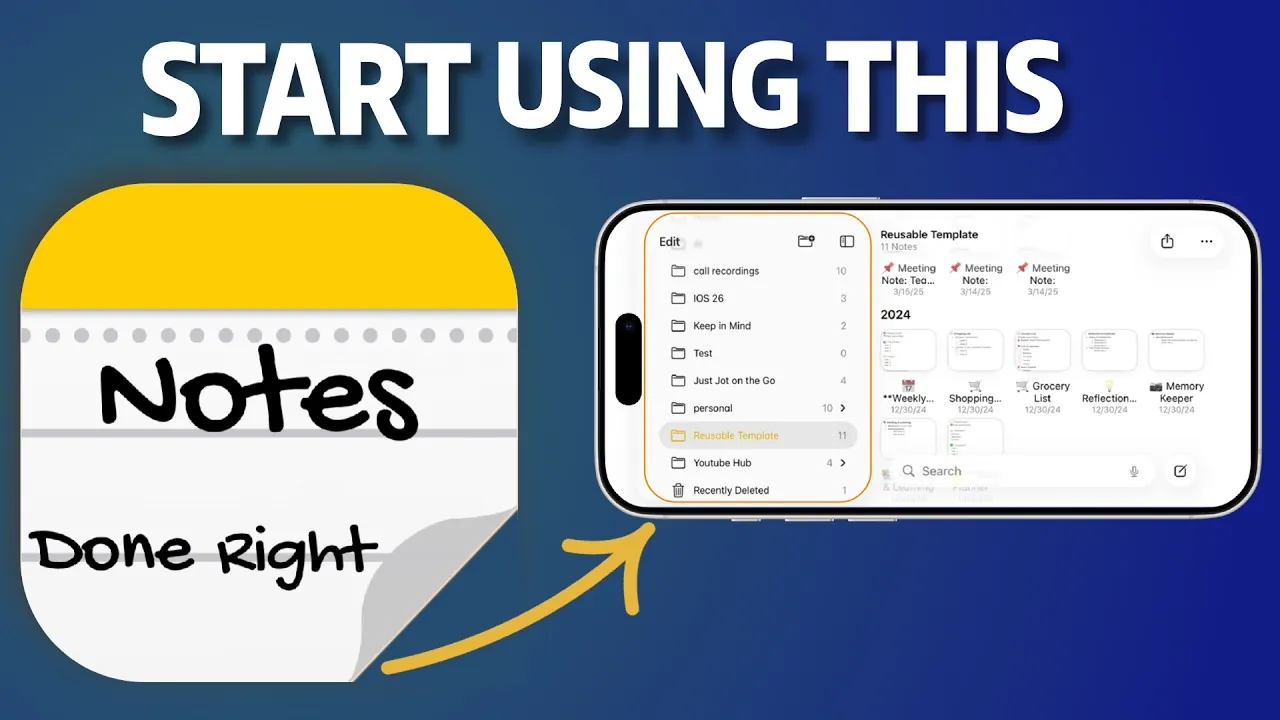
Have you been underestimating the humble Apple Notes app? If you’ve been using it solely to jot down grocery lists or quick reminders, you’re missing out on a treasure trove of productivity tools hiding in plain sight. Apple Notes isn’t just a basic note-taking app, it’s a powerful organizational hub that can streamline your workflow, spark creativity, and even help you tackle complex projects. Imagine turning your scattered ideas into actionable tasks, linking notes to emails for seamless project management, or navigating your notes like a pro with multitasking features. It’s time to rethink what this app can do and unlock its full potential.
Below Apple Gurus takes you through six fantastic tips that will elevate your Apple Notes experience from ordinary to extraordinary. From mastering multitasking in landscape mode to integrating your notes with reminders and creating reusable templates, these strategies are designed to help you work smarter, not harder. You’ll discover hidden features that make note-taking faster, more intuitive, and surprisingly versatile. Whether you’re a student, a professional, or just someone looking to stay more organized, these tips will show you how Apple Notes can become an indispensable tool in your daily life. After all, the best tools are the ones you already have, if you know how to use them.
Apple Notes Productivity Tips
TL;DR Key Takeaways :
- Use landscape mode for multitasking with a dual-pane layout, allowing efficient navigation and better organization of notes.
- Stay organized with built-in tools like pinning, deleting, and moving notes, making sure quick access to important information.
- Speed up note-taking by creating custom shortcuts in the Shortcuts app for tasks like appending text, dictating messages, or pasting content.
- Use QuickNote to link notes to other apps and content, keeping related information seamlessly connected and accessible.
- Enhance productivity with features like Reminders integration for actionable tasks, reusable templates, and text replacement for recurring content.
1. Maximize Multitasking with Landscape Mode
Rotating your iPhone or iPad to landscape mode unlocks a powerful multitasking feature in Apple Notes. In this mode, the screen splits into two panels: the left side displays your folders and notes, while the right side keeps a selected note open. This dual-pane layout allows you to navigate your notes more efficiently and manage multiple tasks simultaneously.
Key features of landscape mode include:
- Hiding or showing the sidebar to focus on your content without distractions.
- Using the search bar to quickly locate specific notes or keywords.
- Switching between list and gallery views for easier browsing and organization.
This functionality is particularly useful for users with extensive note collections, as it enables faster navigation and better organization. Whether you’re reviewing notes for a project or managing personal to-do lists, landscape mode enhances your workflow by making multitasking seamless.
2. Stay Organized with Built-In Tools
Apple Notes includes intuitive tools to help you keep your content organized and accessible. The three-dot menu at the top of the app provides quick access to recently opened notes, allowing you to pick up where you left off with ease. Additionally, swiping on notes in the sidebar unlocks several useful options:
- Pin important notes to keep them at the top of your list for quick reference.
- Delete notes you no longer need to declutter your workspace.
- Move notes to different folders for better categorization and structure.
Combining these tools with the list view ensures that your notes remain well-organized, even as your collection grows. By taking advantage of these features, you can create a streamlined system that keeps your most important information at your fingertips.
3. Speed Up Note-Taking with Custom Shortcuts
The Shortcuts app is a valuable companion for Apple Notes users, allowing you to automate repetitive tasks and save time. By creating custom shortcuts, you can perform common actions with just a tap. For example, you can set up shortcuts to:
- Append text to an existing note without opening the app.
- Dictate a message directly into a note for hands-free note-taking.
- Paste content into a specific note instantly.
Once created, these shortcuts can be added to your home screen or linked to your device’s action button for quick access. This is especially useful for capturing ideas on the go or updating notes without navigating through the app. By integrating shortcuts into your workflow, you can make note-taking faster and more efficient.
Apple Notes Can Do Way More Than You Think!
Uncover more insights about Apple Notes features in previous articles we have written.
- Apple Notes vs Goodnotes 6: Which Note-Taking App is Best for You
- How to Use Apple Notes for Organization, Collaboration and More
- How to Use Apple Notes as a Vertical Kanban Board for Tasks
- Use the Zettelkasten Method in Apple Notes for Better Organization
- New Apple Notes 18.2 : Real-Time Transcription & Call Recording
- How to Sync Apple Notes to Notion : 2025 Guide
- Discover the New Tools in Apple Notes iOS 18.3 Update
- How to Use Apple Notes for Quick and Efficient Note-Taking
- Using ChatGPT in Apple Notes: A Complete Guide for Mac Users
- Organize Your Workflow with Apple Notes Tabular Task Lists
4. Link Notes Seamlessly with QuickNote
QuickNote, accessible from the Control Center, is a powerful feature that allows you to link notes to other apps and content. This functionality is ideal for keeping related information connected and easily accessible. For instance, you can attach a note to:
- An email to track project-related discussions.
- A photo for visual references or inspiration.
- A message to create context-specific reminders.
When you revisit the linked content, the associated note is just a tap away. This feature is particularly useful for managing projects, organizing research, or keeping personal tasks connected to relevant materials. By using QuickNote, you can ensure that all your information is seamlessly integrated and easy to find.
5. Turn Notes into Tasks with Reminders Integration
Apple Notes makes it simple to convert your notes into actionable tasks by integrating with the Reminders app. You can share an entire note or highlight specific text and send it directly to Reminders. This creates a reminder with all the necessary details, making sure you have everything you need to follow through.
This integration bridges the gap between note-taking and task management, allowing you to stay organized and on top of your responsibilities. Whether you’re planning a project or managing daily errands, this feature ensures that your notes are not only informative but also actionable.
6. Save Time with Templates and Text Replacement
Reusable templates and text replacement are two features that can significantly enhance your productivity in Apple Notes. Templates are ideal for recurring tasks such as meeting agendas, checklists, or project outlines. By creating a template, you can duplicate it whenever needed, saving time and maintaining consistency.
The text replacement feature, available in your device’s settings, allows you to insert pre-written content into notes with just a few keystrokes. This is particularly helpful for:
- Frequently used phrases that you don’t want to type repeatedly.
- Email signatures for professional correspondence.
- Standard responses to common questions or requests.
By combining templates and text replacement, you can reduce the time spent on formatting and focus more on the content of your notes. These tools are especially valuable for professionals and students who need to manage large volumes of information efficiently.
Enhance Your Workflow with Apple Notes
By applying these six tips, you can unlock the full potential of Apple Notes and transform it into a powerful productivity tool. From multitasking in landscape mode to integrating QuickNote and creating reusable templates, these features empower you to work smarter and more efficiently. Explore these capabilities today to take your organization and productivity to the next level.
Media Credit: AppleGurus
Disclosure: Some of our articles include affiliate links. If you buy something through one of these links, Geeky Gadgets may earn an affiliate commission. Learn about our Disclosure Policy.
