Apple has officially released iOS 27.2, alongside updates for iOS 26 devices, watchOS 27.2, HomePod, and Apple TV. These updates are designed to deliver critical security patches, improve system performance, and introduce new features that enhance the overall user experience across Apple’s ecosystem. To fully use the benefits of these updates, there are several important steps you should take immediately after installation. The video below from iDeviceHelp gives us more details on what to do after installing the update.

What’s New in iOS 27.2 and How to Update
The iOS 27.2 update is now available globally for all compatible devices. This release focuses on enhancing system performance, addressing bugs and strengthening security. If you are currently enrolled in Apple’s beta program, it is essential to disable the beta profile before installing the final public version. To do this, go to Settings > General > VPN & Device Management, remove the beta profile and then check for the update.
For users still running iOS 26, Apple has also released iOS 26.7.2. This update is specifically aimed at addressing security vulnerabilities and making sure that older devices remain secure and functional. To update, navigate to Settings > General > Software Update and follow the on-screen instructions.
watchOS 27.2: What’s New for Apple Watch Users
Apple Watch users can now upgrade to watchOS 27.2, which brings performance optimizations and resolves known bugs. This update ensures a smoother and more reliable experience for Apple Watch owners. To install the update, open the Watch app on your iPhone, go to General > Software Update, and follow the prompts. Ensure your Apple Watch is connected to Wi-Fi, has at least 50% battery life and is placed on its charger during the update process.
HomePod and Apple TV Updates: Key Features and Improvements
The latest updates for HomePod and Apple TV are now available and can be installed through the Home app on your iPhone. These updates introduce enhancements to HomeKit, Apple’s smart home platform and include a new feature for HomePods called “Sound Glow.” This feature synchronizes ambient lighting with music playback, creating a more immersive and visually engaging experience. To enable Sound Glow, open the Home app, select your HomePod and adjust the settings under the device options.
For Apple TV users, the update improves streaming performance and adds refinements to the user interface, making sure a more seamless viewing experience.
Carrier Settings Update: Why It’s Important
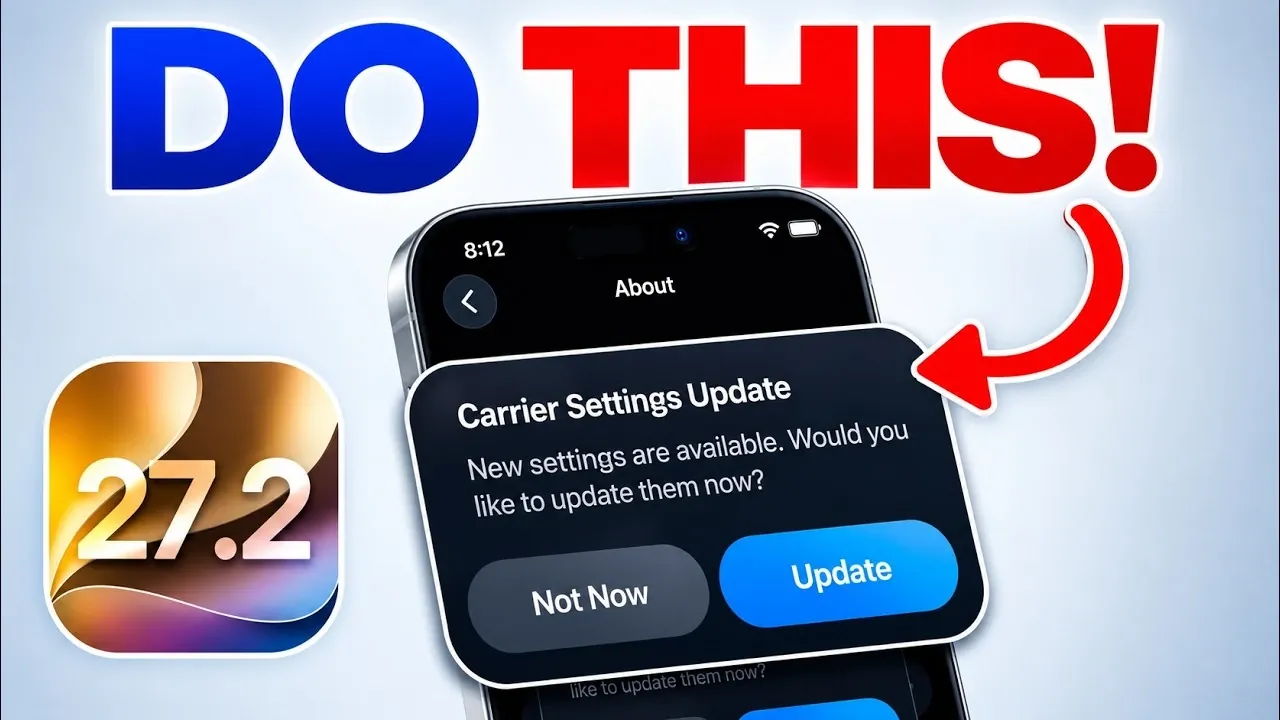
Carrier settings updates are often overlooked but are essential for maintaining optimal network performance. These updates ensure your device is configured to support the latest network protocols and features provided by your carrier. After updating to iOS 27.2, check for a carrier settings update by navigating to Settings > General > About. If an update is available, you will receive a prompt to install it. Keeping your carrier settings up to date helps prevent connectivity issues and ensures your device operates efficiently on your network.
Updating Third-Party Apps for Compatibility
After a major iOS update, outdated apps can cause performance issues, battery drain and unexpected crashes. To avoid these problems, open the App Store, go to the Updates tab and install the latest versions of your third-party apps. Developers frequently release updates to ensure compatibility with new iOS versions, so keeping your apps up to date is a critical step in maintaining a smooth user experience.
Steps to Ensure a Smooth Transition
To maximize the benefits of iOS 27.2 and related updates, follow these essential steps:
- Update all your Apple devices, including iPhone, Apple Watch, HomePod and Apple TV, to their latest software versions.
- Enable new features like Sound Glow on HomePods to enhance your smart home experience.
- Check for and install carrier settings updates to maintain optimal network performance.
- Update all third-party apps to prevent compatibility issues and ensure smooth operation.
- Review your device settings to explore and activate any new features introduced in the updates.
By taking these steps, you can ensure that your devices remain secure, perform efficiently and take full advantage of the latest features Apple has introduced. Staying proactive with updates and configurations will help you maintain a seamless and enjoyable experience across Apple’s ecosystem.
Unlock more potential in iOS 27.2 by reading previous articles we have written.
- What’s Coming Next? Inside the New Tweaks Hitting iOS 27.2 Beta 3
- Apple Just Released iOS 27.2 Beta 3: All the New Changes
- The Best Features Coming to Your iPhone in iOS 27.2
- iOS 27.2 Beta 3 Is Here: What’s New, Changed and Fixed
- Inside iOS 27.2 Beta 4: Surprising UI Tweaks and Last-Minute Changes
Source & Image Credit: iDeviceHelp
Disclosure: Some of our articles include affiliate links. If you buy something through one of these links, Geeky Gadgets may earn an affiliate commission. Learn about our Disclosure Policy.
