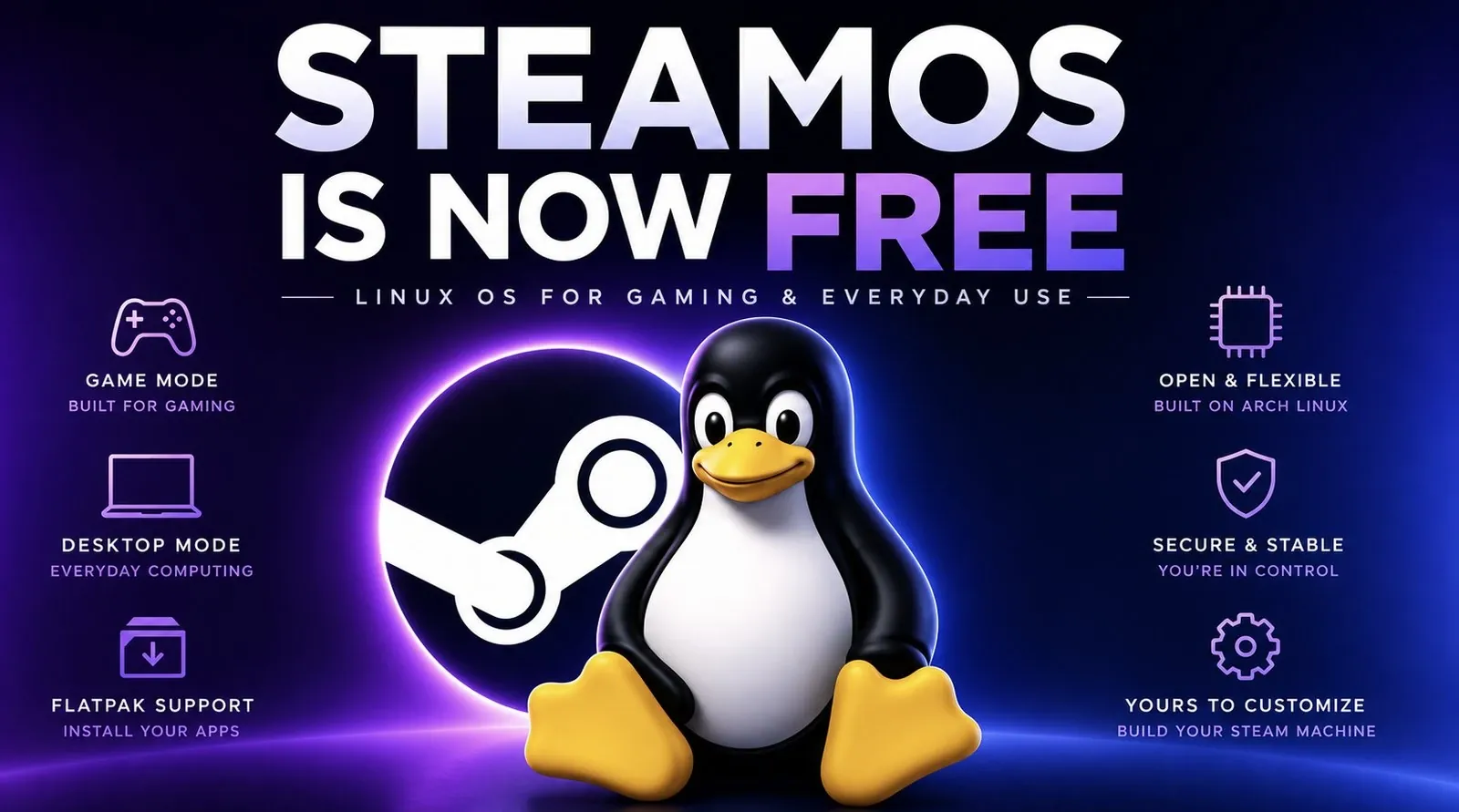
Valve has made SteamOS freely available, drawing attention from both gamers and Linux users. Built on the Arch Linux framework, SteamOS emphasizes gaming performance and includes a default “Game Mode” for direct access to Steam’s library. According to Switch and Click, adapting SteamOS for general desktop use involves technical steps like altering the read-only file system and adjusting boot configurations. These requirements highlight its gaming-first design, which may not cater as easily to broader computing needs.
Discover how SteamOS handles everyday tasks such as web browsing and software installation through Flatpaks. Learn about its dual-mode setup, including the technical challenges of switching between “Game Mode” and “Desktop Mode.” Additionally, gain insight into hardware compatibility concerns, particularly with non-AMD GPUs and the constraints of customizing its desktop environment. This analysis offers a detailed look at what to expect when using SteamOS beyond gaming.
Understanding SteamOS
TL;DR Key Takeaways :
- SteamOS, a Linux-based operating system built on Arch Linux, is freely available and allows users to create their own Steam Machines, offering flexibility and customization for gaming and productivity.
- While optimized for AMD GPUs, SteamOS requires additional configuration for Nvidia or Intel graphics and its default “Game Mode” prioritizes gaming over desktop functionality.
- SteamOS supports everyday tasks through the Discover app and Flatpaks for software installation, but some applications may require troubleshooting for full compatibility.
- The dual-mode functionality of SteamOS (Game Mode and Desktop Mode) can be challenging to manage, with issues like broken mode-switching scripts requiring manual workarounds.
- SteamOS is ideal for gamers and casual users, offering a seamless gaming experience and a stable desktop environment, but it has limitations in customization and advanced Linux use cases.
SteamOS is a Linux-based operating system built on Arch Linux, a distribution renowned for its flexibility and customizability. Arch Linux is a favorite among tech enthusiasts due to its lightweight design and user control and SteamOS inherits many of these traits. If you’ve used the Steam Deck in desktop mode, you’ve already experienced a significant portion of what SteamOS offers. While its gaming capabilities are well-documented, its potential as a general-purpose operating system remains an area worth exploring.
SteamOS is designed to provide a seamless gaming experience, but its Linux foundation opens the door to a wide range of applications. This dual-purpose nature makes it an intriguing option for users who want both entertainment and productivity in a single platform. However, its suitability for non-gaming tasks depends on how well it handles everyday computing needs.
Installing and Configuring SteamOS
Installing SteamOS is a relatively quick process, often faster than many other Linux distributions. However, there are some caveats to consider. The operating system is optimized for AMD GPUs, which means users with Nvidia or Intel graphics may need to make additional adjustments for optimal performance. Once installed, SteamOS boots into “Game Mode” by default, prioritizing gaming over desktop functionality. For users intending to use it as a daily driver, this default setting can be inconvenient.
To configure SteamOS for desktop use, you’ll need to modify its default boot behavior. This involves editing a configuration file called `steamos.conf`. However, SteamOS’s file system is set to read-only by default, requiring administrative access to make changes. Since the installation process doesn’t prompt you to set an admin password, you’ll need to create one manually. After gaining administrative privileges, you can disable the read-only restriction and adjust the configuration to boot directly into desktop mode.
While these steps are straightforward for experienced Linux users, they may pose a challenge for beginners. Nevertheless, the process highlights the flexibility of SteamOS and its potential for customization, even if it requires some initial effort.

Here are more guides from our previous articles and guides related to SteamOS that you may find helpful.
- Why Valve’s Latest SteamOS Update Changes Everything for Your Steam Machine
- SteamOS 3.8 Changes the Game for Steam Deck, Legion Go and Xbox Ally X Users
- Valve Finally Solves Long-Standing SteamOS Bugs in New Update
- Its Time to Ditch Windows for Valve’s Lightweight SteamOS Gaming Platform
- Valve Brings Official SteamOS Support to Nvidia Desktop GPUs
- Valve Expands SteamOS to Intel Handhelds with the New 3.8.7 Update
- SteamOS 3.8 Adds Ray Tracing and Improved 4K Display Support
- SteamOS Beta Update Fixes CPU Degradation and Wi-Fi Bugs
- How to Build a DIY Steam Machine Using Your Existing PC and SteamOS
- Why Valve’s SteamOS is Quietly Replacing Windows on Gaming PCs
Using SteamOS for Everyday Tasks
Once configured, SteamOS proves to be a capable and stable desktop operating system. The Discover app simplifies software installation by using Flatpaks, a universal package format for Linux. This makes it easy to install popular applications like web browsers, office suites and media players. For advanced users, the terminal provides a faster and more efficient way to manage software, offering greater control over the system.
However, not all applications work seamlessly out of the box. For instance, software like OBS Studio may require additional troubleshooting to resolve dependency issues. Despite these occasional hurdles, SteamOS handles a variety of tasks, including web browsing, document editing and even resource-intensive activities like 3D modeling, with ease. Its performance is stable and responsive, making it a viable option for casual users and Linux enthusiasts alike.
Challenges in Switching Between Modes
One of the unique features of SteamOS is its dual-mode functionality, allowing users to switch between “Game Mode” and “Desktop Mode.” However, this feature is not without its quirks. After configuring the system to boot directly into desktop mode, the “Return to Game Mode” button may stop functioning. This issue arises from how SteamOS manages user sessions, relying on specific scripts to switch between modes.
A workaround involves using the login manager to manually switch modes. While effective, this method underscores some of the limitations of SteamOS when it comes to advanced customization. Additionally, creating custom shortcuts to re-enter game mode can introduce new complications, such as persistent configuration files that override user settings. These challenges highlight the need for further refinement in SteamOS’s mode-switching functionality.
Who is SteamOS For?
SteamOS is not designed for users seeking extensive customization or those looking to push Linux to its technical limits. Attempts to install alternative desktop environments, such as GNOME or KDE, often result in system instability or are overwritten during updates. However, for its target audience, gamers and casual users, SteamOS delivers a smooth and accessible experience. It serves as an excellent introduction to Linux, offering a user-friendly interface with minimal setup requirements.
For gamers, SteamOS provides a seamless platform for accessing their Steam library, complete with controller support and optimized performance. For casual users, it offers a stable and responsive environment for everyday tasks. While it may not replace more versatile Linux distributions for power users, it strikes a balance between simplicity and functionality.
The Broader Implications of SteamOS
SteamOS represents a significant step in bridging the gap between gaming and open source software. By making the operating system freely available, Valve has empowered users to experiment and create their own gaming setups without the need for expensive hardware. This widespread access of technology aligns with the principles of the open source community, fostering innovation and accessibility.
However, SteamOS is not without its flaws. Its reliance on AMD GPUs, limited customization options and occasional technical hurdles may deter some users. Despite these limitations, it remains a compelling option for those willing to invest time in configuration and troubleshooting. For gamers and casual users, it offers a unique blend of gaming and desktop functionality that is hard to find elsewhere.
Would you consider using SteamOS for your next DIY project? Whether you’re a gamer, a Linux enthusiast, or simply curious about its capabilities, SteamOS offers a rewarding experience that combines entertainment and productivity in a single platform.
Media Credit: Switch and Click
Disclosure: Some of our articles include affiliate links. If you buy something through one of these links, Geeky Gadgets may earn an affiliate commission. Learn about our Disclosure Policy.
