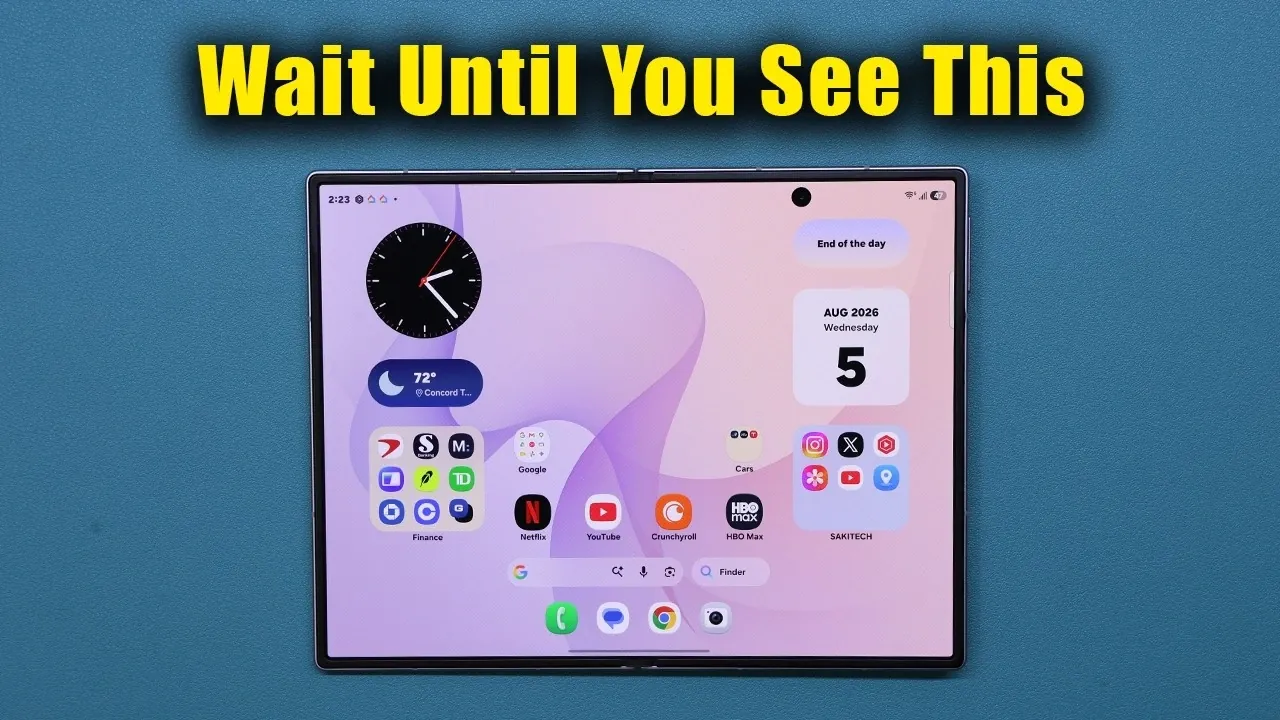
The Samsung Galaxy Z Fold 8 and its Ultra variant represent a significant step forward in mobile technology, merging the functionality of a smartphone and a tablet into a single foldable device. This innovative design offers unparalleled versatility, catering to users who demand both productivity and entertainment in a premium package. To fully appreciate and use this innovative device, it’s essential to explore its standout features and understand how to tailor them to your unique needs. The video below from Sakitech gives us more details.

Innovative Two-in-One Design
The Galaxy Z Fold 8 is more than just a foldable phone; it’s a hybrid device that seamlessly transitions between a compact smartphone and a tablet, redefining convenience and functionality.
- When folded, the cover screen operates as a traditional smartphone display, perfect for quick tasks such as messaging, browsing, or checking notifications.
- Unfold the device to reveal a larger, tablet-like inner display, ideal for multitasking, immersive media consumption and productivity-focused activities.
This dual-purpose design eliminates the need to carry separate devices, offering the convenience of two functionalities in one. Whether you’re managing work tasks or enjoying entertainment, the Galaxy Z Fold 8 adapts effortlessly to your needs, making it a compelling choice for those seeking versatility in a premium device.
Independent Display Customization
One of the most distinctive features of the Galaxy Z Fold 8 is its ability to customize the cover and inner displays independently. This level of flexibility sets it apart from traditional smartphones, allowing users to create unique setups for each screen.
- Customize wallpapers, widgets, and app layouts separately for the cover and inner displays.
- Optimize the cover screen for quick access to essential apps like messaging, email, and navigation tools.
- Configure the inner display for productivity, with larger widgets, split-screen multitasking, and enhanced tools.
This feature ensures that each screen serves a distinct purpose, enhancing usability and efficiency. By tailoring the displays to your specific needs, you can create a device that aligns perfectly with your lifestyle and work habits.
Unlocking the Potential of Cover Screen Mirroring
The Galaxy Z Fold 8 includes a feature called “cover screen mirroring,” which mirrors the inner display onto the cover screen by default. While this may seem convenient, it limits the device’s dual-display potential. Disabling this setting allows you to fully use the independent functionality of each screen.
To disable cover screen mirroring:
- Navigate to the display settings on your device.
- Locate the “cover screen mirroring” option and toggle it off.
By making this simple adjustment, you unlock the full potential of the Galaxy Z Fold 8, allowing you to customize each screen independently and align them with your unique usage patterns. This feature is particularly useful for users who want to maximize productivity and personalization.
Enhanced Media and Entertainment Experience
The Galaxy Z Fold 8’s expansive inner display is designed to elevate your media consumption experience. Its large, vibrant screen provides an immersive viewing experience, making it ideal for streaming apps like Netflix, YouTube, and other video platforms. Enhanced audio capabilities further transform the device into a portable entertainment hub.
Meanwhile, the cover display is optimized for quick, on-the-go interactions. Use it to:
- Check notifications at a glance.
- Control music playback with ease.
- Access frequently used apps without needing to unfold the device.
This dual-display approach ensures the device adapts seamlessly to your lifestyle, whether you’re relaxing at home with your favorite shows or multitasking during a busy day.
Personalization at Its Best
Personalization is a cornerstone of the Galaxy Z Fold 8’s design. Both the cover and inner displays offer extensive customization options, allowing you to make the device truly your own.
- Choose different wallpapers, clock styles, and layouts for each screen to reflect your preferences.
- Add multiple home screens to organize apps and widgets effectively.
- Dedicate specific screens to work, entertainment, or personal tasks for better organization and efficiency.
For instance, you might configure one home screen for work-related apps and another for leisure activities, making sure everything you need is easily accessible. This level of personalization enhances the overall user experience, making the Galaxy Z Fold 8 a device that adapts to your unique needs.
Getting Started: Setup Recommendations
To maximize the potential of the Galaxy Z Fold 8, proper setup is essential. Here are some recommendations to help you get started:
- Disable the cover screen mirroring option to create distinct setups for each display.
- Organize your apps and widgets based on your usage preferences. For example:
- Use the cover screen for quick tasks like messaging, navigation, and notifications.
- Reserve the inner display for multitasking, media consumption, or productivity tools.
- Experiment with different layouts and configurations to find what works best for your workflow and lifestyle.
Taking the time to customize your device ensures a seamless and personalized experience, allowing you to unlock its full potential and enjoy all the benefits it has to offer.
Advance your skills in Samsung Galaxy Z Fold 8 by reading more of our detailed content.
- Samsung Finally Fixed the Fold: First Look at the Z Fold 8 Wide Design
- Samsung Galaxy Z Fold 8 Surprise: The ‘Wide’ Model is Finally Real
- Samsung’s Secret ‘H8’ Revealed: Why the Galaxy Z Fold 8 Wide is a Design Masterpiece
- Samsung’s Foldable Masterpiece: Galaxy Z Fold 8 Ultra Leaks
- Samsung Galaxy Z Fold 8 Size Comparison: Wide vs Ultra Models
Source & Image Credit: sakitech
Disclosure: Some of our articles include affiliate links. If you buy something through one of these links, Geeky Gadgets may earn an affiliate commission. Learn about our Disclosure Policy.
