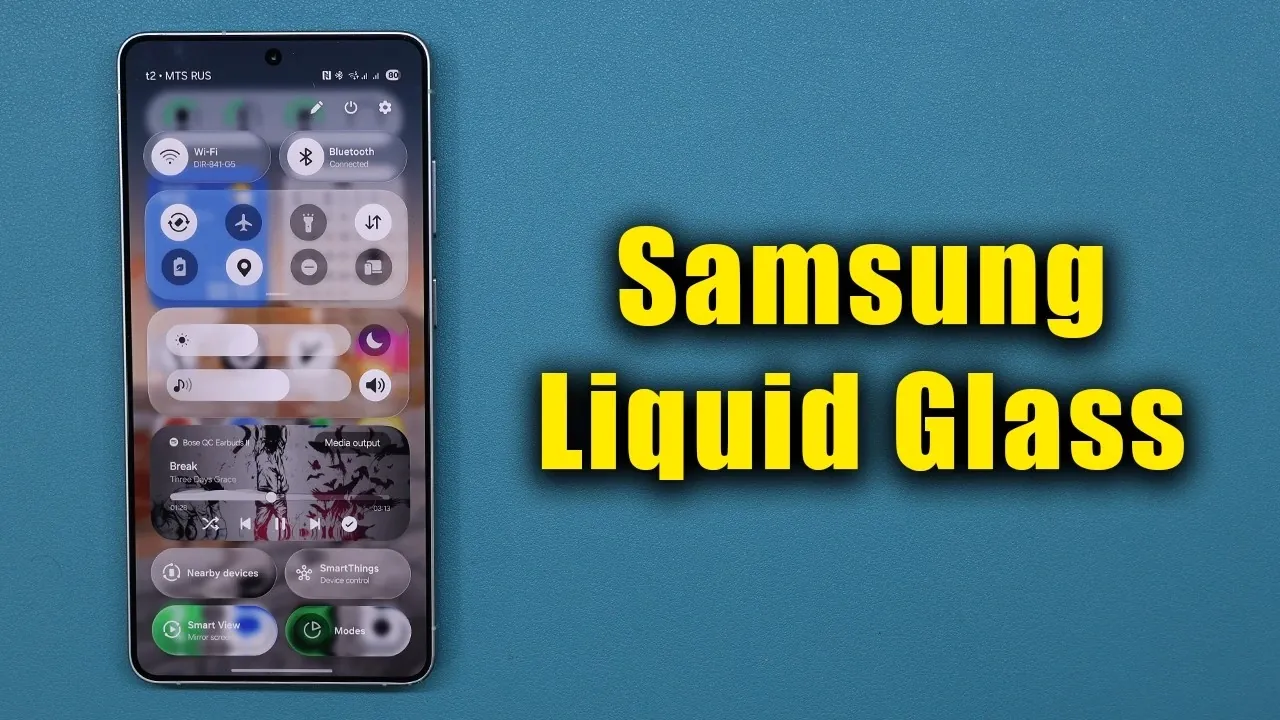
Customizing your Samsung Galaxy phone allows you to express your personal style while enhancing its visual appeal. Liquid glass icons, with their sleek and reflective design, offer a modern aesthetic that can make your device stand out. By using Samsung’s Good Lock app and its Theme Park module, you can create personalized icons with a polished, glass-like effect. This step-by-step guide video from Sakitech will help you achieve a professional and unique look for your phone.
Step 1: Download and Install the Good Lock App
Begin by downloading the Good Lock app from the Samsung Galaxy Store. This app serves as a comprehensive customization hub for Samsung devices, offering a variety of modules to enhance both functionality and appearance. Once installed, open the app and locate the Theme Park module. Download and install this module, as it is essential for creating and applying custom icon packs. With these tools in place, you’re ready to start designing.
Step 2: Create Your Custom Icon Pack
Launch the Theme Park module and navigate to the “Icon” section. Select the “Create New” option to start designing your custom icons. At this stage, you’ll choose a base shape for your icons, such as circles, teardrops, or squares. This foundational decision determines the overall structure of your icon pack.
Once you’ve selected a shape, explore additional customization options to refine the design. The flexibility of the Theme Park module allows you to experiment with different styles, making sure your icons align with your personal preferences.
Step 3: Apply the Liquid Glass Effect
The liquid glass effect is what sets these icons apart, giving them a reflective and modern appearance. To achieve this, use the “Glass” effect within the customization settings. Fine-tune the design by adjusting the following parameters:
- Edge Thickness: Modify the border thickness to create either a subtle or bold outline around your icons.
- Gradient Adjustment: Blend colors seamlessly across the icon surface to add depth and dimension.
- Light Reflection: Control the intensity and angle of light reflections to mimic the appearance of real glass.
- Color Personalization: Select colors that complement your phone’s theme or reflect your unique style.
These customization options allow you to craft a set of icons that are both visually striking and tailored to your preferences.
Step 4: Save and Apply Your Icon Pack
Once you’ve finalized your design, save the icon pack with a name that makes it easy to identify later. This ensures you can quickly access and reapply your custom icons whenever needed. To activate your new icons, apply the pack to compatible apps on your device.
It’s important to note that some third-party apps or custom shortcuts may not support custom icons. As a result, you might encounter minor inconsistencies in your home screen’s appearance. However, these limitations are generally minimal and do not detract from the overall aesthetic.
Step 5: Compatibility and Practical Considerations
The Good Lock app and Theme Park module are exclusive to Samsung Galaxy devices running compatible software versions. Before starting, ensure your device meets these requirements. Additionally, while custom icon packs can be applied to most apps, some system apps or third-party applications may not fully support them.
Despite these limitations, the ability to create liquid glass icons offers a significant enhancement to your phone’s visual appeal. The customization process is straightforward and the results are both unique and professional.
Elevate Your Samsung Galaxy Experience
By using the Good Lock app and its Theme Park module, you can transform your Samsung Galaxy phone into a personalized masterpiece. From selecting base shapes to fine-tuning details like gradients and light reflections, the process enables you to design a home screen that reflects your individuality. While some compatibility restrictions exist, the end result is a sleek and modern aesthetic that enhances your device’s overall appearance. With these tools, your phone becomes more than just a device, it becomes an extension of your personal style.
Source & Image Credit: sakitech
Disclosure: Some of our articles include affiliate links. If you buy something through one of these links, Geeky Gadgets may earn an affiliate commission. Learn about our Disclosure Policy.
