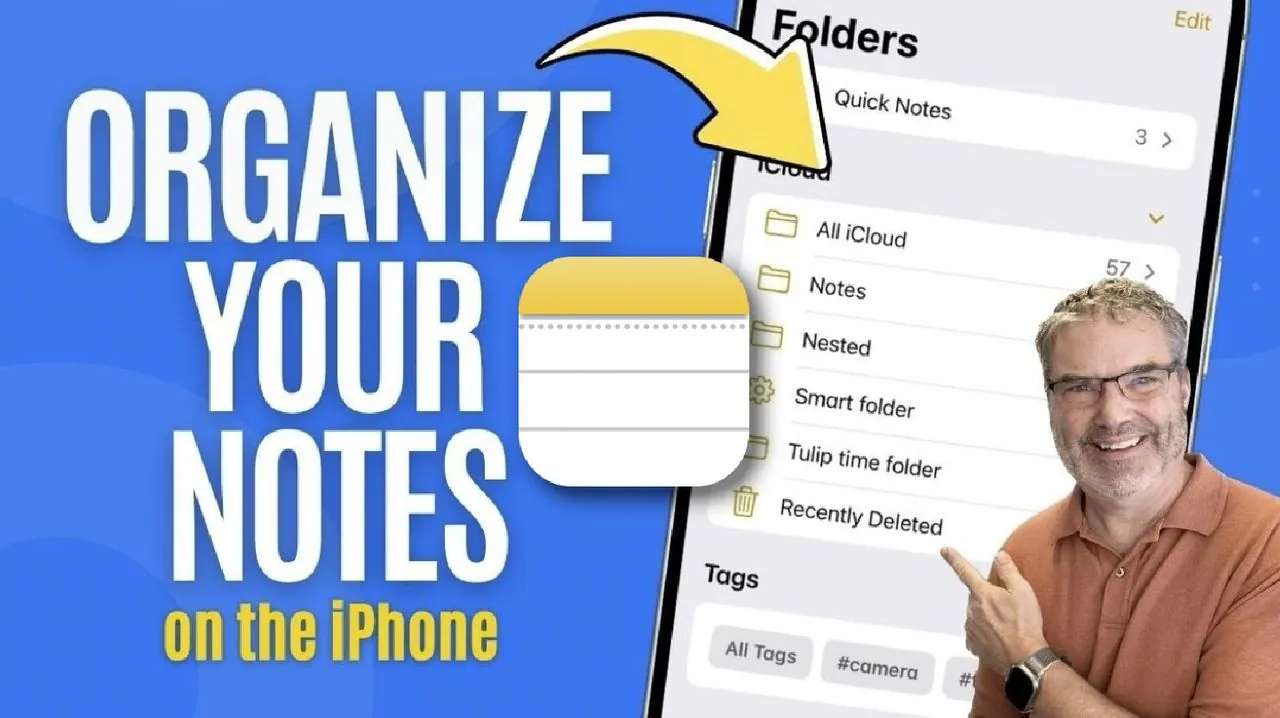
Have you ever scrolled endlessly through your Apple Notes, desperately trying to find that one idea you jotted down last week? With the sheer volume of information we manage daily, even the most diligent note-takers can feel overwhelmed by digital clutter. The good news? Apple Notes on the iPhone isn’t just a blank canvas for your thoughts—it’s a powerhouse of organizational tools waiting to be unlocked. From creating structured folders to automating categorization with smart folders, this app offers everything you need to turn chaos into clarity. The trick lies in knowing how to make these features work for you.
In this coverage, Dan explores how to transform Apple Notes into your personal productivity hub. You’ll discover how to use features like tags for cross-referencing and smart folders for effortless sorting, all while tailoring the app to your unique needs. Whether you’re managing work projects, personal goals, or creative ideas, these strategies will help you streamline your workflow and reclaim valuable time. Ready to rethink how you organize your digital life? Let’s uncover the potential of Apple Notes together.
Organizing Notes on iPhone
TL;DR Key Takeaways :
- Apple Notes offers flexible sorting options (by last edited date, creation date, or title) to prioritize and quickly access important notes.
- Folders and nested folders help group related notes into logical categories, simplifying navigation and retrieval.
- Smart folders automatically organize notes based on criteria like attachments, tags, or last edited date, reducing manual effort.
- Tags enable cross-referencing notes across folders, providing a versatile way to organize and access notes for multi-category projects.
- Multiple account integration allows users to separate personal and professional notes or consolidate them for streamlined access.
Sort Notes for Instant Access
Sorting your notes is a fundamental step in maintaining an organized system. Apple Notes offers flexible sorting options, allowing you to arrange notes by:
- Last edited date
- Creation date
- Title
This flexibility ensures that you can prioritize notes based on your specific workflow. For example, if you frequently update certain notes, sorting by the last edited date ensures they remain at the top of your list, making them easier to access. To adjust your sorting preferences, navigate to the Notes settings on your iPhone and select your desired method. This small adjustment can save significant time when searching for important information, especially in a busy schedule.
Use Folders to Group Related Notes
Folders are an essential tool for organizing your notes into logical categories. They allow you to group related notes together, making it easier to locate specific information. To create a folder:
- Open the Notes app and tap the “New Folder” option.
- Assign the folder a descriptive name that reflects its content.
Once created, you can move notes into folders by long-pressing a note and selecting “Move”, or by using drag-and-drop gestures. For added organization, Apple Notes supports nested folders, allowing you to create subfolders within a primary folder. For instance, you might have a “Work” folder with subfolders for “Projects” and “Meetings.” This hierarchical structure ensures that related notes are grouped together, simplifying navigation and retrieval.
Organize Apple Notes with Ease on the iPhone

Find more information on Apple Notes organization by browsing our extensive range of articles, guides and tutorials.
- How to Use Apple Notes for Organization, Collaboration and More
- How to Organize Notes with Apple Notes Collections
- How to Organize Apple Notes for Maximum Productivity in 2025
- Forever Notes: The Ultimate System for Apple Notes Organization
- How Apple Notes Enhances Productivity and Organization
- How to Use Apple Notes for Effortless Daily Organization
- How to Use Apple Notes on macOS for Productivity & Organization
- How to Use Apple Notes to Boost Productivity and Stay Organized
- Apple Notes Organization and Task Management Tips & Tricks
- Mastering Apple Notes: A Comprehensive Guide
Automate Organization with Smart Folders
Smart folders take note organization to the next level by automatically grouping notes based on specific criteria. These folders can categorize notes by:
- Attachments
- Tags
- Last edited date
To create a smart folder, select “New Smart Folder”, define your criteria, and let Apple Notes handle the rest. For example, you can create a smart folder for “Receipts” that automatically collects all notes containing images of receipts. This feature eliminates the need for manual sorting and ensures that relevant notes are always readily accessible. Smart folders are particularly useful for managing large volumes of notes, as they dynamically update based on your specified conditions.
Enhance Flexibility with Tags
Tags offer a versatile way to cross-reference notes across different folders, providing an additional layer of organization. To create a tag, simply type a hashtag (#) followed by a keyword within a note. All notes with the same tag can then be viewed together, regardless of their folder location.
This feature is especially beneficial for projects or topics that span multiple categories. For instance, tagging notes with #Travel allows you to view all travel-related notes, whether they are stored in a “Personal” folder or a “Work” folder. Additionally, you can assign multiple tags to a single note, allowing more nuanced categorization. Tags empower you to create a flexible and interconnected system that adapts to your evolving needs.
Separate or Consolidate with Multiple Accounts
Apple Notes supports multiple accounts, such as iCloud and Gmail, giving you the flexibility to separate personal and professional notes or consolidate them into one unified system. You can:
- Switch between accounts within the Notes app to access specific sets of notes.
- Keep work notes in one account and personal notes in another to maintain clear boundaries.
- Consolidate all notes into a single account for simplicity and ease of access.
For example, storing work-related notes in a Gmail account and personal notes in iCloud ensures a clear separation between different aspects of your life. Alternatively, merging all notes into one account can streamline access and reduce complexity, depending on your preferences. This feature provides the flexibility to customize your note management system to suit your unique requirements.
Maximizing Apple Notes for Seamless Organization
Apple Notes offers a robust array of tools to help you stay organized and efficient. Sorting options allow you to prioritize notes based on relevance, while folders and nested folders provide a structured framework for categorization. Smart folders and tags introduce dynamic and flexible ways to group and cross-reference notes, making sure that important information is always within reach. The ability to manage multiple accounts further enhances the app’s versatility, allowing you to separate or consolidate notes as needed. By using these features, you can transform Apple Notes into a powerful tool for managing information seamlessly on your iPhone.
Media Credit: Dan’s Tutorials
Disclosure: Some of our articles include affiliate links. If you buy something through one of these links, Geeky Gadgets may earn an affiliate commission. Learn about our Disclosure Policy.
