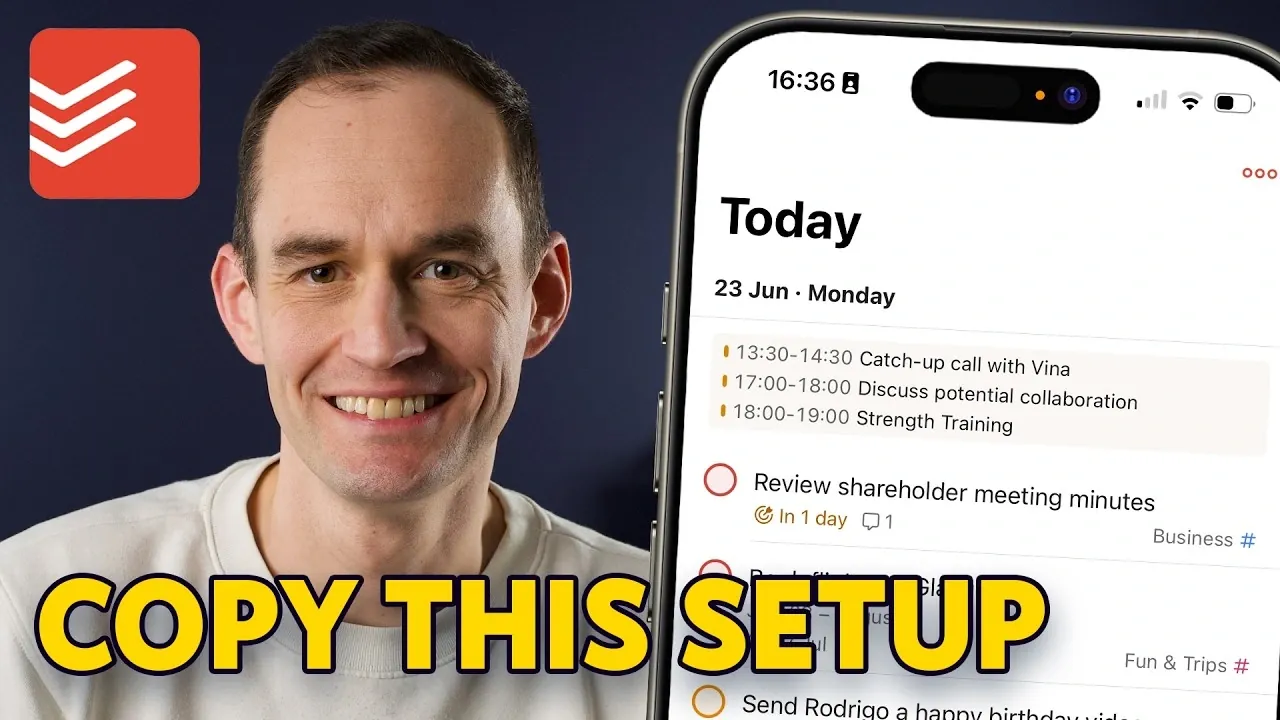
Have you ever felt like your to-do list is running your life instead of the other way around? With countless tasks competing for your attention, staying organized can feel like an impossible challenge. In this walkthrough, Peter Akkies shows how to transform Todoist into a seamless system for managing your daily responsibilities, whether you’re juggling work deadlines, personal goals, or both. By the end of this guide, you’ll see how Todoist isn’t just about ticking boxes, it’s about creating a system that works for you, not against you. With its intuitive features and customizable options, Todoist has the potential to turn chaos into clarity and help you reclaim control over your time.
This guide will take you step-by-step through the process of structuring your Todoist workspace, optimizing task management, and using advanced features to boost your productivity. From setting up projects that reflect the major areas of your life to using natural language input to schedule tasks effortlessly, you’ll discover how to make Todoist a powerful ally in your daily routine. Whether you’re curious about how to create reusable templates or intrigued by the idea of visualizing your tasks in a Kanban-style board, this overview will inspire you to rethink how you approach your to-dos. The way you organize your tasks could be the key to unlocking a more focused, intentional way of living.
Mastering Todoist Productivity
TL;DR Key Takeaways :
- Organize your Todoist workspace with a hierarchical structure by creating top-level projects, sub-projects, and sections to streamline task management and prioritize effectively.
- Use advanced features like natural language input, recurring tasks, and reusable templates to save time and enhance productivity for both routine and complex workflows.
- Customize your workflow with multiple views (List, Board, Calendar), filters, and labels to focus on specific priorities and visualize tasks in a way that suits your planning style.
- Integrate Todoist with external calendars (e.g., Google Calendar) and use mobile tools like widgets, voice input, and browser extensions to stay organized and productive on the go.
- Enhance daily planning by assigning priorities, using smart sorting, and creating custom filters or templates to maintain focus and achieve consistent results.
Structuring Your Todoist Workspace
The cornerstone of effective task management in Todoist is a well-structured workspace. Start by creating top-level projects that represent the major areas of your life, such as “Work,” “Health,” or “Personal Development.” Within these projects, you can further organize tasks by creating sub-projects or dividing them into sections.
- For example, under “Work,” you might include sub-projects like “Client Proposals” or “Team Meetings.”
- Breaking larger goals into smaller, actionable tasks ensures clarity and makes tracking progress more manageable.
This hierarchical structure not only keeps your tasks logically grouped but also allows you to prioritize effectively and navigate your workload with ease. By maintaining a clear and organized workspace, you can focus on what matters most without unnecessary distractions.
Optimizing Task Management
Todoist simplifies task management with intuitive features that save time and reduce effort. Adding tasks can be done manually or through quick-add shortcuts, including natural language recognition. For instance, typing “Prepare presentation next Friday at 10 AM” will automatically schedule the task with the correct deadline. To further enhance your task management:
- Assign tasks to specific projects to keep them organized.
- Add comments or attachments to provide additional context or resources.
- Set priority levels to ensure critical tasks are addressed first.
Recurring tasks are another essential feature. You can schedule tasks to repeat at fixed intervals, such as “every Monday,” or set them to recur after completion, like “every 5 days after done.” This flexibility is particularly useful for managing both routine and irregular responsibilities, making sure nothing slips through the cracks.
How to Organize Your To-Dos with Todoist in 2026

Expand your understanding of productivity with additional resources from our extensive library of articles.
- Best Productivity Apps for Building Your Personal LifeOS
- Enhance Your Commute with the Best Apple CarPlay Apps of 2025
- 10 AI Tools You Can Use To Boost Your Productivity
- Must-Have iPad Apps You NEED to Download Today!
- Apple Notes Life Workflow: Projects, Actions, Learnings, Archives
- How to Turn Your iPhone Into a Productivity Machine in 2025
- The Best iPhone Home Screen Setup
- Unlocking the iPad mini’s TRUE Potential for Productivity
- The Ultimate Guide to Using n8n for Business Automation
- Apple Notes vs Task Apps: Using Reminders and Note Links
Using Advanced Features
Todoist’s advanced features are designed to enhance productivity and simplify task management. The natural language input feature allows you to add deadlines, labels, and priorities in one step, minimizing friction and saving time. Additionally, reusable project templates are ideal for repetitive workflows. For example, if you frequently manage events, you can create a template with predefined tasks and deadlines, making sure consistency and efficiency every time.
Another powerful tool is the ability to share projects and assign tasks to collaborators. This feature is especially useful for team-based projects, as it fosters accountability and ensures everyone stays aligned. By combining these advanced functionalities, Todoist becomes a versatile platform that adapts to both individual and collaborative needs.
Visualizing and Customizing Your Workflow
Todoist offers multiple views to suit different planning preferences, making it easier to visualize and manage your tasks:
- List View: Provides a detailed, linear layout for managing tasks with precision.
- Board View: Offers a Kanban-style representation, ideal for tracking progress and organizing workflows visually.
- Calendar View: Displays tasks on a timeline, helping you plan ahead and manage deadlines effectively.
Filters and labels add another layer of customization. For instance, you can create a filter to display tasks due within the next three days or those tagged as “High Priority.” These tailored views allow you to focus on specific aspects of your workload, making sure that your attention is directed where it’s needed most.
Integrating Todoist with Calendars and Mobile Tools
Integrating Todoist with external calendars like Google Calendar or Outlook enhances time management by consolidating tasks and events in one place. Once synced, tasks appear alongside calendar events, allowing you to allocate time for specific activities and maintain a balanced schedule. You can even adjust task durations directly from your calendar, making sure your plans remain realistic and achievable.
Todoist’s mobile app and browser extensions further enhance productivity on the go. Key features include:
- Mobile Widgets: Quickly view and add tasks from your home screen for seamless task management.
- AI-Powered Voice Input: Create tasks hands-free, making it easier to capture ideas or reminders on the fly.
- Browser Extensions: Save tasks directly from web pages or emails with a single click, making sure no important detail is overlooked.
These tools ensure that you stay organized and productive, whether you’re at your desk or on the move.
Daily Planning and Productivity Tips
Effective daily planning is essential for maintaining focus and achieving your goals. Todoist offers several features to help you structure your day:
- Assign priority levels to tasks or schedule specific times for their completion.
- Use smart sorting to automatically arrange tasks based on deadlines, priorities, and other factors.
- Create custom filters, such as a “Today” filter, to display tasks due within the next 24 hours.
For a more personalized approach, you can manually sort tasks or group them by labels and filters. Additionally, using templates for recurring projects, such as weekly overviews or event planning, can save time and ensure consistency.
Customizing Todoist for Your Workflow
Todoist’s customization options allow you to tailor the platform to your unique needs. Some practical tips include:
- Use labels to categorize tasks based on urgency or type. For example, labels like “Urgent” or “Long-Term” can help you differentiate between immediate priorities and future goals.
- Create custom filters to focus on specific task groups, such as “Tasks without deadlines” or “High Priority tasks due this week.”
- Save time by using templates for recurring projects, such as onboarding new employees or planning quarterly reviews.
By customizing Todoist to align with your workflow, you can create a system that supports your productivity and adapts to your evolving needs.
Media Credit: Peter Akkies
Disclosure: Some of our articles include affiliate links. If you buy something through one of these links, Geeky Gadgets may earn an affiliate commission. Learn about our Disclosure Policy.
