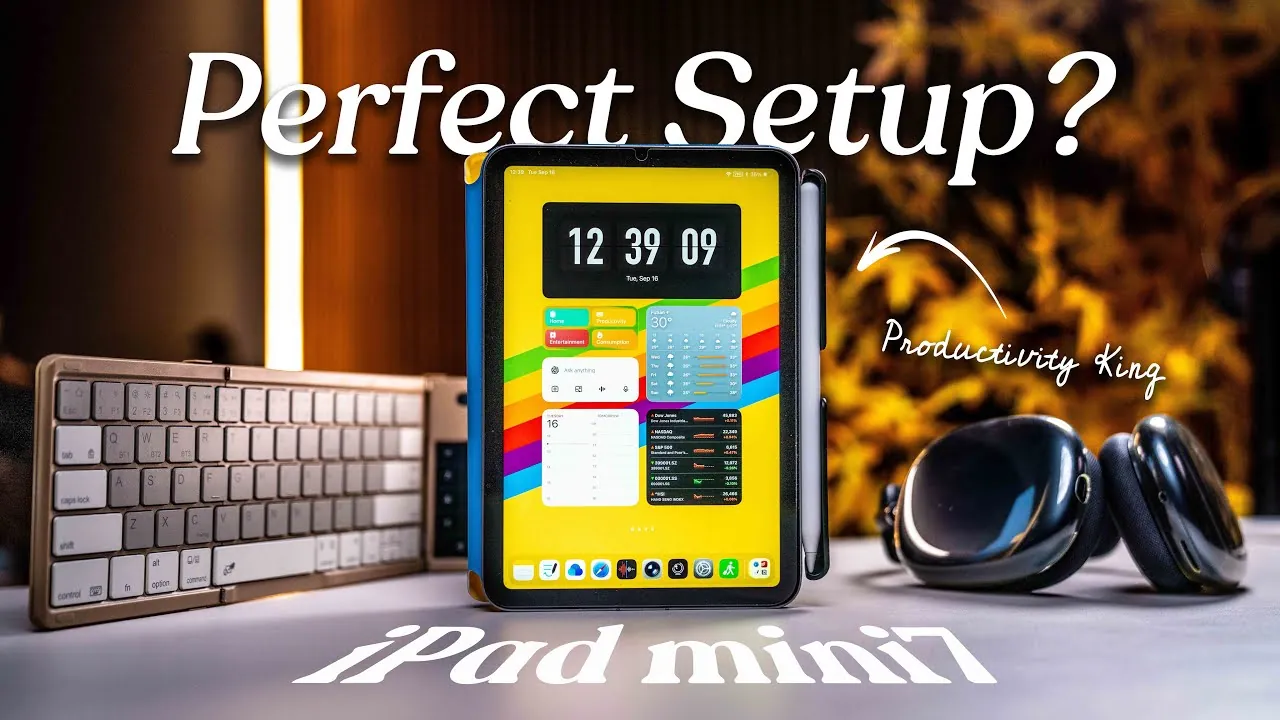
The iPad Mini 7, with its sleek design and powerful capabilities, is more than just a compact tablet. It has the potential to be a highly efficient productivity tool, especially for professionals who need flexibility and portability. By optimizing its features, integrating the right accessories, and adopting effective strategies, you can transform your iPad Mini into a versatile device that enhances your workflow. The video below from KevZ explores how to unlock its full potential, focusing on iPadOS customization, essential tools, and practical applications.

Optimizing iPadOS for Productivity
The iPadOS operating system is designed to support productivity with a range of features that can be tailored to your specific needs. To make the most of your iPad Mini, consider these key steps:
- Organize Your Home Screen: Use the app library to group apps by category or frequency of use. A clean, minimalist home screen reduces distractions and ensures that essential tools are always within reach.
- Set Up Focus Modes: Create customized modes such as “Work,” “Study,” or “Relaxation.” These modes allow you to prioritize specific apps and silence non-essential notifications, helping you stay focused on the task at hand.
- Incorporate Widgets: Add widgets for apps like calendars, task managers, or note-taking tools to keep important information accessible at a glance.
- Master Multitasking Features: Use split-screen and Slide Over views to work on multiple tasks simultaneously. For example, you can take notes while attending a virtual meeting or reference a document while drafting an email.
Customizing your iPadOS setup not only streamlines your workflow but also creates a distraction-free environment tailored to your priorities.
Enhancing Workflow with Focus Modes and Shortcuts
Focus modes are a standout feature of iPadOS, offering a powerful way to manage your attention and time. By combining these modes with shortcuts, you can further enhance your productivity:
- Create Task-Specific Modes: Design modes for different scenarios, such as “Work” for professional tasks, “Home” for personal use, or “Creative” for hobbies. Each mode can have its own app layout, notification settings, and widget configurations.
- Automate Repetitive Tasks: Use shortcuts to streamline your workflow. For instance, a “Morning Routine” shortcut could open your calendar, task manager, and email app simultaneously, saving you time and effort.
These tools allow you to adapt your iPad Mini to your current needs, making sure that you stay organized and focused throughout the day.
Essential Accessories for Boosting Productivity
To fully use the capabilities of your iPad Mini, investing in the right accessories is crucial. These tools not only enhance functionality but also make the device more versatile for various tasks:
- Bluetooth Keyboard with Trackpad: A compact keyboard with an integrated trackpad simplifies typing and navigation. Trackpad gestures, such as swiping between apps or scrolling, make multitasking more intuitive.
- Apple Pencil: Perfect for note-taking, sketching, and annotating documents. Features like Scribble, which converts handwriting into text, and gesture controls, such as double-tapping to switch tools, add to its utility.
- Folio Case with Stand: A lightweight case that doubles as a stand provides multiple viewing angles, making it easier to work comfortably in different settings.
These accessories enhance your productivity by improving input methods and expanding the functionality of your iPad Mini.
Using Apps and Features for Maximum Efficiency
The right apps can significantly enhance the functionality of your iPad Mini, turning it into a powerful tool for managing tasks, collaborating, and staying organized. Here are some top recommendations:
- AI-Powered Tools: Apps like ChatGPT and Notebook LM assist with brainstorming, research, and drafting, making them invaluable for creative and professional tasks.
- Note-Taking and Organization: Notion and GoodNotes are excellent for managing projects, organizing ideas, and annotating documents.
- File Management: Tools like Dropbox and Raindrop ensure seamless access to your files and resources across devices.
- Communication Platforms: Stay connected with colleagues and clients using apps like Zoom, Slack, or Microsoft Teams.
- Task Management: Apps such as Todoist or Things help you track deadlines, set priorities, and manage your workload effectively.
By integrating these apps into your workflow, you can streamline your tasks and improve overall efficiency.
Expanding Functionality with Secondary Monitor Features
The iPad Mini’s ability to function as a secondary monitor adds another layer of versatility, particularly for multitasking and collaboration. Features like Sidecar and Universal Control make this possible:
- Extend Your Workspace: Use the iPad Mini as an additional screen for your Mac, allowing you to reference documents, monitor emails, or manage multiple tasks simultaneously.
- Seamless Device Control: Operate both your Mac and iPad Mini with a single keyboard and mouse, making it easier to switch between devices during complex workflows.
This functionality is especially useful for professionals who need to manage multiple applications or collaborate on projects in real time.
Balancing Performance and Limitations
While the iPad Mini offers impressive capabilities, it’s important to understand its limitations to set realistic expectations:
- Battery Life: While sufficient for most tasks, intensive activities like video editing or gaming can drain the battery more quickly.
- Processing Power: The iPad Mini handles everyday tasks with ease but may struggle with resource-intensive applications or multitasking involving heavy files.
- Cost Considerations: The device and its accessories can be expensive, so it’s essential to evaluate your specific needs before making an investment.
Despite these limitations, the iPad Mini remains a highly adaptable and portable solution for professionals seeking a lightweight alternative to traditional laptops.
Stay informed about the latest in iPad Mini Productivity by exploring our other resources and articles.
- iPadOS 26 on iPad Mini: Pros, Cons, and User Experience
- Top iPad Mini 7 Accessories for Protection, Performance, and Style
- M3 iPad Air vs. A17 Pro iPad mini 2025 Buying Guide
- The Ultimate 2025 iPad Guide: Find Your Perfect Fit
- iPad Mini 7: Everything We Know So Far
Source & Image Credit: KevZ
Disclosure: Some of our articles include affiliate links. If you buy something through one of these links, Geeky Gadgets may earn an affiliate commission. Learn about our Disclosure Policy.
