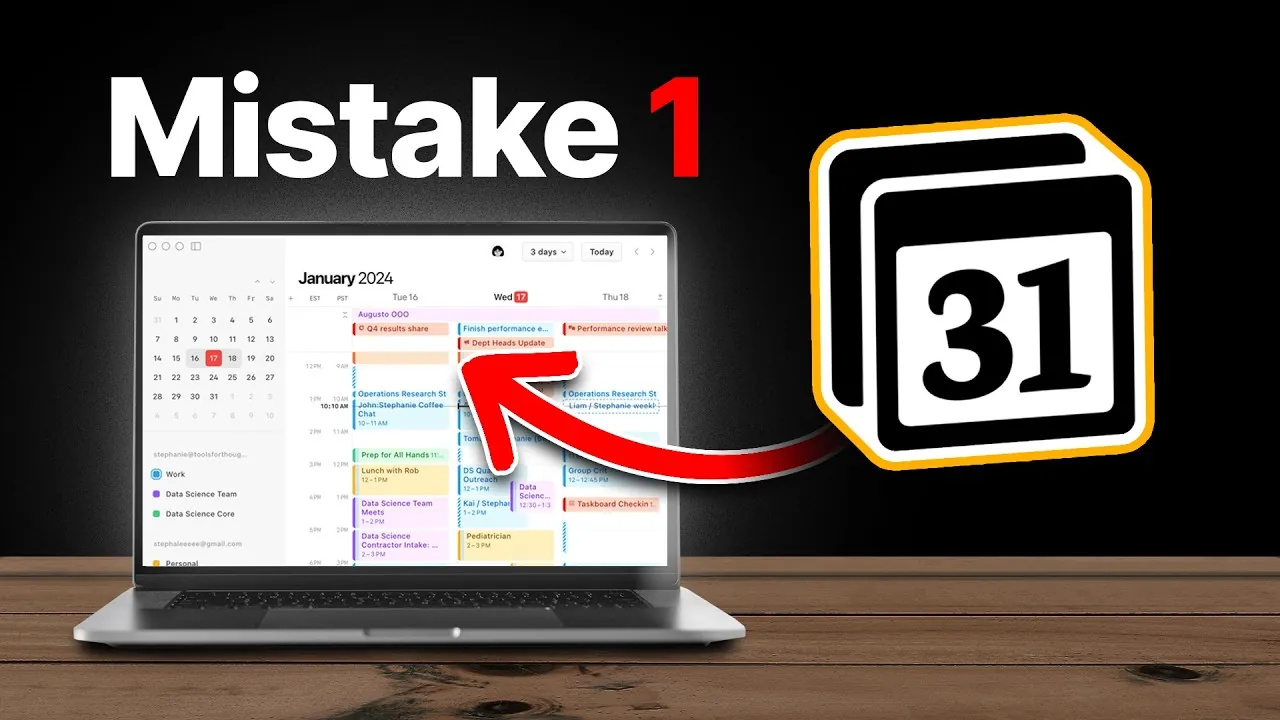
We’ve all been there—staring at a cluttered to-do list or a chaotic calendar, wondering how on earth we’re supposed to juggle it all. Between work deadlines, personal goals, and the endless stream of daily tasks, staying organized can feel like an uphill battle. If you’re a Notion user, you already know how powerful this tool can be, but are you truly making the most of its features? What if your calendar could do more than just hold dates and reminders—what if it could actually help you work smarter, not harder?
In this guide, Productive Setups cover five must-know settings that can transform your Notion calendar into a productivity powerhouse. Whether you’re looking to streamline your workflow, track your time more effectively, or finally stick to those habits you’ve been trying to build, these tips are designed to make your life easier.
Notion Calendar Tips
TL;DR Key Takeaways :
- Connect your Notion calendar to a structured task database for seamless scheduling and effective time blocking.
- Automate time tracking with formulas to calculate task durations and gain insights into time distribution.
- Use visual cues like icons, emojis, or color coding to quickly identify task priorities and reduce cognitive load.
- Create reusable task templates for recurring activities to save time and ensure consistency.
- Integrate habits into your calendar to track and prioritize them alongside regular tasks for better accountability.
Optimizing your Notion calendar can significantly enhance your workflow and productivity. By allowing the right settings and using key features, you can transform your calendar into a powerful tool for managing tasks, tracking time, and building consistent habits.
1. Build a Strong Foundation with a Task Database
A well-structured task database is the cornerstone of an optimized Notion calendar. By connecting your calendar to a task database, you can seamlessly schedule tasks, view them in a time-blocked format, and ensure that no important task is overlooked. This integration not only enhances organization but also provides a clear visual representation of your workload.
To set up a task database:
- Create a database with fields such as task name, due date, priority, and status.
- Switch to the calendar view to visualize tasks over time.
Time blocking is a particularly effective strategy when using this setup. For instance, you can allocate specific time slots for focused work, such as two hours for a project or 30 minutes for a meeting. This approach helps you maintain a structured schedule and ensures that your attention is directed toward high-priority tasks.
2. Automate Time Tracking for Better Insights
Understanding how you allocate your time is crucial for improving productivity. Notion allows you to automate time tracking by using formulas to calculate task durations. This feature provides valuable insights into how your time is distributed across various activities, allowing you to make informed adjustments to your schedule.
To automate time tracking:
- Add “Start Time” and “End Time” fields to your task database.
- Use a formula to calculate the total time spent on each task.
For example, if you work on a presentation from 9:00 AM to 11:00 AM, the formula will automatically compute the two-hour duration. Additionally, you can summarize the total time spent on tasks over a day, week, or month, giving you a comprehensive overview of your productivity patterns.
5 Notion Calendar Settings You Must Enable

Advance your skills in Notion Calendar Optimization by reading more of our detailed content.
- How to Create a Notion To Do List
- How to use Notion Projects management feature
- 14 Useful Notion Updates You Might Have Missed
- 10 Awesome Productivity Apps For Your Mac
- ClickUp vs Notion : Which is Better in 2025 for Productivity?
- How to Create a Custom Notion Notification Center
- Build Your Own AI Assistant in Minutes – No Coding Required
- The BEST iPad Home Screen Setup of 2024!
- Notion productivity app is now free for personal use
- Using Apple Notes, Reminders & Calendar for Maximum
3. Enhance Task Identification with Visual Cues
Making your calendar visually intuitive can save time and reduce mental effort. By incorporating visual cues such as icons, emojis, or color coding, you can quickly identify the nature or priority of tasks at a glance. This method not only improves clarity but also adds a layer of personalization to your calendar.
Here are some examples of visual cues:
- Use a lightbulb emoji to represent brainstorming sessions.
- Apply a checkmark icon to signify completed tasks.
- Color-code tasks based on priority, such as red for urgent tasks and green for low-priority items.
You can also implement productivity techniques like “Eat the Frog,” which encourages tackling the most challenging or important task first. Highlight these high-priority tasks with specific icons or colors to ensure they stand out, helping you stay focused on what matters most.
4. Save Time with Task Templates
Recurring tasks, such as weekly meetings or monthly reports, can be streamlined by creating reusable templates in Notion. Templates save time by predefining fields, checklists, and instructions, making sure consistency and reducing the effort required to set up repetitive tasks.
To create and use task templates:
- Design a template for specific tasks, such as meetings, that includes fields for the agenda, attendees, and action items.
- Duplicate the template whenever the task recurs, maintaining uniformity and capturing all necessary details.
This approach minimizes the risk of overlooking critical information and simplifies the process of task creation, allowing you to focus on execution rather than setup.
5. Integrate Habits into Your Calendar
Embedding habits into your Notion calendar is an effective way to stay consistent and accountable. By treating habits as recurring tasks, you can track their completion alongside your regular responsibilities, making sure they remain a priority in your daily routine.
To integrate habits into your calendar:
- Add habits like “Exercise for 30 minutes” or “Read for 20 minutes” as recurring entries in your task database.
- Time block these habits within your calendar to align them with your work schedule.
For a more detailed approach, create a dedicated habit tracker view by filtering and grouping habits based on their completion status. This setup provides a clear overview of your progress, highlights areas for improvement, and helps you maintain consistency over time.
Bonus: Create a Habit Tracker for Deeper Insights
For those looking to take habit tracking to the next level, consider building a dedicated habit tracker within your Notion workspace. By using filters to display only habits and grouping them by completion status, such as “Completed” or “In Progress,” you can gain deeper insights into your behavior patterns. This view serves as a motivational tool, encouraging you to stay on track and make steady progress toward your goals.
By implementing these five settings and techniques, you can transform your Notion calendar into a comprehensive productivity tool. From integrating tasks and automating time tracking to embedding habits and creating reusable templates, these features simplify task management and enhance your workflow. Start applying these strategies today to take full control of your schedule and achieve your productivity goals.
Media Credit: Productive Setups
Disclosure: Some of our articles include affiliate links. If you buy something through one of these links, Geeky Gadgets may earn an affiliate commission. Learn about our Disclosure Policy.
