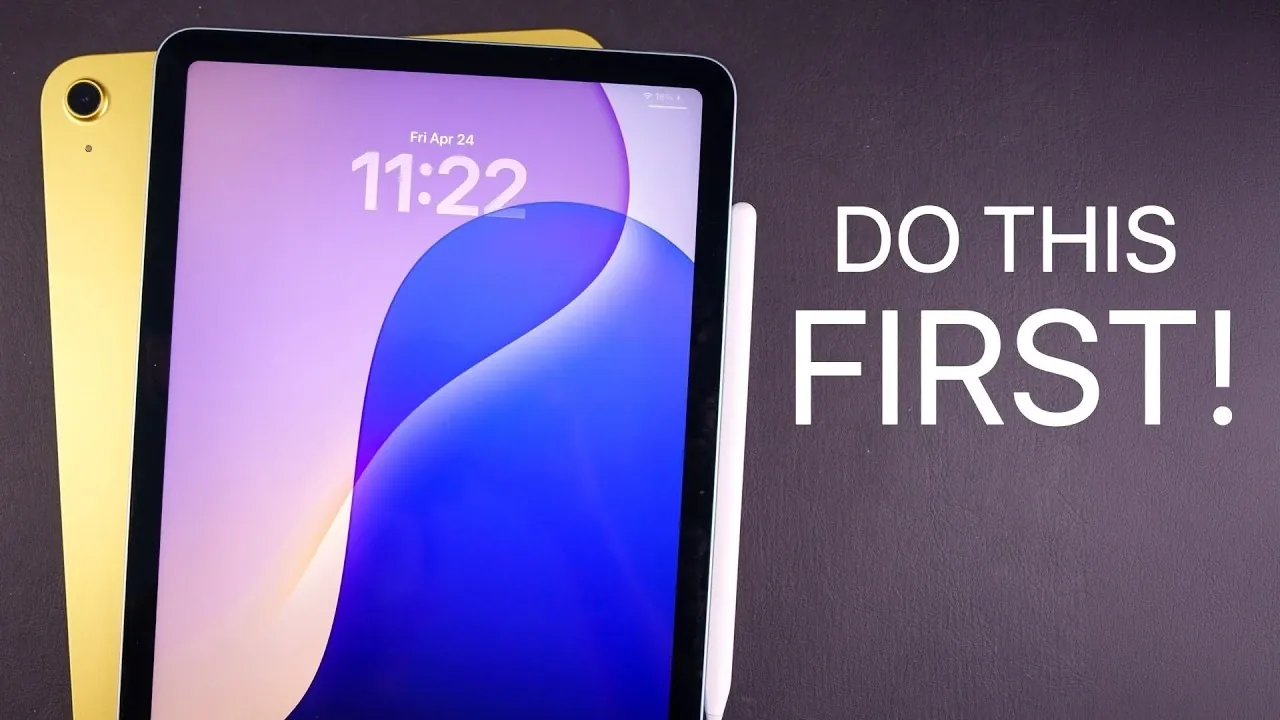
Congratulations on your new iPad! With the release of iPadOS 26, Apple has introduced a host of features designed to enhance productivity, creativity, and personalization. To ensure you get the most out of your device, here’s a detailed video from Brandon Butch that shows us the first 22 things we should do to optimize your iPad and unlock its full potential.

Optimize Your Battery for Longevity
Start by focusing on your iPad’s battery health. Navigate to the Battery Health section in the Settings app and enable the 80% charging limit. This feature helps reduce wear on the battery, extending its lifespan over time. While you’re there, check the battery health metrics and cycle count to monitor its performance from the very beginning. These proactive steps will ensure your device stays reliable for years to come.
Master Gestures and Navigation
Efficient navigation is essential for making the most of iPadOS 26. Familiarize yourself with basic gestures, such as swiping between apps, pinching to zoom and accessing the Control Center. Advanced gestures, like the three-finger pinch for copy-paste or the new flick gestures for multitasking, can significantly streamline your workflow. By mastering these gestures, you’ll navigate your iPad with ease and efficiency.
Explore Multitasking Features
iPadOS 26 introduces powerful multitasking tools to enhance productivity. Use Stage Manager to organize apps into resizable windows, creating a desktop-like experience. Combine this with Slide Over to manage grouped app workflows. Whether you’re editing a video, drafting a document, or conducting research, these features make juggling multiple tasks seamless and intuitive.
Personalize Your iPad Experience
Customization is a standout feature of iPadOS 26. Rearrange app icons and widgets on your home screen to reflect your preferences and workflow. In the Files app, you can now customize folder colors and icons, making organization more intuitive. Adjust display settings, such as liquid glass transparency and text size, to create a setup tailored to your needs. These personalization options ensure your iPad feels uniquely yours.
Maximize the Apple Pencil’s Potential
The Apple Pencil is a versatile tool for both creativity and productivity. Use Scribble to convert handwriting into text or annotate PDFs directly. Quick Notes, accessible from the lock screen, allow you to jot down ideas instantly. If you own the Apple Pencil Pro, take advantage of its enhanced sensitivity for precise tasks like sketching or detailed editing. This tool is indispensable for artists, students and professionals alike.
Customize the Keyboard and Control Center
The on-screen keyboard in iPadOS 26 offers enhanced versatility. Resize it for one-handed use or swipe to access alternate characters quickly. In the Control Center, add shortcuts for frequently used tools such as ambient music controls, screen recording, or smart home devices. Organizing these shortcuts ensures quick and easy access to essential features, saving you time and effort.
Streamline File Management
Efficient file management is crucial for productivity. In the Files app, customize folder views and set default apps for specific file types. The iPad’s USB-C port expands your options, allowing you to connect external devices like SSDs, webcams and hubs for seamless file transfers. These capabilities make your iPad a powerful tool for managing both personal and professional files.
Use Spotlight Search and Siri
Spotlight Search is a powerful tool for locating apps, performing calculations, or converting units. With iPadOS 26, Siri now integrates with ChatGPT, allowing advanced tasks like drafting emails, summarizing documents, or generating creative ideas. Together, these tools enhance both convenience and productivity, making your iPad a smarter and more efficient device.
Take Advantage of Continuity Features
Apple’s Continuity features create a seamless ecosystem across your devices. Use your iPad as a secondary display for your Mac, or copy and paste content between devices effortlessly. These features are particularly useful for multitasking, collaborative projects, or extending your workspace. By using Continuity, you can integrate your iPad into your broader Apple ecosystem.
Enhance Security and Accessibility
Set up Touch ID or Face ID for secure and convenient access. With iPadOS 26, these features now work in multiple orientations, offering greater flexibility. Additionally, restrict access to specific apps and notifications when the device is locked to protect your privacy. Explore accessibility settings to customize your iPad for your unique needs, making sure a user-friendly experience for everyone.
Organize and Edit Your Photos
Managing your media library is easier than ever with iPadOS 26. Customize the Photos app sidebar to prioritize your favorite albums. New editing tools allow you to annotate screenshots or enhance photos with precision. These features make it simple to organize, edit and share your media, whether for personal use or professional projects.
Prepare for Troubleshooting
Even the most advanced devices can encounter occasional issues. Learn how to force restart your iPad to resolve unresponsiveness. This quick fix can save time and prevent frustration when unexpected glitches arise. Familiarizing yourself with basic troubleshooting steps ensures you’re prepared for any situation.
Maximize the Use of Accessories
Magnetic accessories, such as cases and keyboards, can significantly enhance your iPad’s functionality. A magnetic keyboard can transform your device into a portable workstation, while the Apple Pencil Pro is perfect for creative tasks. These accessories make your iPad versatile, whether you’re using it for work, creativity, or entertainment.
Why These Steps Are Essential
By following these steps, you’ll unlock the full potential of your iPad in 2026. From optimizing battery life to mastering multitasking and personalization, iPadOS 26 offers a wealth of features to enhance your experience. Whether you’re using your iPad for work, creativity, or entertainment, these tips will ensure a smooth and efficient setup process, allowing you to make the most of your new device.
Here is a selection of other guides from our extensive library of content you may find of interest on iPad.
- Apple iPad 12th Gen 2026: Features, Specs, and Pricing
- iPad Mini 8: Everything We Know About the New OLED Display
- Ipad Mini 8 vs Ipad Mini 7: OLED Shift and Expected Price Rise
- iPad 12 Release Date, Specs and More
- M4 iPad Air Release Date, Features, and Pricing Explained
- 2026 iPad 12th Gen Release Date, Specs, and Rumors
Source & Image Credit: Brandon Butch
Disclosure: Some of our articles include affiliate links. If you buy something through one of these links, Geeky Gadgets may earn an affiliate commission. Learn about our Disclosure Policy.
