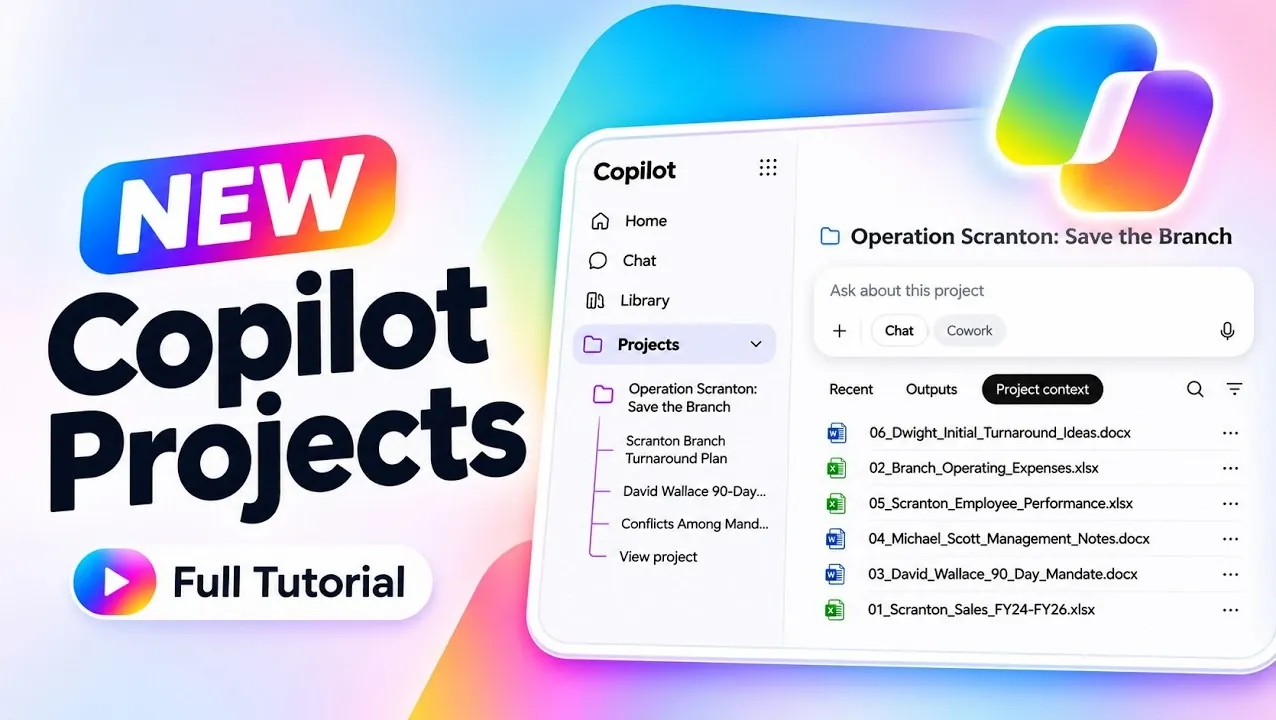
Repeating the same background in every AI chat is frustrating; Microsoft Copilot Projects lets you follow up in separate conversations without doing so. It can also turn project material into Word documents and PowerPoint decks, although creating either requires a paid plan. You can bring an existing chat into a project and ask Copilot for answers with source citations. As Mike Tholfsen explains, it can also flag conflicts between your priorities and stated constraints. Find out what you can do with Projects and how to get started.
Microsoft Copilot Projects: Context Across Chats
TL;DR Key Takeaways :
- Copilot Projects keeps files and standing instructions together across multiple conversations, supporting work that develops over days or weeks.
- Projects can include uploaded or OneDrive files alongside existing and new chats.
- Copilot can draw on project files and instructions to answer questions across separate conversations without repeated background.
- Creating Word documents and PowerPoint decks in Projects requires a paid plan, and generated files are saved in OneDrive’s Copilot Creations folder.
- Projects is globally available, though it may still be rolling out to people who cannot see it yet.
Microsoft Copilot Projects keeps reference files and standing instructions in a workspace for work that develops across multiple conversations, potentially over days or weeks.
Projects is in the left-hand navigation at microsoft365.com. Its structure may be familiar if you have used projects in ChatGPT or Claude, which also group material around a task.
Create a Project and Set Instructions
To get started, select Projects, name the workspace, choose a colour and create it. The project appears as a folder in the navigation, where you can return to its chats.
Use Edit instructions in the project’s three-dot menu to set how Copilot should approach the work. For example, you can ask it to take a particular role or use the project’s files as evidence. You can also format instruction text in bold before saving it.

Gain further expertise in Microsoft Copilot features by checking out these recommendations.
- Microsoft Copilot Adds OpenAI GPT 6.1 and Anthropic Claude Opus 5.5
- Automate Project Plans with 6 Microsoft 365 Copilot Upgrades
- 15 Microsoft 365 Copilot Tricks to Speed up Chat, Email, Data & Slides for Busy Teams
- Save Hours of Work with These 10 Microsoft Copilot Prompts
- November 2026 Microsoft Office Updates Brings 7 Mew Copilot Features
Add Files and Existing Chats
Use the project’s plus control to add reference material from OneDrive or upload files. Word documents and spreadsheets can sit in the same project, and the remove icon takes a file out again.
Add an existing chat by selecting it from your conversations. New chats started within the project appear alongside it, keeping discussions with the relevant material.
Ask Questions Using Project Context
Copilot Chat can draw on a project’s files and instructions when answering questions, so you can follow up in separate conversations without repeating the background in each prompt.
If your organization permits it, you can send a chat to Cowork from Projects. Cowork requires Copilot Premium and extra credits, and supports multi-stage delegation and changes to the reasoning used.
For a business turnaround plan, Copilot can analyse a performance ledger for profit opportunities, then use the project’s expense information and corporate requirements to assess a proposed budget increase. Its responses can include source citations, estimated improvements, alternatives and a proposed sequence of actions.
Copilot can also identify conflicts between priorities and explicit constraints, returning the issues, its verdicts and ideas that would violate those constraints.
Turn Project Material Into Office Files
Copilot can use project files and conversations to create a Word document or PowerPoint deck. In your prompt, specify the audience, material and format, for example, a one-page plan with actions, risks and owners.
Word, Excel and PowerPoint files render inside Copilot. You can download a finished Word document or open it in Word, and open a presentation in PowerPoint. Generated files are saved in the Copilot Creations folder in OneDrive.
Rename, Archive or Restore a Project
Use the project’s three-dot menu to change its name or colour. When you finish the work, you can archive the project, find it under Archived projects and restore it to the active list.
Creating Word documents and PowerPoint decks in Projects requires a paid plan. Projects is globally available, though it may still be rolling out for people who cannot see it yet. To begin, look for Projects in Copilot’s left-hand navigation.
We find these new features perfectly suited to people working on longer tasks or projects built from the same set of documents, where work runs over days or weeks. We find them overkill for one-off questions, where a plain chat is quicker than setting up a workspace.
An existing conversation can become the starting point for a broader piece of work, with its background carried into later discussions. If you use Copilot for work that develops over time, Microsoft Copilot Projects is worth exploring as a way to keep that work together.
Media Credit: Mike Tholfsen
Disclosure: Some of our articles include affiliate links. If you buy something through one of these links, Geeky Gadgets may earn an affiliate commission. Learn about our Disclosure Policy.
