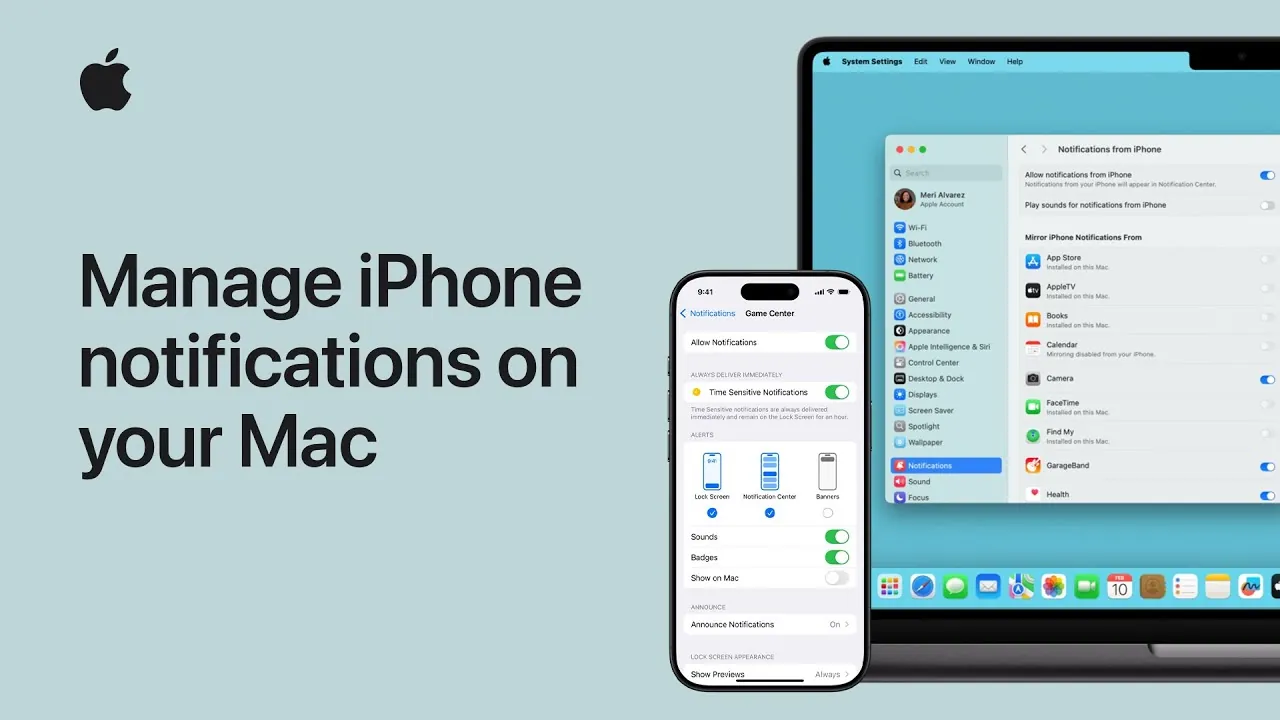
When your iPhone and Mac are connected, notifications from your iPhone can appear on your Mac through device mirroring and cross-device integration. This feature is designed to enhance productivity by keeping you informed without requiring constant device switching. However, managing these notifications effectively is crucial to avoid unnecessary interruptions and maintain focus. Below is a detailed guide from Apple to help you control and customize iPhone notifications on your Mac for a more streamlined experience.

Accessing Notification Settings on Your Mac
Your Mac provides centralized control over notifications, allowing you to determine how and when iPhone alerts appear. To access and adjust these settings:
- Click the Apple menu on your Mac and select “System Settings.”
- In the sidebar, navigate to the “Notifications” section.
- Locate the option labeled “Allow notifications from iPhone” and toggle it on or off based on your preference.
This setting determines whether your Mac will display notifications mirrored from your iPhone. Additionally, you can fine-tune notifications for individual apps. Select an app from the list in the “Notifications” menu to adjust its alert style, sound, or badge preferences. By customizing these options, you can ensure that only the most important notifications reach your Mac.
Adjusting Notification Settings on Your iPhone
To refine which notifications are mirrored to your Mac, adjustments can be made directly on your iPhone. Follow these steps:
- Open the “Settings” app on your iPhone and tap “Notifications.”
- Select the app whose notifications you want to manage.
- Toggle the “Show on Mac” option to enable or disable notifications for that specific app.
This approach ensures that only the most relevant notifications are shared with your Mac, helping you reduce clutter and maintain focus. By selectively allowing notifications for specific apps, you can prioritize the alerts that matter most to you.
Customizing Notifications for Specific Apps
Both your Mac and iPhone offer extensive customization options for individual app notifications, allowing you to tailor alerts to suit your workflow. On your Mac, you can adjust settings such as:
- Alert style: Choose between banners, alerts, or none.
- Sound preferences: Enable or disable notification sounds.
- Badge display: Decide whether app icons show notification badges.
On your iPhone, additional customization options include:
- Lock screen visibility: Control whether notifications appear on the lock screen.
- Notification grouping: Organize alerts by app or time.
- Alert sounds: Set unique sounds for specific apps.
By configuring these settings, you can ensure that notifications align with your priorities and minimize unnecessary distractions. This level of customization allows you to maintain a balance between staying informed and avoiding interruptions.
Cross-Device Notification Control
The seamless integration between your iPhone and Mac is designed to enhance convenience, but it requires thoughtful management to avoid disruptions. By using the notification settings on both devices, you can create a balanced system that keeps you informed without overwhelming you. Whether you need to disable notifications entirely, enable them selectively, or fine-tune app-specific alerts, the tools are readily available to help you stay in control.
To achieve optimal cross-device notification management, consider the following tips:
- Regularly review your notification settings on both devices to ensure they align with your current needs.
- Disable notifications for non-essential apps to reduce distractions.
- Experiment with different alert styles and sound preferences to find what works best for your workflow.
By taking advantage of these features, you can streamline your workflow, minimize distractions, and make the most of your Apple ecosystem. Thoughtful notification management ensures that your devices work together harmoniously, enhancing your productivity and focus.
Advance your skills in iPhone notifications on Mac by reading more of our detailed content.
- macOS Sequoia 15 Beta 2: A Deeper Dive into New Features
- macOS Sequoia 15.1: 20+ Hidden Features & Secret Tips
- iOS 17.6.1 iPhone Issues Revealed
- macOS Sequoia: The Future of macOS is Here
- iOS 18.2.1: Hidden Features You Missed!
Source & Image Credit: Apple Support
Disclosure: Some of our articles include affiliate links. If you buy something through one of these links, Geeky Gadgets may earn an affiliate commission. Learn about our Disclosure Policy.
