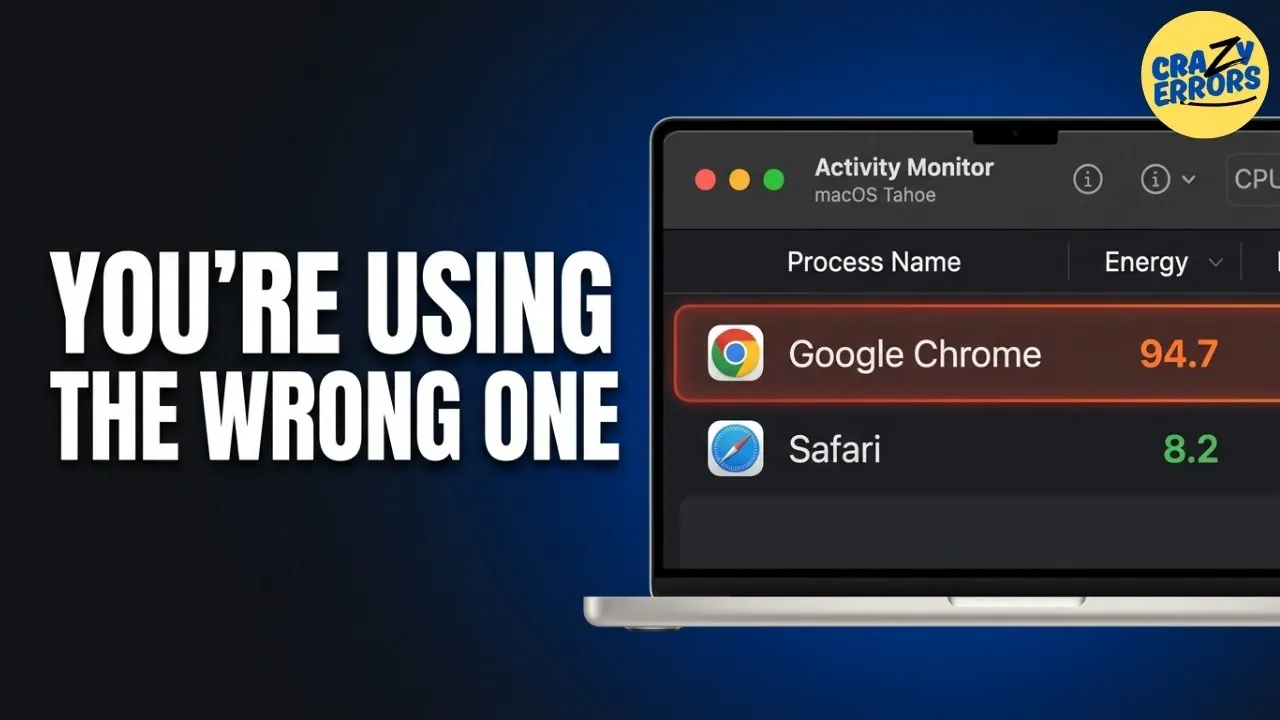
Safari and Chrome are two widely used browsers on Mac, each designed to meet different user priorities. Crazy Errors highlights a key distinction: Safari’s Intelligent Tracking Prevention, which blocks cross-site tracking cookies by default, offering enhanced privacy without requiring additional setup. In contrast, Chrome’s extensive extension library enables advanced customization, appealing to those who prioritize flexibility and functionality. These features reflect how the browsers address varying user preferences.
Explore how Safari’s energy-efficient design can extend battery life during prolonged use and learn about Chrome’s cross-platform syncing, which facilitates smooth transitions across non-Apple devices. Gain insight into their resource management approaches, with Safari excelling in memory efficiency and Chrome using a multi-process architecture to optimize performance.
Battery Life: Safari’s Efficiency vs Chrome’s Power Demands
TL;DR Key Takeaways :
- Safari is more energy-efficient than Chrome, making it ideal for MacBook users who prioritize battery life and portability.
- Safari excels in memory management, using macOS’s memory compression technology, while Chrome’s high RAM consumption can strain system resources.
- Safari offers robust built-in privacy protections like Intelligent Tracking Prevention, whereas Chrome requires manual customization for enhanced privacy.
- Safari integrates seamlessly with the Apple ecosystem, offering features like Handoff and iCloud tab syncing, while Chrome provides better cross-platform compatibility.
- Safari is suited for users valuing energy efficiency, privacy and Apple integration, while Chrome is ideal for those needing extensive extensions, web development tools and multi-platform support.
Battery life is a critical factor for MacBook users, especially those who frequently work on the go. In this area, Safari stands out as the more energy-efficient option. Designed by Apple specifically for macOS, Safari is optimized to minimize power consumption. This optimization allows MacBooks to deliver longer battery life, making Safari an excellent choice for users who need their devices to last through extended periods of use without access to a charger.
In contrast, Chrome is known for its high energy demands. Its multi-process architecture, which isolates each tab and extension for improved performance, comes at the cost of increased power consumption. This can lead to faster battery drain, particularly during heavy browsing sessions or when multiple tabs are open. For users who prioritize battery longevity and portability, Safari’s energy-saving design provides a significant advantage over Chrome.
Memory Usage: Efficient Resource Management
Efficient memory usage is another area where Safari excels. By using macOS’s memory compression technology, Safari ensures that RAM is used effectively, even during intensive browsing sessions. This is particularly beneficial for Macs with limited memory, such as models equipped with 8GB of RAM. Safari’s ability to manage resources efficiently helps maintain smooth performance, even when multitasking with numerous tabs.
On the other hand, Chrome is often criticized for its high RAM consumption. Its multi-process structure, while enhancing stability and security, can strain system resources, especially on devices with lower memory capacity. For users who frequently juggle multiple tabs or run resource-intensive applications alongside their browser, Safari’s superior memory management can make a noticeable difference in overall system performance.

Here are additional guides from our expansive article library that you may find useful on macOS.
- macOS 26.4 Adds iPhone’s Best Battery Feature to the MacBook
- Why the macOS 27 Update is Actually a Massive Leap Forward
- Mac Wi-Fi Issues? Why You Should Update to macOS Tahoe 26.4.1 Immediately
- macOS 26.4 is Out: Reasons to Update Your Mac Today
- Update Your MacBook Now: macOS 26.4 Adds iPhone’s Best Battery Feature to the Mac
- The Biggest Changes in macOS 26.5 Tahoe You Need to Know
- macOS 26.5: Here Are the Features You Need to See
- Steve Jobs Said No, but macOS 27 Says Yes: The Touchscreen Mac Finally Arrives in 2027
- Apple’s iOS 26.3.1 Update: The Bug Fixes Every iPhone User Needs
- Tuna Launcher for macOS Focuses on Privacy with Local Dictation Models
Privacy Protection: Built-In Safeguards vs Customization
Privacy has become a top priority for many users and Safari offers robust protections right out of the box. Its Intelligent Tracking Prevention feature blocks cross-site tracking cookies by default, limiting advertisers’ ability to monitor your online activity. This built-in safeguard provides a private browsing experience without requiring additional configuration, making Safari an excellent choice for users who value simplicity and security.
While Chrome also offers privacy settings, its default configuration tends to favor data collection and advertising. Users can customize these settings to enhance privacy, but doing so requires a more hands-on approach. For those who prioritize privacy and prefer a browser that delivers strong protections with minimal effort, Safari’s conservative approach is a clear winner.
Ecosystem Integration: The Apple Advantage
For users deeply invested in the Apple ecosystem, Safari offers seamless integration that enhances productivity and convenience. Features like Handoff, iCloud tab syncing, and cross-device tab sharing allow you to transition effortlessly between your Mac, iPhone and iPad. These capabilities make Safari the ideal browser for users who rely on multiple Apple devices and want a unified experience.
In comparison, Chrome excels in cross-platform compatibility. Its ability to sync across devices running different operating systems, such as Android and Windows, makes it a strong choice for users who work within a mixed-device environment. While Chrome doesn’t offer the same level of integration with Apple’s ecosystem, its versatility ensures that it remains a reliable option for users who need a browser that works seamlessly across various platforms.
Unique Features: Tailored to Different Needs
Both Safari and Chrome offer unique features designed to enhance the browsing experience, catering to different user preferences and workflows:
- Safari: Features like Reader Mode provide an ad-free, distraction-free reading experience, making it easier to focus on content. Additionally, multi-profile browsing allows users to separate work and personal activities, streamlining organization and productivity.
- Chrome: Known for its extensive library of browser extensions, Chrome offers unparalleled customization and functionality. It also includes advanced web development tools and features like split tab multitasking, making it a favorite among developers and power users.
Your choice of browser will depend on which features align best with your daily workflow and specific requirements.
Best Use Cases: Matching Browsers to User Priorities
The ideal browser for your Mac ultimately depends on your individual needs and priorities. Consider the following scenarios to determine which browser is the best fit for you:
- Choose Safari if you value energy efficiency, privacy and seamless integration with Apple devices. It’s the perfect choice for users who rely on features like iCloud syncing, Handoff and a streamlined, secure browsing experience.
- Choose Chrome if you need robust support for extensions, advanced web development tools, or compatibility with Google Workspace. Chrome is also an excellent option for users who work across multiple platforms, such as Android and Windows.
By carefully evaluating your priorities and understanding the unique strengths of each browser, you can select the one that best enhances your Mac experience. Whether you prioritize battery life, privacy, ecosystem integration, or advanced functionality, both Safari and Chrome offer compelling features that cater to a wide range of user needs.
Media Credit: Crazy Errors
Disclosure: Some of our articles include affiliate links. If you buy something through one of these links, Geeky Gadgets may earn an affiliate commission. Learn about our Disclosure Policy.
