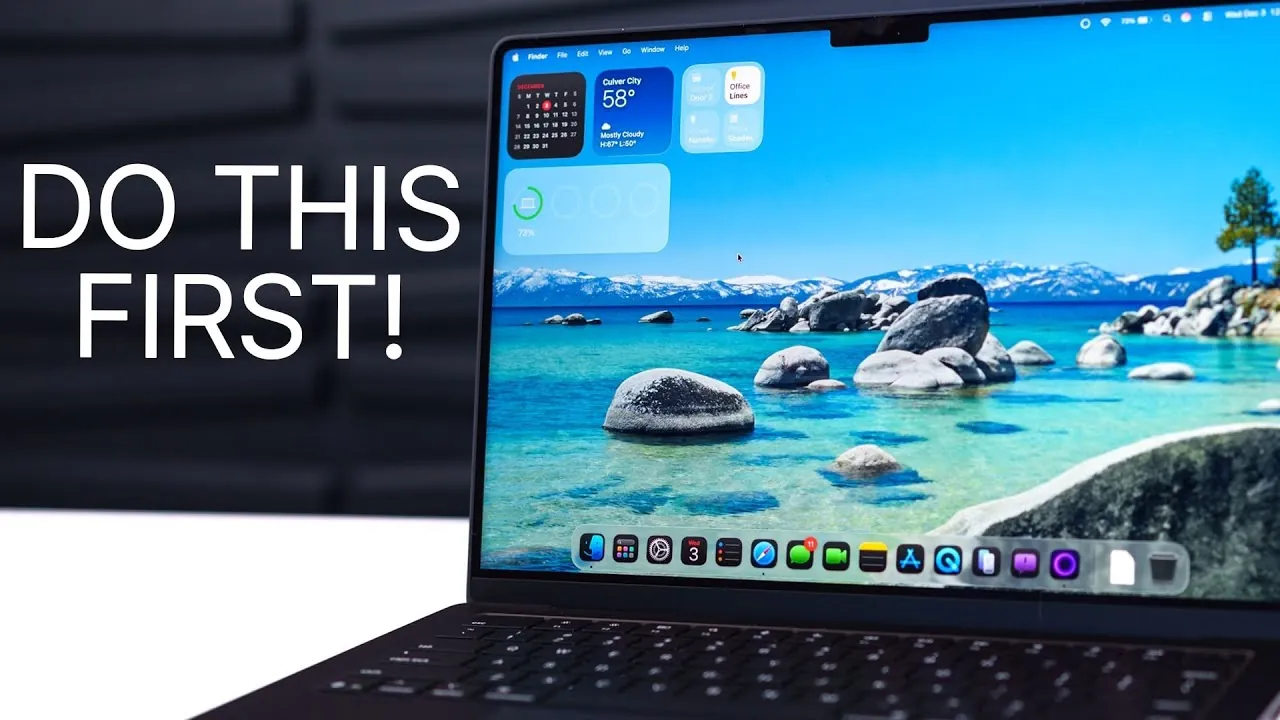
The M5 MacBook Pro represents a blend of innovative hardware and macOS advancements, designed to deliver a seamless and powerful computing experience. To make the most of its capabilities, it is essential to configure settings, optimize performance, and personalize features. The video below from Brandon Butch outlines 23 key steps to help you unlock the full potential of your new device.

Update macOS for the Latest Features
Keeping your MacBook Pro updated ensures access to the latest features, performance improvements, and security patches. To check for updates, navigate to System Settings > General > Software Update. Regular updates not only enhance functionality but also protect your device from vulnerabilities.
Personalize the Interface
Customizing your MacBook Pro’s interface can improve usability and reflect your personal style. Consider these adjustments:
- Modify the liquid glass effect to adjust display transparency and color tint.
- Fine-tune trackpad settings, including scroll direction, tracking speed, and force-click sensitivity.
- Organize the menu bar, dock, and desktop by adding or removing icons and resizing elements for a cleaner workspace.
- Set a custom lock screen wallpaper and clock style to make your device uniquely yours.
Master Window Management
Efficient multitasking is essential for productivity, and mastering window management can streamline your workflow. Enable window snapping to quickly arrange open applications. Assign keyboard shortcuts for snapping windows into place, and add margins between tiled windows for better organization. These features make multitasking more intuitive and efficient.
Enhance Video Call Quality
The M5 MacBook Pro offers advanced tools to improve your video call experience:
- Activate the edge light feature to enhance lighting during calls, making sure a professional appearance.
- Use Center Stage to keep yourself centered in the frame, even as you move around.
- Try Desk View to share a top-down view of your workspace, ideal for presentations or demonstrations.
Optimize Wireless Connectivity
With support for Wi-Fi 7, the M5 MacBook Pro delivers faster speeds and improved reliability. If you have a compatible router, upgrading to Wi-Fi 7 can enhance activities such as streaming, video conferencing, and transferring large files. This ensures a smoother and more efficient online experience.
Integrate Your iPhone Seamlessly
Use Apple’s ecosystem by integrating your iPhone with your MacBook Pro. Enable iPhone mirroring to view notifications, transfer files, and access live activities directly on your Mac. This seamless integration keeps you connected across devices without interruptions.
Organize Finder for Better File Management
The Finder app is central to managing your files. Customize it to suit your workflow:
- Remove unused sidebar items and add frequently accessed folders for quick navigation.
- Set a default Finder window, such as your Documents folder, to streamline access to important files.
- Adjust view options (list, grid, or gallery) to match your preferences and improve file organization.
Maximize Battery Life
Extend the battery life of your MacBook Pro by optimizing energy settings:
- Enable low power mode to reduce energy consumption during extended use.
- Adjust display dimming preferences to conserve power when the device is idle.
- Optimize video streaming settings by lowering resolution or allowing energy-saving options.
These adjustments ensure your device lasts longer between charges.
Unlock the Power of Spotlight Search
Spotlight Search is a versatile tool for finding files, launching apps, and performing quick actions. Set up shortcuts for tasks like creating reminders or calendar events. Enable clipboard history to access previously copied items, making repetitive tasks faster and more efficient.
Automate Tasks with Shortcuts
The Shortcuts app allows you to automate repetitive tasks, saving time and effort. Create workflows for actions such as:
- Organizing files into specific folders based on type or date.
- Connecting external drives and setting up backups automatically.
- Sending pre-written emails or messages with a single click.
These automations simplify your daily routine and enhance productivity.
Customize Widgets and Dock
Widgets provide quick access to essential information at a glance. Add and personalize widgets on your desktop, including those synced from your iPhone. Clean up your dock by removing unused apps and allowing auto-hide to maximize screen space and reduce visual clutter.
Set Up Hot Corners for Quick Actions
Hot corners allow you to assign specific actions to the corners of your screen, offering quick access to essential functions. For example:
- Lock your screen instantly with a simple gesture.
- Open Mission Control to view all open apps and windows at once.
- Launch frequently used applications with a quick flick of the cursor.
This feature enhances efficiency and provides a more intuitive user experience.
Explore Advanced Features
The M5 MacBook Pro includes advanced settings and features that can elevate your experience. Use the Option key to unlock hidden customization options in apps and system preferences. Enable voice isolation during video calls to filter out background noise, ensuring clear communication. Combine these with tools like Center Stage and Desk View for a professional and polished setup.
Final Thoughts
By following these 23 steps, you can transform your M5 MacBook Pro into a personalized, efficient, and powerful tool. From updating macOS to exploring advanced features, each adjustment enhances your experience and unlocks the device’s full potential. Take the time to configure your MacBook Pro, and you’ll enjoy a seamless blend of productivity and creativity in your daily tasks.
Find more information on the M5 MacBook Pro by browsing our extensive range of articles, guides, and tutorials.
- M5 MacBook Pro Review: Key Features, Pros, and Cons Explained
- 20 Essential Steps to Get Started with the M5 MacBook Pro
- M5 MacBook Pro vs M1 Air: Key Differences
- M5 MacBook Pro Gaming Performance Revealed
- M4 vs. M5 MacBook Pro: Which MacBook is Best for You
Source & Image Credit: Brandon Butch
Disclosure: Some of our articles include affiliate links. If you buy something through one of these links, Geeky Gadgets may earn an affiliate commission. Learn about our Disclosure Policy.
