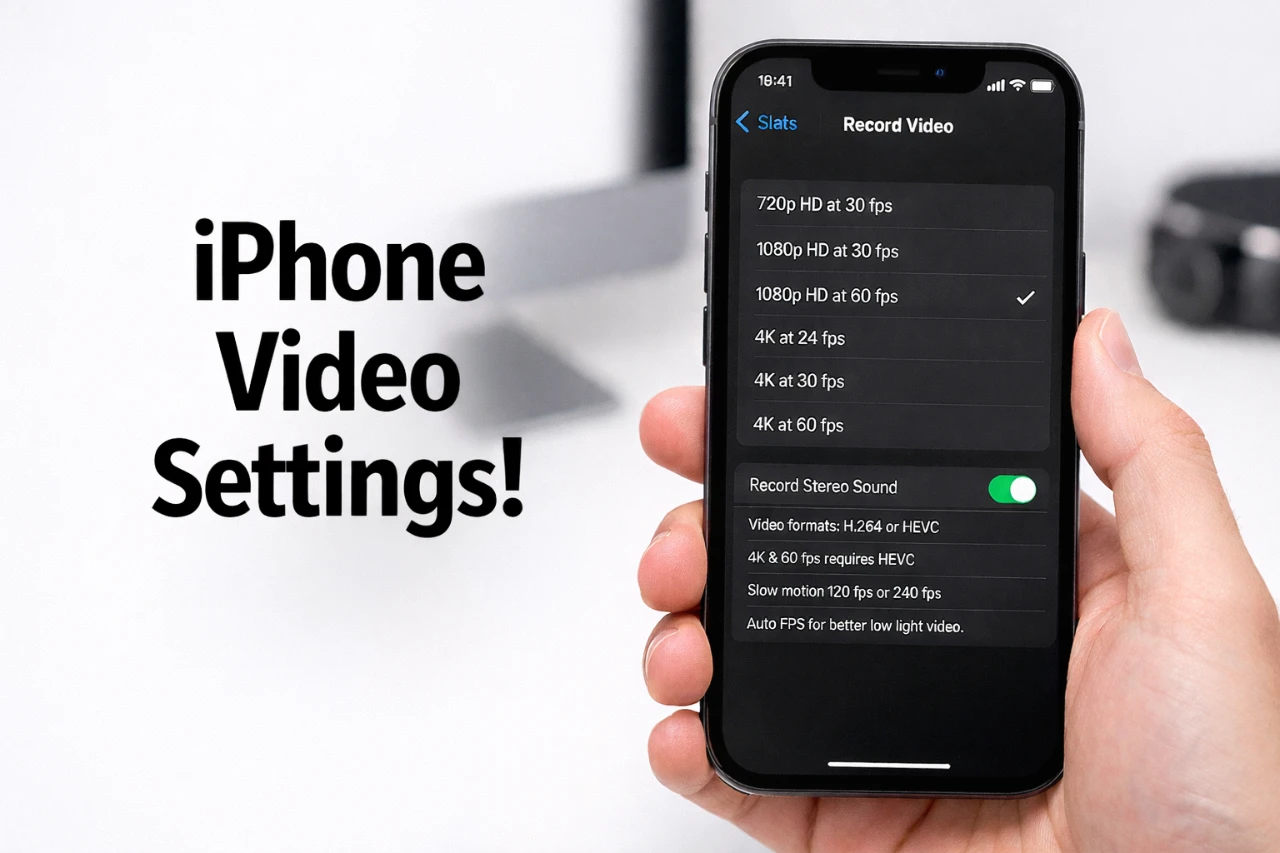
Recording high-quality videos on your iPhone involves more than simply pointing and shooting. By understanding and optimizing your device’s video settings, you can significantly enhance the quality of your footage. From selecting the right resolution and frame rates to using advanced features like Apple ProRes, this guide provides a comprehensive breakdown to help you achieve professional-looking results. Whether you’re a casual user or a content creator, these strategies will empower you to make the most of your iPhone’s video capabilities. The video below from AppleDsign gives us more details on the best video settings to use on your iPhone.

Start with a Clean Camera Lens
A clean camera lens is the foundation of sharp, clear video recordings. Dust, smudges, or fingerprints on the lens can degrade the quality of your footage, making it appear blurry or dull. To ensure optimal clarity:
- Use a microfiber cloth to gently clean the lens, removing dust and smudges without scratching the surface.
- Inspect the lens regularly for debris, especially before recording important videos.
Some iPhones may include a lens-cleaning feature in their settings. If available, enable this option for added convenience. Taking this simple yet essential step ensures your videos start with the best possible clarity and detail.
Understanding Resolution and Frame Rates
The resolution and frame rate you select directly impact your video’s quality, smoothness, and storage requirements. iPhones offer a variety of options to suit different needs and scenarios. Here’s a detailed breakdown of the most common settings:
- 720p at 30fps: A basic option with minimal storage demands, suitable for older devices or when conserving space is a priority.
- 1080p at 30fps: A versatile choice for everyday use, balancing good quality with manageable file sizes.
- 1080p at 60fps: Ideal for capturing smoother motion, making it perfect for social media content or fast-moving subjects.
- 1080p at 120fps: Best for slow-motion videos, allowing you to highlight intricate details in action-packed scenes.
- 4K at 24fps: Provides a cinematic look with natural motion blur, ideal for storytelling or film projects.
- 4K at 30fps: Produces sharp, smooth footage, making it a great choice for general content like YouTube videos.
- 4K at 60fps: Offers high-quality, fluid motion but requires significant storage space, suitable for professional-grade recordings.
- 4K at 120fps: The ultimate option for cinematic slow-motion, combining maximum resolution and smoothness with high storage demands.
Choosing the right resolution and frame rate depends on your project’s goals. Higher settings deliver superior quality but consume more storage, so it’s essential to balance your needs and available space.
Unlock Professional Quality with Apple ProRes
For those seeking professional-grade video production, Apple ProRes is a powerful feature available on iPhone 13 Pro and newer models. This advanced codec removes Apple’s default color profile, giving you greater flexibility for color grading and post-production editing. It’s particularly valuable for filmmakers and content creators who require precise control over their footage.
However, ProRes videos come with significant storage demands. For example, a one-minute 4K ProRes video can occupy several gigabytes of space. To manage this effectively:
- Use external storage solutions or transfer files to a computer for editing and archiving.
- Plan your storage needs in advance, especially for longer projects or extensive shoots.
While ProRes offers unparalleled editing capabilities, it’s crucial to prepare for its storage requirements. This feature is best suited for projects where advanced editing and high-quality output are priorities.
Manage Storage Wisely
Recording high-resolution or high-frame-rate videos can quickly consume your iPhone’s storage. Running out of space mid-project can be frustrating, but with proper storage management, you can avoid interruptions. Consider these strategies:
- Back up your videos regularly to cloud storage services or external drives to free up space on your device.
- Delete unnecessary files, apps, or older videos to create room for new recordings.
- Opt for lower resolutions and frame rates for casual recordings to conserve storage without compromising too much on quality.
- Invest in an iPhone model with higher storage capacity if you frequently record in 4K or ProRes formats.
By managing your storage effectively, you can ensure that your device is always ready to capture important moments without delays or compromises.
Customize Settings for Your Needs
Tailoring your video settings to your specific use case can significantly enhance the final result. Different projects demand different approaches, and understanding how to adjust your settings accordingly can make all the difference. Here are some recommendations:
- YouTube Content: Use 4K at 30fps for sharp, professional-looking footage that performs well on larger screens.
- Cinematic Projects: Choose 4K at 24fps for a film-like aesthetic or 4K at 120fps for dramatic slow-motion shots.
- Social Media: Opt for 1080p at 60fps to create engaging, high-quality content that’s easy to share and quick to upload.
- Slow-Motion Videos: Select 1080p at 120fps or 4K at 120fps to capture intricate details in fast-paced scenes.
By aligning your settings with your project’s purpose, you can achieve the desired quality and style effortlessly. Experimenting with different configurations can also help you discover what works best for your creative vision.
Mastering your iPhone’s video settings is a valuable skill that unlocks its full potential. From maintaining a clean lens to selecting the right resolution and frame rate, each step contributes to creating high-quality videos. Advanced features like Apple ProRes offer additional flexibility for professional projects, while effective storage management ensures you’re always ready to capture your next masterpiece. By customizing your settings to suit your specific needs, you can elevate your content and make the most of your iPhone’s capabilities.
Gain further expertise in iPhone video and camera settings by checking out these recommendations.
- Best iPhone Camera Settings for Recording Video
- How to Optimize Your iPhone Camera Settings
- The Ultimate iPhone Camera Settings for Stunning Videos
- How to Edit iPhone Video in Cinematic Mode
- iPhone 16/16 Pro: 25 Essential Settings to Change NOW
Source: AppleDsign
Disclosure: Some of our articles include affiliate links. If you buy something through one of these links, Geeky Gadgets may earn an affiliate commission. Learn about our Disclosure Policy.
