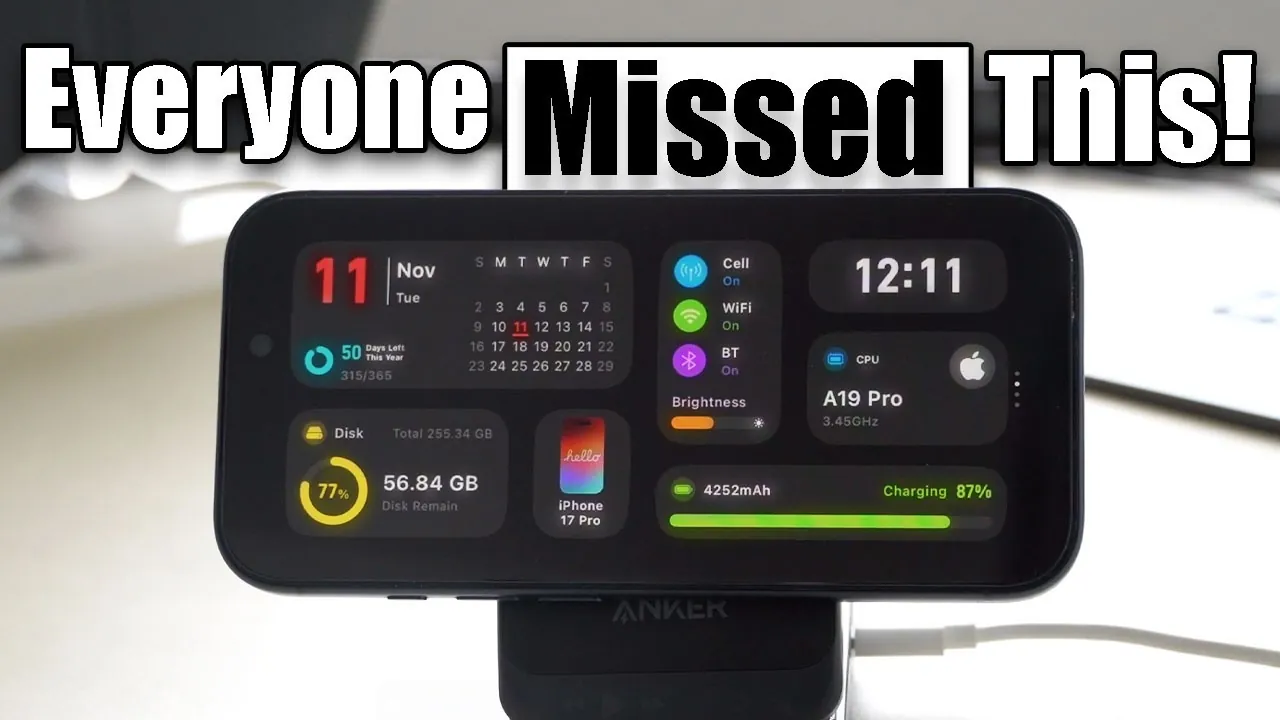
The iPhone StandBy mode, introduced back when iOS 17 was released, is a feature that significantly enhances your device’s functionality when placed horizontally and connected to a power source. This mode transforms your iPhone into a dynamic hub of tools, widgets, and notifications, offering unparalleled convenience and productivity at a glance. If you haven’t explored this feature yet, you’re missing out on a practical way to elevate your iPhone experience. The video below from HotshotTek gives us more details.
What Is StandBy Mode?
StandBy mode is a feature designed for iPhones equipped with always-on displays, such as the iPhone 14 Pro, 15 Pro, and newer models. When your device is connected to a power source—whether through a cable or MagSafe—and placed in a horizontal orientation, StandBy mode activates automatically. This feature transforms your idle phone into a customizable display, providing quick access to essential tools and information without requiring you to unlock your device.
StandBy mode is particularly useful for creating a hands-free, glanceable interface. Whether you’re working at your desk, cooking in the kitchen, or relaxing on the couch, this feature ensures that your iPhone remains a functional and accessible part of your environment.
How to Enable and Customize StandBy Mode
Activating StandBy mode is straightforward and requires minimal setup:
1. Connect your iPhone to a power source.
2. Place it in a horizontal position.
For a more personalized experience, you can customize StandBy mode through your iPhone’s settings menu. Here are some key options you can adjust:
- Night Mode: This feature applies a red tint to the display, reducing blue light and minimizing eye strain in low-light conditions.
- Motion-to-Wake: Enable this setting to allow the display to activate when movement is detected, making it easier to view information without touching your phone.
- Notification Previews: Adjust how notifications are displayed to balance convenience and privacy.
These customization options ensure that StandBy mode adapts to your preferences and environment, making it a versatile tool for various scenarios.
Customizable Widgets and Display Options
StandBy mode offers three main display pages, each designed to cater to different needs and preferences:
- Widgets: Add widgets to access real-time information such as weather updates, calendar events, and reminders. Third-party apps like iScreen and Countdown expand these options, allowing you to track sports scores, countdowns, and other personalized data.
- Photo Display: Showcase your favorite photos in a secure manner, with Face ID protection making sure that your images remain private while your phone is on display.
- Clocks: Choose from a variety of clock styles, including analog, digital, and world clocks, to keep track of time effortlessly. This feature is particularly useful for those who work across multiple time zones.
These display options make StandBy mode a highly customizable feature, allowing you to tailor your iPhone’s idle screen to suit your lifestyle and preferences.
Built-in Tools and Everyday Applications
StandBy mode includes several built-in tools that simplify daily tasks and enhance your iPhone’s utility:
- Timer: A visual hourglass animation helps you track time for activities like cooking, workouts, or study sessions.
- Media Controls: Manage music playback or control audio devices directly from the StandBy interface, making it easier to enjoy your favorite content without interruptions.
- Live Activity Tracking: Stay updated on real-time events, such as flight statuses, delivery progress, or sports scores, without needing to unlock your phone.
These tools are designed to integrate seamlessly into your daily routine, providing quick access to essential functions and reducing the need for constant interaction with your device.
Smart Home Integration and Third-Party Enhancements
For smart home enthusiasts, StandBy mode offers seamless integration with HomeKit, allowing you to monitor and control connected devices such as lights, thermostats, and security cameras. This feature allows you to manage your smart home ecosystem from a single, glanceable interface.
Additionally, third-party apps enhance the functionality of StandBy mode by offering customized widgets for specific tasks or interests. For example, you can use apps to track fitness goals, monitor stock prices, or display personalized news feeds. These integrations make StandBy mode a powerful tool for staying informed and organized.
Practical Uses for StandBy Mode
StandBy mode is more than just a display feature—it’s a practical tool that can enhance various aspects of your daily life. Here are some real-world applications:
- Smart Home Monitoring: Keep an eye on your household devices and appliances without needing to open individual apps.
- Event Tracking: Stay on top of schedules, notifications, and countdowns for important events, making sure you never miss a deadline or appointment.
- Boosted Productivity: Access essential tools and information quickly, reducing the need to unlock your phone repeatedly throughout the day.
These practical uses demonstrate how StandBy mode can simplify your routine and make your iPhone an even more integral part of your daily life.
Why StandBy Mode Is Worth Exploring
StandBy mode unlocks a new level of functionality for your iPhone, transforming it into a versatile tool that adapts to your needs. Whether you’re tracking live activities, managing smart home devices, or simply displaying a stylish clock, this feature enhances your device’s utility in ways you might not have considered.
With its customizable widgets, seamless app integration, and built-in tools, StandBy mode is a feature that can make your life more organized and efficient. By taking advantage of this powerful tool, you can transform your iPhone into a dynamic hub of productivity and convenience. Explore StandBy mode today and discover how it can simplify and enhance your daily routine.
Here are additional guides from our expansive article library that you may find useful on iPhone StandBy mode.
- How to Use iPhone StandBy Mode for Maximum Productivity
- How to use Standby Mode on the iPhone in iOS 17
- How to use Standby Mode in iOS 17
- Why Closing iPhone Apps Is Bad for Battery Life
- iOS 26 Beta 7 & Public Beta 4 Release Date and Features
Source & Image Credit: HotshotTek
Disclosure: Some of our articles include affiliate links. If you buy something through one of these links, Geeky Gadgets may earn an affiliate commission. Learn about our Disclosure Policy.
