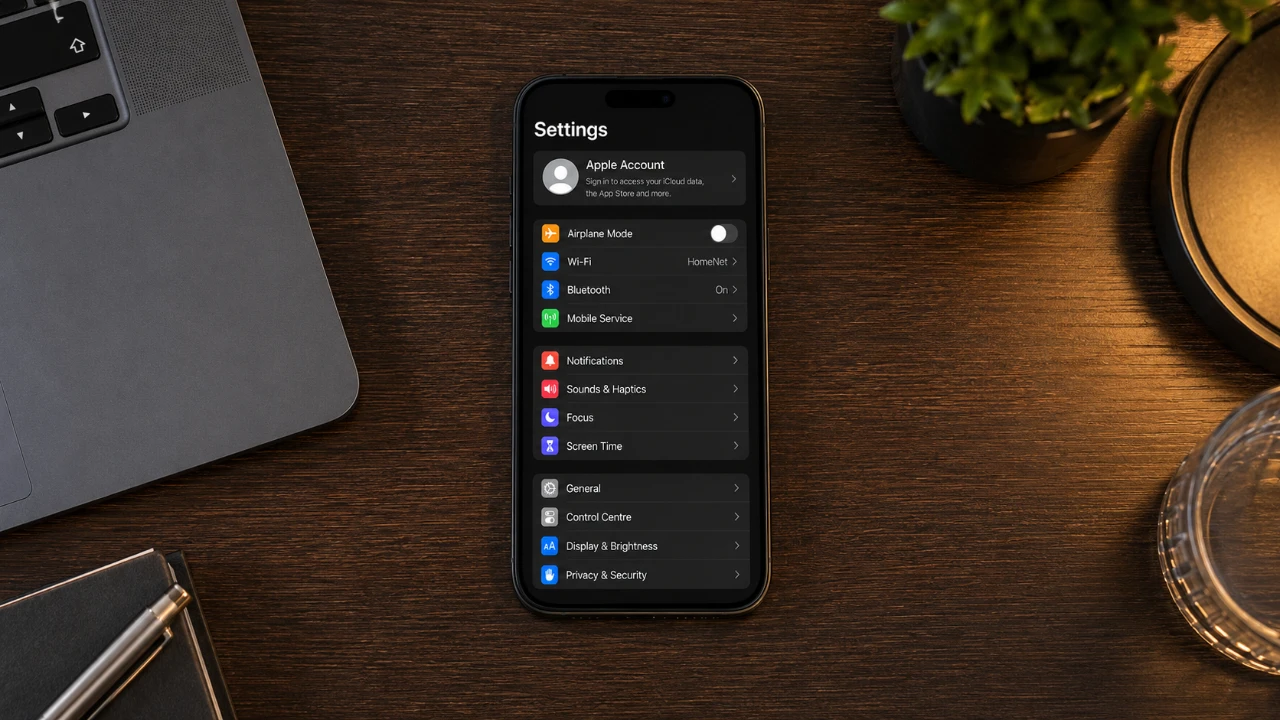
Your iPhone comes equipped with a range of advanced security features designed to protect your personal data from unauthorized access and potential threats. However, to maximize these protections, certain settings require your attention. By making a few strategic adjustments, you can significantly enhance your device’s security and reduce vulnerabilities. In the video below from Daniel About Tech, you will find three critical iPhone security settings you should update immediately to safeguard your data and maintain control over your device. The video below

1. Create a Unique Screen Time Passcode
The Screen Time feature is often overlooked but serves as a powerful tool for securing your iPhone. Setting up a unique Screen Time passcode adds an additional layer of protection, making sure that unauthorized users cannot bypass restrictions or alter important settings. This is particularly useful for preventing changes to parental controls, app limits, and other sensitive configurations.
Here’s how to make the most of this feature:
- Choose a passcode that is distinct from your lock screen passcode. This ensures that even if someone knows your lock screen code, they cannot access your Screen Time settings.
- Avoid linking the passcode recovery option to your Apple ID. While this may seem convenient, it could expose your device to risks if your Apple ID credentials are compromised.
- Store your Screen Time passcode securely in a trusted password manager or another safe location to avoid losing access.
By securing Screen Time with a unique passcode, you prevent unauthorized changes to critical settings, such as Face ID, passcode configurations, and Apple ID details, thereby strengthening your device’s overall security.
2. Restrict Access to Sensitive Settings
Restricting access to sensitive system settings is another essential step in fortifying your iPhone’s security. Using the Screen Time feature, you can block unauthorized changes to critical configurations, such as Face ID, passcodes, and Apple ID information. This ensures that even if someone gains physical access to your device, they cannot tamper with these settings without your explicit permission.
To enable this restriction:
- Open the Screen Time settings on your iPhone.
- Navigate to the “Content & Privacy Restrictions” section and enable it.
- Disable the ability to make changes to critical system features, including account settings and biometric security options.
This measure ensures that any attempt to disable Face ID, change your passcode, or modify Apple ID settings will require your Screen Time passcode. For example, if someone tries to disable Face ID, they will encounter a prompt for the Screen Time passcode, effectively blocking unauthorized access.
3. Enable Stolen Device Protection
Activating stolen device protection is a critical step in securing your iPhone against theft. This feature introduces a one-hour delay for any attempts to modify critical account or device settings after an incorrect passcode is entered. This delay provides you with valuable time to locate your device or take action if it has been stolen.
To activate this feature:
- Go to your Face ID and Passcode settings.
- Ensure that authentication is required for changes to security settings.
This feature not only protects your data but also discourages thieves from attempting to reset or erase your device. The delay makes it significantly harder for anyone to make immediate changes, giving you a critical window to secure your device or report it as stolen.
Temporary Adjustments for Flexibility
While these restrictions are essential for maintaining security, there may be times when you need to make legitimate changes to your device settings, such as updating your Apple ID password or modifying Face ID configurations. In such cases, you can temporarily lift these restrictions through the Screen Time settings.
Once you’ve completed the necessary adjustments, it’s important to re-enable the restrictions to maintain your device’s security. This approach provides the flexibility needed for legitimate use while making sure that unauthorized access remains blocked.
Take Action Today
By updating these three iPhone security settings, you can establish a robust defense against unauthorized access and potential threats. Setting a unique Screen Time passcode, restricting access to sensitive settings, and allowing stolen device protection work together to safeguard your personal data and maintain control over your device. These adjustments not only enhance your iPhone’s security but also offer peace of mind in an increasingly digital world. Take a few minutes today to review and implement these changes; your data’s safety is worth the effort.
Learn more about iPhone Security Settings with other articles and guides we have written below.
- 10 Essential iPhone Security Settings You Need To Change
- Protect Your iPhone Like a Pro: 15 Must-Use Security Settings
Source & Image Credit: Daniel About Tech
Disclosure: Some of our articles include affiliate links. If you buy something through one of these links, Geeky Gadgets may earn an affiliate commission. Learn about our Disclosure Policy.
