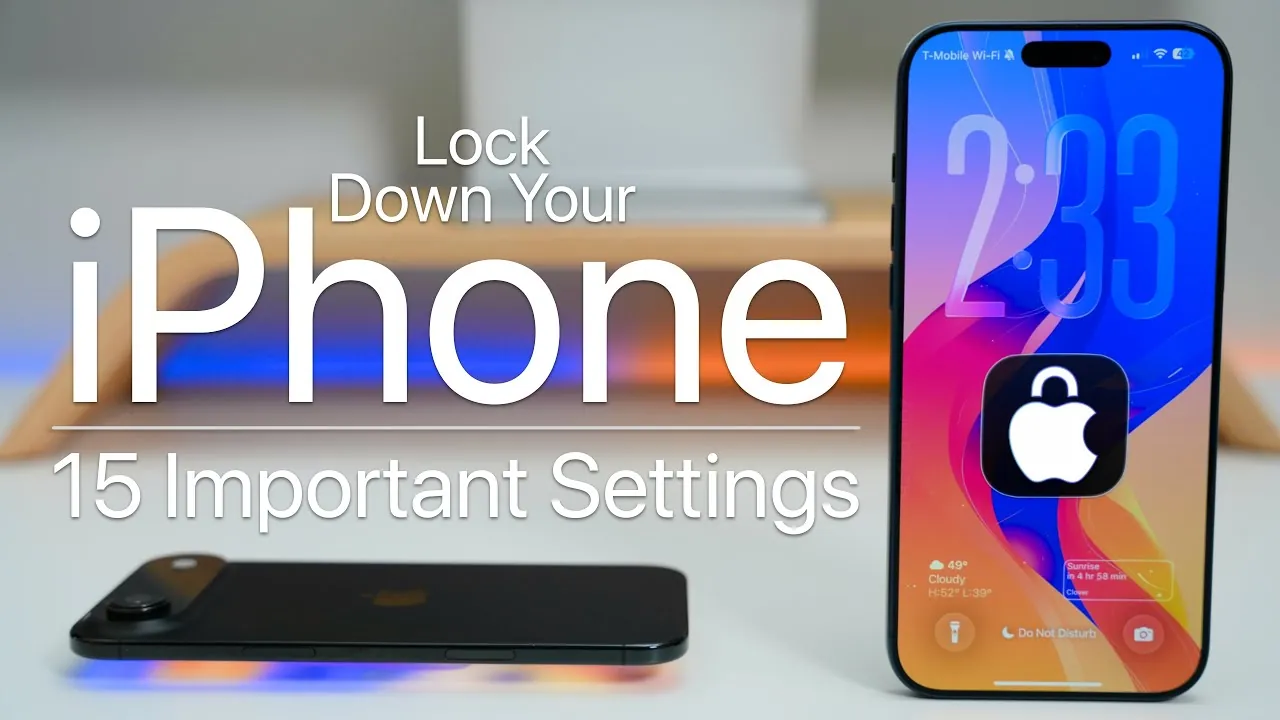
In today’s digital landscape, where privacy concerns and cyber threats are ever-present, securing your iPhone is a critical step in protecting your personal information. Apple equips its devices with a range of powerful security features, but their effectiveness depends on how you configure them. The video below from Zollotech explores 15 essential settings that can help you safeguard your iPhone, making sure your data remains private and secure.

Strengthen Your Lock Screen Security
The lock screen is your iPhone’s first line of defense against unauthorized access. Configuring it properly can significantly enhance your device’s security:
- Set a short auto-lock time to ensure your phone locks quickly when left idle, minimizing the window of opportunity for unauthorized access.
- Use a strong passcode, avoiding easily guessed combinations like birthdays or sequential numbers, to deter brute-force attempts.
- Restrict access to features such as the Control Center, widgets, and Siri while your phone is locked. This prevents unauthorized users from exploiting these tools to access sensitive information.
By implementing these measures, you create a robust barrier that protects your device even if it falls into the wrong hands.
Manage App Permissions
Apps often request access to sensitive data, such as your location, camera, or microphone. While some permissions are necessary for functionality, others may expose your data unnecessarily. To maintain control:
- Regularly review app permissions in your settings and revoke access for apps that don’t require it. Only grant permissions when absolutely necessary.
- Disable app tracking to prevent apps from collecting and sharing your activity across other apps and websites.
Taking these steps reduces the risk of data misuse and limits invasive tracking, helping you maintain greater control over your personal information.
Optimize Privacy and Security Settings
Apple provides a variety of privacy tools to help you manage how your data is shared and used. To take full advantage of these features:
- Enable tracking and fingerprinting protection in Safari to block websites from monitoring your browsing habits and building a profile based on your activity.
- Customize location services on a per-app basis, granting access only to apps you trust and use frequently.
- Review system services like “Significant Locations” and disable unnecessary data collection to minimize the amount of personal information stored on your device.
These settings empower you to control your digital footprint and reduce exposure to potential privacy risks.
Protect Your Data with Encryption
Encryption is a cornerstone of iPhone security, making sure that your data remains inaccessible to unauthorized users. To enhance your device’s protection:
- Enable Advanced Data Protection for iCloud, which uses end-to-end encryption to secure your data, including photos, messages, and backups.
- Activate stolen device protection, which delays security changes if your phone is stolen, giving you time to recover or secure your device.
- Lock individual apps with Face ID or a passcode to add an extra layer of security for sensitive applications.
These measures safeguard your data, even if it is intercepted or your device is compromised.
Activate Extreme Security Measures
For individuals who face heightened security risks, Apple offers advanced features designed to provide additional protection:
- Turn on Lockdown Mode to restrict device functionality and minimize vulnerabilities against sophisticated cyberattacks. This feature is particularly useful for individuals who handle sensitive information or are at risk of targeted attacks.
- Use the “Find My” feature to locate your device if it’s lost or stolen. You can also remotely erase your iPhone to prevent unauthorized access to your data.
These tools are invaluable for those who require an elevated level of security, offering peace of mind in high-risk situations.
Monitor and Understand Data Usage
Transparency is a key component of maintaining privacy. Apple provides tools that allow you to monitor how your data is being used:
- Enable the App Privacy Report to track how often apps access sensitive data, such as your location, contacts, or microphone. This report provides insights into app behavior, helping you identify potential privacy concerns.
- Review the Apple Intelligence Report for a detailed overview of your device’s data handling practices, including how system services and apps interact with your information.
Regularly reviewing these reports ensures that you stay informed about your data usage and can take action to address any issues.
Additional Security Recommendations
Beyond the core settings, there are additional adjustments you can make to enhance your iPhone’s security and performance:
- Restrict wired accessory permissions to prevent unauthorized devices from connecting to your iPhone. This is particularly useful in public or shared spaces.
- Enable optimized charging based on your location to improve battery health and reduce the risk of unauthorized access during charging.
These small but impactful changes contribute to a more secure and efficient device.
Take Control of Your iPhone’s Security
Securing your iPhone is a proactive step toward protecting your personal data in an increasingly connected world. By configuring these 15 essential settings, you can customize your device’s security to meet your unique needs. From lock screen adjustments and app permissions to advanced encryption and monitoring tools, these features empower you to maintain control over your privacy. Take the time to explore and activate these options, making sure your data remains safe and your digital experience remains secure.
Gain further expertise in iPhone security settings by checking out these recommendations.
- 10 Essential iPhone Security Settings You Need To Change
- Essential iPhone Privacy Settings You Should Change
- 12 Essential iOS 26.1 Settings to Improve Your iPhone
- iPhone 16/16 Pro: 25 Essential Settings to Change NOW
- 12 Essential iOS 18.6 Settings to Improve Privacy and Battery Life
Source & Image Credit: zollotech
Disclosure: Some of our articles include affiliate links. If you buy something through one of these links, Geeky Gadgets may earn an affiliate commission. Learn about our Disclosure Policy.
