
Safeguarding your iPhone is essential to protect your personal data and maintain your privacy. With the increasing reliance on smartphones for sensitive tasks, such as online banking, communication, and storing personal information, making sure your device is secure is more important than ever. This guide outlines practical steps to help you update your passcode, review your security settings, and enable Stolen Device Protection. By implementing these measures, you can enhance your iPhone’s defenses against unauthorized access and theft. The video below from Apple gives us more details.
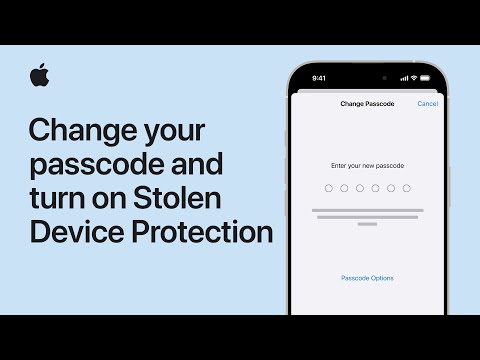
Changing Your Passcode
Your passcode serves as the first line of defense against unauthorized access to your iPhone. Regularly updating it strengthens your device’s security, especially if it is lost or stolen. Follow these steps to change your passcode:
- Open the Settings app on your iPhone.
- Scroll down and tap Face ID & Passcode (or Touch ID & Passcode for devices with Touch ID).
- Enter your current passcode when prompted.
- Tap Change Passcode.
- Re-enter your current passcode, then create a new one. For better security, choose a six-digit or alphanumeric passcode.
Using a strong, unique passcode minimizes the risk of unauthorized access. Avoid using easily guessed combinations, such as birthdays or sequential numbers, and consider updating your passcode periodically to maintain optimal security.
Reviewing Security Settings
Your iPhone’s security settings determine how your data is accessed, shared, and protected. Periodically reviewing and adjusting these settings ensures they align with your privacy preferences and security needs. To review your security settings, follow these steps:
- Open the Settings app and navigate to Privacy & Security.
- Under Review Access, examine which apps and services have permission to access your data.
- Use the Safety Check feature to reset access permissions if you suspect unauthorized access or wish to start fresh. This tool also allows you to manage account security and data-sharing preferences.
- Decide whether to retain your current settings or make adjustments to enhance your privacy and security.
By managing these settings, you can control how your data is shared and reduce the risk of exposure to unauthorized parties. Regularly reviewing these settings ensures that your device remains secure as new apps and features are added.
Allowing Stolen Device Protection
Stolen Device Protection is a critical feature designed to add an extra layer of security to your iPhone. It prevents unauthorized users from bypassing key security measures, such as resetting your device or disabling Find My iPhone, particularly when your device is in unfamiliar locations. To enable this feature, follow these steps:
- Open the Settings app and go to Privacy & Security.
- Select Stolen Device Protection and toggle it on.
- Choose whether to apply the delay only in unfamiliar locations or at all times, including familiar places.
This feature ensures that even if your iPhone is stolen, critical security functions cannot be immediately disabled, giving you more time to locate your device or take necessary actions to protect your data.
Saving and Verifying Your Changes
After updating your passcode, reviewing your security settings, and allowing Stolen Device Protection, it is important to ensure that all changes are saved. Use the back button in each settings menu to confirm your updates. Once you exit the Settings app, your iPhone will automatically apply the changes. For added assurance, test your new passcode and verify that the Stolen Device Protection feature is active by attempting to access the relevant settings.
Taking these steps ensures that your device is fully secured and that your updates have been successfully implemented.
Strengthening Your iPhone’s Security
Proactively securing your iPhone is a vital step in protecting your personal data and privacy. By regularly updating your passcode, reviewing your security settings, and allowing Stolen Device Protection, you can significantly reduce the risk of unauthorized access and theft. These measures not only safeguard your sensitive information but also provide peace of mind, knowing that your device is better equipped to handle potential threats. Take a few moments to implement these changes today and ensure your iPhone remains secure in an increasingly digital world.
Explore further guides and articles from our vast library that you may find relevant to your interests in iPhone passcode.
- Forgot iPhone Passcode? Learn to Unlock Without a Computer
- How to Reset Your iPhone Screen Time Passcode
- OMG! I Forgot My iPhone Passcode! Don’t Worry, Do This…
- How to Restore Your iPhone If You Forgot Your Passcode
- How to Reset a Forgotten Apple Notes App Password on iPhone 16
Source & Image Credit: Apple Support
Disclosure: Some of our articles include affiliate links. If you buy something through one of these links, Geeky Gadgets may earn an affiliate commission. Learn about our Disclosure Policy.
