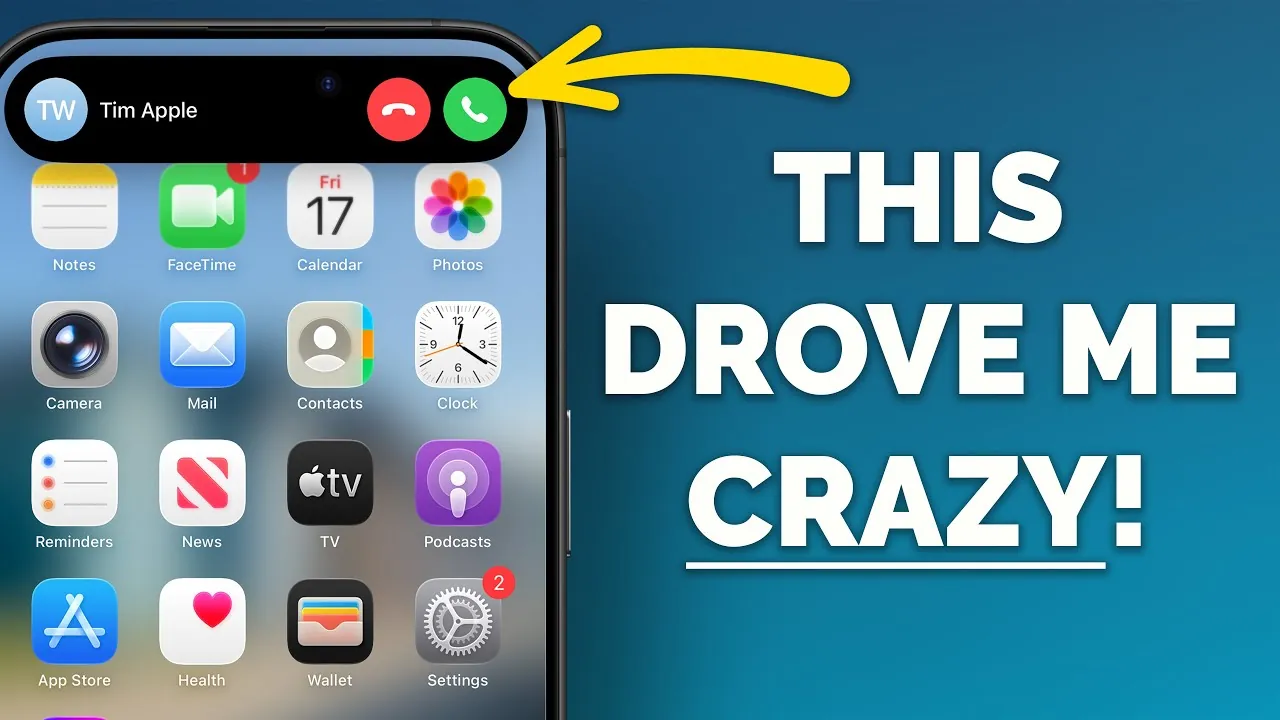
Frustrated by recurring iPhone issues? You’re not alone. From formatting glitches to accidental screenshots, these minor annoyances can disrupt your experience. The video below from Proper Honest Tech provides practical solutions for 13 common iPhone problems, helping you optimize your device for smoother, more efficient use.
1. Resolving Text Formatting Issues
Pasting text into apps or emails often results in mismatched formatting, which can be frustrating and time-consuming to fix manually. To address this, use the “Paste and Match Style” option. This ensures that the pasted text aligns seamlessly with the existing format, eliminating inconsistencies. By adopting this method, you can save time and maintain a professional appearance in your communications.
2. Rotating Videos Made Easy
Capturing a video in the wrong orientation can be inconvenient, but it’s an easy fix. Open the Photos app, select the video, tap “Edit,” and use the rotation tool to adjust the orientation. This quick adjustment ensures your videos are properly aligned, making them more enjoyable to watch and share.
3. Customizing Incoming Call Alerts
Full-screen incoming calls can disrupt your workflow, especially when multitasking. To minimize interruptions, switch to banner alerts. Navigate to Settings > Phone > Incoming Calls and select “Banner.” With this setting, calls will appear as a small notification at the top of your screen, allowing you to continue working without unnecessary distractions.
4. Adjusting Camera Button Sensitivity
Accidental photo captures can clutter your photo library and waste storage space. To prevent this, enable a double-click requirement for the shutter button. Go to Settings > Accessibility > Touch and adjust the camera settings to reduce unintentional activations. This simple tweak ensures you only take photos when intended.
5. Personalizing Safari’s Tab Layout
Safari’s default tab layout may not suit everyone’s browsing habits. To customize it, go to Settings > Safari > Tabs. Choose between a compact or separate tab bar layout based on your preferences. This adjustment can make your browsing experience more intuitive and tailored to your needs.
6. Streamlining Calendar Updates
Manually confirming calendar changes can be tedious, especially if you have a busy schedule. Use the “OK All” option in the Calendar app’s inbox to approve multiple updates at once. This feature saves time and ensures your calendar stays organized without requiring individual confirmations.
7. Disabling Shake to Undo
The “Shake to Undo” feature can activate unintentionally, particularly when you’re on the move. To disable it, go to Settings > Accessibility > Touch > Shake to Undo. Instead, use a three-finger tap for undo and redo actions. This alternative provides more control and reduces accidental activations.
8. Turning Off Badge Notifications
Red badge notifications can clutter your home screen and create unnecessary distractions. To turn them off for specific apps, go to Settings > Notifications, select the app, and toggle off “Badges.” This adjustment helps keep your screen clean and focused on what matters most.
9. Preventing Ringtone Volume Changes
Accidentally lowering your ringtone volume can result in missed calls. To avoid this, disable the “Change with Buttons” option in Settings > Sounds & Haptics. This locks the ringtone volume, making sure it remains consistent and reliable.
10. Reconnecting CarPlay Quickly
CarPlay disconnections can be inconvenient, especially during a drive. To reconnect quickly, go to Settings > Bluetooth, select your car’s connection, and tap “Connect.” This ensures a seamless transition back to your car’s interface, allowing you to focus on the road without unnecessary delays.
11. Taking Control of Macro Mode
The iPhone’s automatic macro mode can switch lenses unexpectedly during close-up shots, which may disrupt your photography. To regain control, enable manual macro mode in Settings > Camera. This setting allows you to decide when to use the macro lens, making sure detailed and intentional close-up shots.
12. Managing Accidental Screenshots
Accidental screenshots can clutter your photo library and make organization difficult. To manage this, disable CarPlay screenshots in Settings > CarPlay or adjust screenshot settings in Accessibility. These changes help keep your photo library tidy and focused on meaningful content.
13. Simplifying Password Autofill
Manually entering passwords can be time-consuming and prone to errors. Enable Safari’s autofill feature for quicker logins. Go to Settings > Passwords, ensure autofill is enabled, and enjoy seamless access to your saved credentials. This feature not only saves time but also enhances security by using strong, stored passwords.
These 13 solutions address some of the most common iPhone frustrations, offering practical ways to enhance your device’s functionality. By implementing these tips, you can create a more intuitive, efficient, and personalized iPhone experience.
Dive deeper into iPhone troubleshooting with other articles and guides we have written below.
- Unresponsive iPhone Screen? Troubleshooting Guide
- How to troubleshoot common problems with your iPhone
- How to Fix Crashing iPhone Apps: A Simple Troubleshooting Guide
- iPhone AirDrop Troubleshooting Guide: Get Back to Sharing
- iPhone Call Recording Not Working? Here’s the Fix
Source & Image Credit: Proper Honest Tech
Disclosure: Some of our articles include affiliate links. If you buy something through one of these links, Geeky Gadgets may earn an affiliate commission. Learn about our Disclosure Policy.
