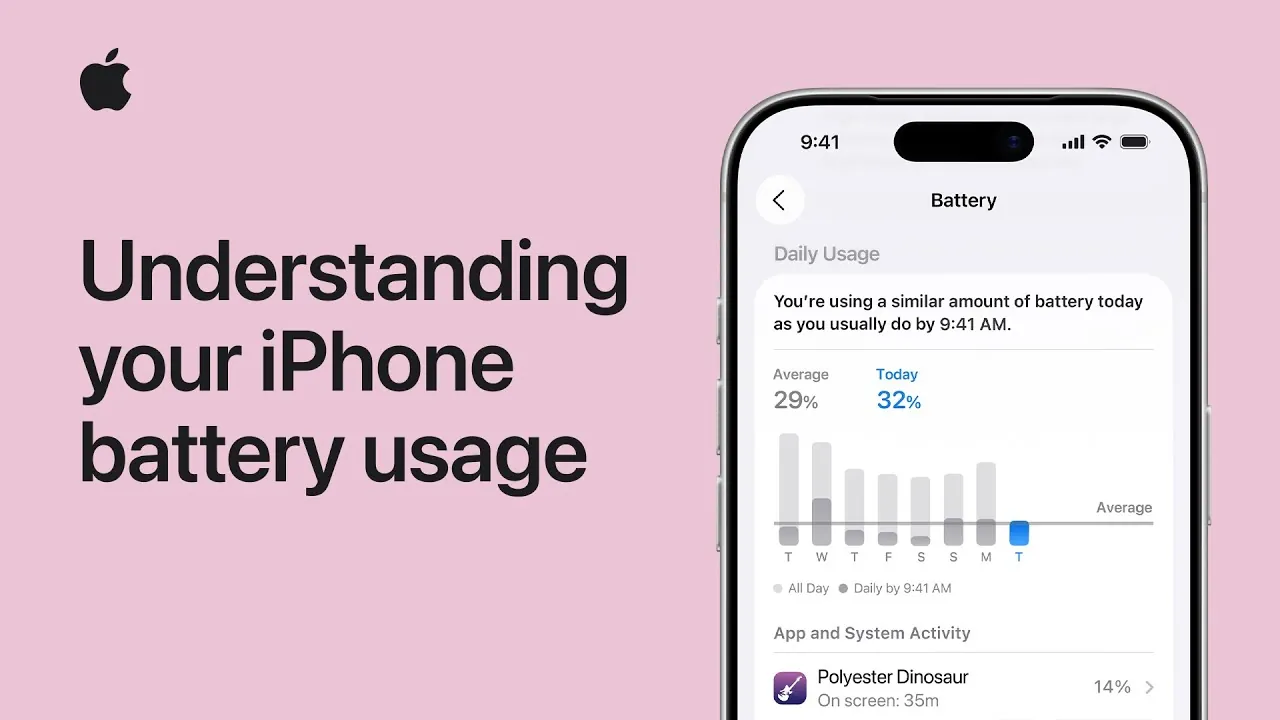
Maximizing your iPhone’s battery life requires a clear understanding of how your device consumes power and how to manage it effectively. Apple has equipped iOS with a suite of tools designed to help you monitor battery activity, interpret usage data, and implement strategies to extend battery performance. By using these features and adopting practical habits, you can ensure your device remains efficient and reliable throughout the day, even during heavy usage or extended periods without charging. The video below from Apple gives us more details.
How to Monitor Battery Usage
Your iPhone provides detailed insights into its power consumption, allowing you to make informed decisions about your usage. By navigating to Settings > Battery, you can access:
- A breakdown of daily and hourly battery usage, offering a clear picture of how your device consumes power over time.
- A ranked list of apps based on their energy consumption over the past 24 hours or seven days, helping you identify which apps are the most power-intensive.
- Screen-on and screen-off activity for each app, allowing you to analyze how different usage patterns impact battery life.
For example, you might discover that streaming video or playing games consumes significantly more power than browsing the web or sending messages. This data enables you to adjust your habits, such as limiting time spent on energy-intensive apps or closing them when not in use.
Wi-Fi vs. Cellular: The Impact on Battery Life
The type of network connection you use plays a critical role in battery consumption. Wi-Fi generally requires less power than cellular networks because it maintains a more stable connection with lower energy demands. Conversely, in areas with weak cellular signals, your iPhone works harder to maintain a connection, which can drain the battery faster. To conserve energy:
- Prioritize connecting to Wi-Fi networks whenever they are available, especially in areas with poor cellular reception.
- Enable Airplane Mode in locations with no cellular coverage to prevent your device from continuously searching for a signal.
By understanding the impact of network choices on battery life, you can make adjustments that significantly reduce power consumption, particularly during travel or in remote areas.
Understanding Battery Health
All batteries degrade over time, and iOS provides transparency about your iPhone’s battery condition through the Battery Health feature, accessible via Settings > Battery > Battery Health. Here, you can view:
- Your battery’s maximum capacity, which indicates its ability to hold a charge compared to when it was new. A lower percentage reflects natural wear and tear.
- Whether your battery supports peak performance or if performance management features have been applied due to aging.
If your battery health has declined significantly, iOS may recommend allowing Optimized Battery Charging, a feature designed to slow battery aging. This feature reduces the time your device spends fully charged by learning your charging habits and delaying full charging until just before you typically unplug your device, such as in the morning after overnight charging.
Features Designed to Extend Battery Life
iOS includes several built-in features to help you conserve battery life and manage power efficiently:
- Low Power Mode: This feature activates automatically when your battery level drops below 20%, reducing background activity such as app refresh, automatic downloads, and visual effects to conserve energy.
- Adaptive Power Mode: Dynamically adjusts your device’s performance based on your usage patterns, making sure that essential functions are maintained while optimizing energy consumption.
These features are particularly useful during long days when charging opportunities are limited or when you need to extend battery life in critical situations.
Proactive Power Notifications
iOS provides proactive notifications to help you manage your battery more effectively. For instance, if an app is consuming an unusually high amount of energy, you will receive an alert suggesting that you address the issue. These notifications allow you to take immediate action, such as closing the app, adjusting its settings, or limiting its background activity. By responding to these alerts, you can prevent unnecessary battery drain and maintain optimal performance throughout the day.
Practical Tips for Everyday Battery Optimization
In addition to using iOS features, adopting simple habits can significantly enhance your iPhone’s battery life. Consider the following tips:
- Lower your screen brightness manually or enable Auto-Brightness in Display settings to adjust brightness based on ambient light conditions.
- Turn off Background App Refresh for apps you rarely use, preventing them from consuming power when not actively in use.
- Disable Location Services for apps that do not require constant GPS access, reducing the energy demands of location tracking.
- Use Airplane Mode in areas with no cellular coverage to prevent your device from searching for a signal unnecessarily.
These small adjustments, when combined with iOS’s built-in tools, can make a noticeable difference in how long your battery lasts, making sure your device remains functional and reliable throughout the day.
Maximizing Battery Efficiency for Long-Term Use
Optimizing your iPhone’s battery life is a continuous process that involves monitoring usage, understanding patterns, and using the tools and features provided by iOS. By regularly accessing battery settings, analyzing app activity, and allowing features like Low Power Mode and Optimized Battery Charging, you can extend your device’s efficiency and longevity. Whether you’re managing daily tasks, traveling, or preparing for extended periods without access to a charger, these strategies empower you to get the most out of your iPhone’s battery, making sure it remains a dependable tool in your daily life.
Stay informed about the latest in iPhone battery optimization by exploring our other resources and articles.
- Maximize Your iPhone Battery Life with These Genius iOS 26 Hacks
- iOS 26 Settings You Should Change for Maximum Performance
- Why iOS 26 Causes Battery Drain and How to Fix It
- Drain No More: iOS 18 Battery Saving Hacks You Need to Know
- How to Stop iOS 18.5 Battery Drain
Source & Image Credit: Apple Support
Disclosure: Some of our articles include affiliate links. If you buy something through one of these links, Geeky Gadgets may earn an affiliate commission. Learn about our Disclosure Policy.
