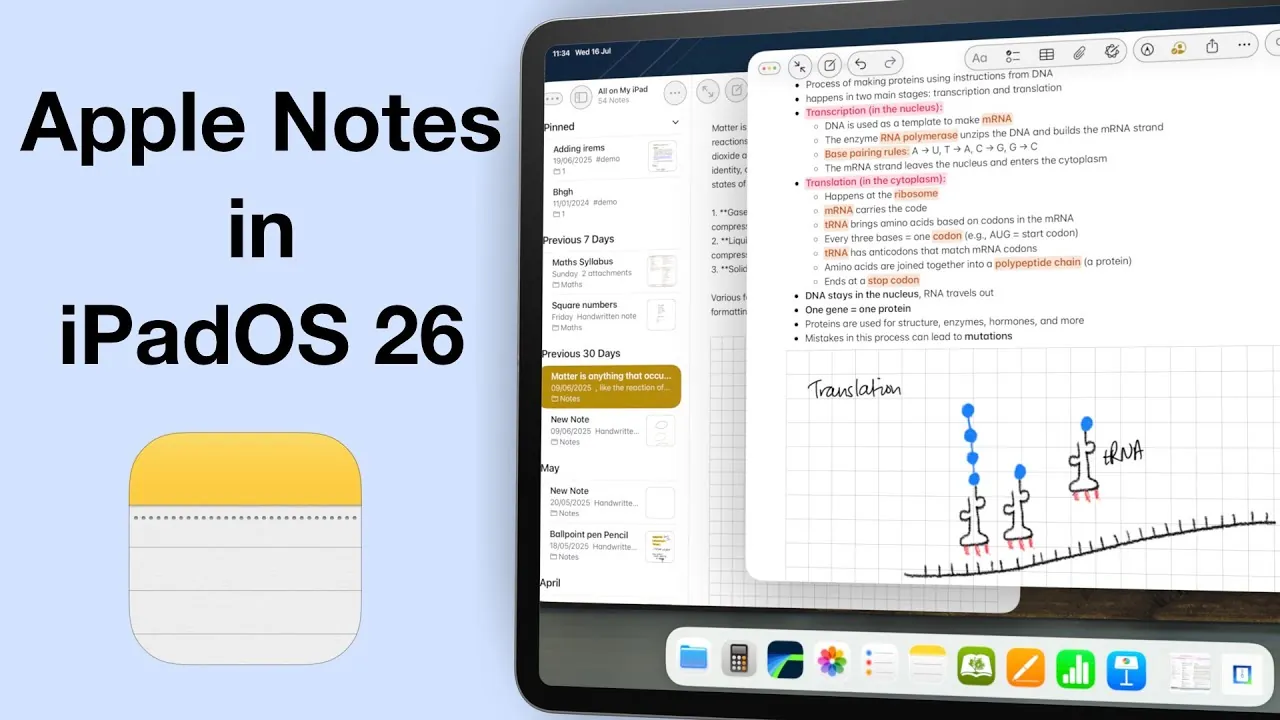
Have you ever updated an app, only to wonder if it actually made your life easier—or more complicated? That’s the question many Apple Notes users are asking after the release of iPadOS 26. With promises of enhanced functionality and a sleek new interface, the update initially seemed poised to elevate the app to new heights. But as users dig into the changes, a divide is emerging. While some praise the addition of features like Markdown export and right-to-left language support, others are frustrated by the removal of multitasking staples and the continued absence of critical tools like vector ink support. The result? A polarizing update that’s sparking debates about whether Apple Notes is evolving—or just spinning its wheels.
In this exploration of iPadOS 26’s impact on Apple Notes, Paperless X uncover the hidden potential and glaring pitfalls of the update. From the creative possibilities of the new calligraphy pen to the productivity roadblocks caused by multitasking changes, this deep dive will help you decide whether the update is a step forward or a stumble. Along the way, we’ll also highlight what’s still missing—features that could transform Apple Notes into a truly indispensable tool. Whether you’re a student, a professional, or a casual user, these insights will leave you questioning whether Apple’s latest tweaks align with your needs—or leave you longing for more.
Mixed Reactions to Apple Notes Update
TL;DR Key Takeaways :
- The iPadOS 26 update for Apple Notes introduces new features like a calligraphy pen, Markdown export, and right-to-left writing support, but their limited implementation reduces their overall impact.
- Key missing features, such as vector ink support, advanced text customization, and flexible table editing, continue to frustrate users seeking a more versatile note-taking tool.
- The redesigned user interface, including a MacOS-style menu bar and revamped sidebar, has divided opinions, with some users finding it cluttered and less intuitive on smaller screens.
- Multitasking functionality has taken a step backward, with the removal of multiple app instances and the intuitive drag-and-drop split view, negatively affecting productivity for power users.
- While the update aims to modernize Apple Notes, it prioritizes aesthetics over functionality, leaving many users disappointed and viewing it as a missed opportunity for meaningful improvements.
What’s Still Missing?
Despite the introduction of new features, Apple Notes continues to fall short in several critical areas, leaving users frustrated by its limitations.
- Vector Ink Support: The lack of vector ink remains a significant drawback. Without this feature, zooming in on handwritten notes results in pixelation, making it difficult to create precise diagrams or detailed annotations. This omission is particularly problematic for professionals and students who rely on clarity in their work.
- Limited Text Customization: Text formatting options remain minimal, with no ability to change font colors beyond the highlighter tool. This restricts your ability to visually organize information, making it harder to emphasize key points or create visually engaging notes.
- Rigid Table Editing: Tables in Apple Notes are still static, lacking the flexibility to easily adjust rows or columns. This outdated functionality limits the app’s utility for organizing data, especially for users who need dynamic layouts for tasks like project management or data analysis.
These missing features highlight a persistent gap between user expectations and the app’s capabilities, particularly for those seeking a more versatile note-taking tool.
User Interface: A Mixed Bag
The redesigned user interface in iPadOS 26 introduces both improvements and challenges, with changes that have divided user opinion.
- MacOS-Style Menu Bar: The addition of a MacOS-inspired menu bar and floating toolbar is intended to streamline navigation. However, on smaller iPad screens, the floating toolbar often obstructs your workspace, making it less intuitive and potentially disruptive to your workflow.
- Revamped Sidebar: The sidebar now features larger text for improved readability, but the overall design feels cluttered. The increased visual density can make it harder to focus on your notes, although the streamlined vertical pop-up menu offers a more organized browsing experience.
While these updates aim to modernize the interface, they often prioritize aesthetics over functionality, creating usability challenges for certain users.
iPadOS 26 Apple Notes Updates

Discover other guides from our vast content that could be of interest on iPadOS 26.
- iPadOS 26: The Massive Update That Changes Everything
- Why iPadOS 26 Makes the iPad Pro the Best Laptop Replacement
- iPadOS 26 Features: How Apple Transforms iPad Productivity
- iPadOS 26 Beta 1 Features, Updates, and Installation Tips
- How iPadOS 26 Improves iPad Performance and More
- iPadOS 18 vs. iPadOS 26: Key Differences and Upgrades
- iPadOS 26 Transforms the iPad into a Productivity Powerhouse
- Top 30 iPadOS 26 Updates That Redefine the iPad
- Hidden Features in iOS 26, macOS, and iPadOS You Can’t Miss
- iPadOS 26 Beta 3: Everything You Need to Know
New Features: Small Steps Forward
The iPadOS 26 update introduces several new features to Apple Notes, but their practical impact is limited by design choices that reduce their effectiveness.
- Calligraphy Pen: The addition of a calligraphy pen with adjustable stroke angles caters to creative users, offering a tool for artistic expression. However, its default thickness makes it less suitable for general note-taking, limiting its appeal to a niche audience.
- Markdown Export: The ability to export notes in Markdown format is a welcome improvement for users who need cross-platform compatibility. Unfortunately, the process involves saving files before exporting, adding unnecessary steps to what could be a more seamless workflow.
- Right-to-Left Writing Support: Support for right-to-left languages like Arabic and Hebrew addresses a long-standing need, making the app more inclusive for multilingual users. This feature is a meaningful addition for those who rely on these languages in their daily work.
While these features represent progress, their limited implementation reduces their overall impact, leaving room for further refinement.
Multitasking: A Step Backward
One of the most controversial aspects of the iPadOS 26 update is the overhaul of multitasking functionality, which has drawn significant criticism from users.
- Removal of Multiple App Instances: The ability to open multiple instances of Apple Notes has been removed, forcing users to work within a single instance. This change reduces flexibility, particularly for those managing multiple projects or tasks simultaneously.
- Drag-and-Drop Split View Replaced: The intuitive drag-and-drop split view has been replaced with a more cumbersome alternative. This change complicates workflows, making it harder to multitask efficiently and reducing productivity for users who rely on this feature.
These changes represent a step backward for multitasking, undermining the app’s appeal for professionals and power users who depend on efficient workflows.
Balancing Innovation and Practicality
The iPadOS 26 update for Apple Notes delivers a mix of new features and interface changes, but it struggles to meet the needs of its diverse user base. While additions like the calligraphy pen and Markdown export hint at progress, the update fails to address critical gaps such as vector ink support and flexible table editing. Furthermore, the removal of key multitasking features has sparked widespread frustration, particularly among users who rely on Apple Notes for professional or creative tasks.
For many, the update feels like a missed opportunity to transform Apple Notes into a truly powerful and versatile tool. While some users may appreciate the new features, the overall sentiment leans toward disappointment, as the update prioritizes aesthetic changes over practical functionality. Moving forward, addressing these shortcomings will be essential to restoring user confidence and enhancing the app’s utility.
Media Credit: Paperless X
Disclosure: Some of our articles include affiliate links. If you buy something through one of these links, Geeky Gadgets may earn an affiliate commission. Learn about our Disclosure Policy.
