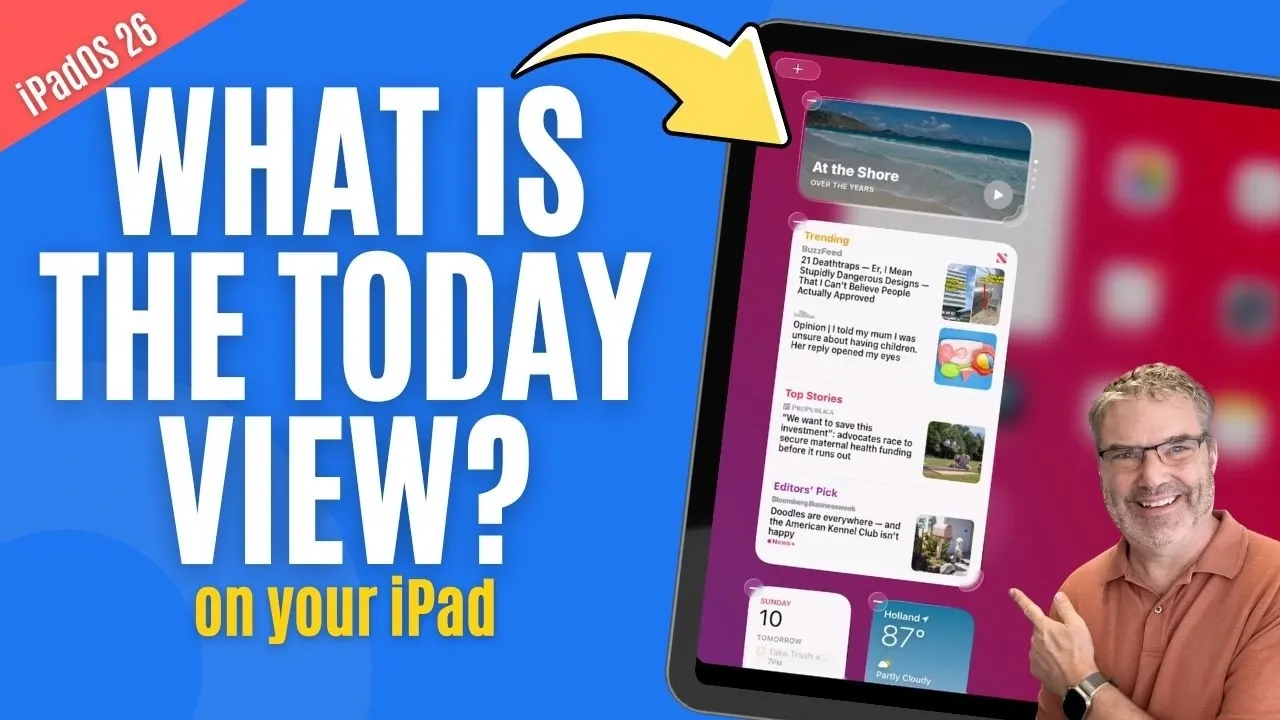
The iPad’s Today View offers a unique way to streamline your daily tasks by centralizing widgets and real-time updates in one customizable space. By simply swiping right from your home screen, you can access a hub that displays everything from calendar events to weather updates, all tailored to your specific needs. Dan’s Tutorials explores how features like widget resizing and content customization can help you create a layout that aligns with your workflow, making sure quick access to essential information without the need to jump between apps.
In this feature, you’ll discover how to rearrange widgets for better organization, add or remove them to declutter your space and adjust their size to maximize visibility. You’ll also learn how to edit widget content, such as selecting specific calendars or data sources, to ensure the information displayed is always relevant. Whether you’re looking to save time or enhance your productivity, these practical tips will help you make the most of Today View on your iPad.
What is Today View and How Do You Access It?
TL;DR Key Takeaways :
- Today View on the iPad centralizes widgets, offering quick access to real-time information and essential tools by swiping right from the home screen.
- Users can customize Today View by rearranging, adding, or removing widgets to create a tailored and efficient workspace.
- Widgets can be resized and their content customized to display specific information, enhancing usability and relevance.
- Today View boosts productivity by consolidating key tools and reducing the need to switch between apps, streamlining daily tasks.
- Optimizing Today View transforms the iPad into a personalized and efficient device, aligning with individual workflows and priorities.
Today View acts as a hub for widgets, offering at-a-glance updates and quick access to frequently used tools. To access it, swipe right from your iPad’s first home screen. Here, you’ll find widgets that display real-time information, such as calendar events, weather updates, reminders and more. Its intuitive design ensures you can quickly gather the information you need without opening multiple apps.
By centralizing these tools in one location, Today View enhances your ability to stay informed and organized. Whether you’re checking your schedule or monitoring live updates, this feature simplifies your workflow and saves time.
Customizing Widgets for a Tailored Experience
One of the standout features of Today View is its customization options, allowing you to adapt it to your unique preferences. Personalizing your widget layout is straightforward and ensures that the space remains relevant to your daily tasks. Here’s how you can customize your Today View:
- Rearranging Widgets: Long-press any widget to enter “jiggly mode.” Once activated, drag and drop widgets to rearrange their order based on your priorities.
- Adding Widgets: Tap the “+” icon in the upper-left corner of the screen, browse the available widgets and select the ones you want to include in Today View.
- Removing Widgets: Tap the “-” icon on any widget and confirm its removal to declutter your space.
This level of flexibility allows you to create a layout that aligns with your workflow, making sure that the most important tools are always within reach.
iPad Today View Guide

Deep dive into the latest in iPad by exploring our other resources and articles.
- Apple iPad 12th Gen 2026: Features, Specs, and Pricing
- M4 iPad Air Release Date, Features, and Pricing Explained
- 2026 iPad 12th Gen: Features, Specs, and Release Date
- 2026 iPad 12th Gen Release Date, Specs, and Rumors
- iPad 12th Generation 2026: Specs, Features, and Pricing
- iPad Mini 8 Release Date, Features, and Pricing Details
- Apple M4 iPad Air: Everything You Need to Know
- M4 iPad Air: What to Expect in Apple’s 2026 Model
- Apple 2026 iPad Lineup: Features, Specs, and Pricing
- Apple 2026 iPad: Features, Specs, and Pricing
Optimizing Widget Layout and Content
To maximize the utility of Today View, it’s essential to optimize both the layout and the content of your widgets. This involves resizing widgets and customizing the information they display.
- Resizing Widgets: Some widgets allow you to adjust their size for better visibility or to save space. Look for a handle in the lower-right corner of the widget and drag it to expand or shrink the widget to your preferred size. Keep in mind that resizing options vary depending on the widget’s design.
- Editing Widget Content: Beyond layout adjustments, you can fine-tune the content displayed by individual widgets. Long-press a widget (outside of “jiggly mode”) to access its editing options. For example, you can select specific calendars for a calendar widget or choose a preferred data source for a weather widget.
Experimenting with these settings ensures that your Today View is not only visually appealing but also highly functional, providing the precise information you need at a glance.
How Today View Enhances Productivity
Today View is more than just a collection of widgets, it’s a centralized hub designed to improve your iPad’s usability and efficiency. By consolidating key tools and information in one place, it reduces the need to switch between apps, saving you time and effort. This streamlined approach helps you stay focused and organized, whether you’re managing your schedule, tracking tasks, or monitoring live updates.
The ability to customize and optimize Today View ensures that it adapts to your unique needs, making it an indispensable feature for anyone looking to enhance their productivity. By tailoring the layout and content, you can create a space that reflects your priorities and simplifies your daily routine.
Maximizing the Benefits of Today View
Today View transforms your iPad into a more personalized and efficient device. By customizing widgets, resizing them and tailoring their content, you can create a space that aligns perfectly with your workflow. Its centralized access and intuitive design make it easier to stay productive, organized and informed.
If you haven’t explored Today View yet, now is the ideal time to unlock its full potential. With just a few adjustments, you can turn your iPad into a powerful tool that works smarter for you, helping you achieve your goals with greater ease and efficiency.
Media Credit: Dan’s Tutorials
Disclosure: Some of our articles include affiliate links. If you buy something through one of these links, Geeky Gadgets may earn an affiliate commission. Learn about our Disclosure Policy.
